CoderFunda
  • Home
  • About us
    • Contact Us
    • Disclaimer
    • Privacy Policy
    • About us
  • Home
  • Php
  • HTML
  • CSS
  • JavaScript
    • JavaScript
    • Jquery
    • JqueryUI
    • Stock
  • SQL
  • Vue.Js
  • Python
  • Wordpress
  • C++
    • C++
    • C
  • Laravel
    • Laravel
      • Overview
      • Namespaces
      • Middleware
      • Routing
      • Configuration
      • Application Structure
      • Installation
    • Overview
  • DBMS
    • DBMS
      • PL/SQL
      • SQLite
      • MongoDB
      • Cassandra
      • MySQL
      • Oracle
      • CouchDB
      • Neo4j
      • DB2
      • Quiz
    • Overview
  • Entertainment
    • TV Series Update
    • Movie Review
    • Movie Review
  • More
    • Vue. Js
    • Php Question
    • Php Interview Question
    • Laravel Interview Question
    • SQL Interview Question
    • IAS Interview Question
    • PCS Interview Question
    • Technology
    • Other

28 March, 2022

WordPress Comments

 Programing Coderfunda     March 28, 2022     Wordpress     No comments   


WordPress Comments

Comments allow a user to interact with the blogger or website team. It helps in many ways, like you'll get to know what your viewers want from you. What else you can do for your viewers. You can activate or deactivate comment box. Comments are by default enabled.


Discussion or Comment Setting Page

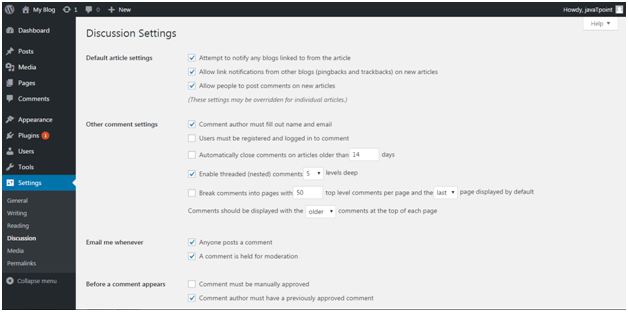
Click on Settings > Discussions

You will be on Discussion Settings page.
Wordpress Wordpress comment1

Look at the above snapshot, there are many default options.

First part is for Default article settings, applies to all your pages, posts, etc.


How to Enable or Disable Comment

Go to Pages > All Pages

Select any one of the page you want to add comment.
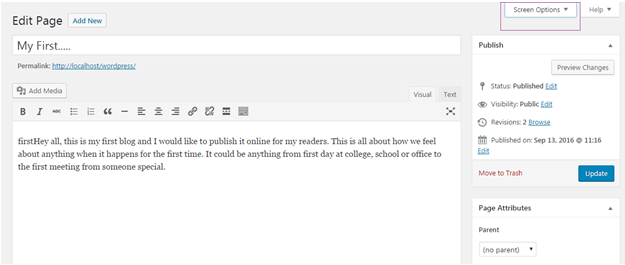
Wordpress Wordpress comment2

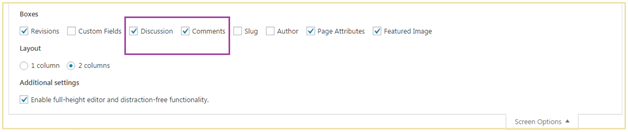
Look at the above snapshot, on the top right, there is a drop-down option. Click it.
Wordpress Wordpress comment3

Look at the above snapshot, check the Discussions and Comments box.
Wordpress Wordpress comment4

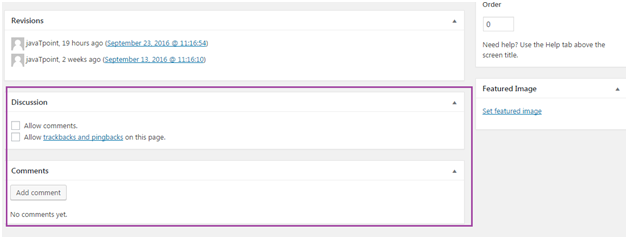
Look at the above snapshot, there are two checkboxes,

Allow comments - Allow your viewers to add comment on your post.

Allow trackbacks and pingbacks on this page - Viewers can ping and trackback.

Lastly click on Update button to update your post.


How to Edit Comment

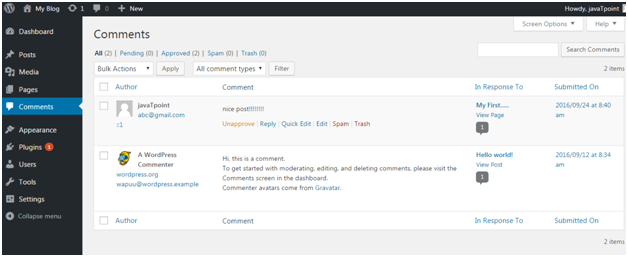
To edit comments, go to Comments side menu,
Wordpress Wordpress comment5

Look at the above snapshot, this is the comment page. Select a comment and click Edit.
Wordpress Wordpress comment6

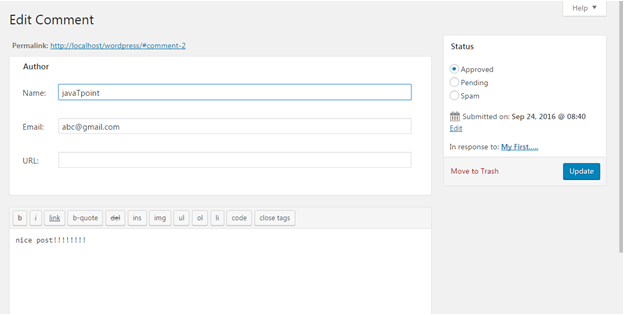
Look at the above snapshot, you can edit the comment here and then click Update.


What is Moderate Comment

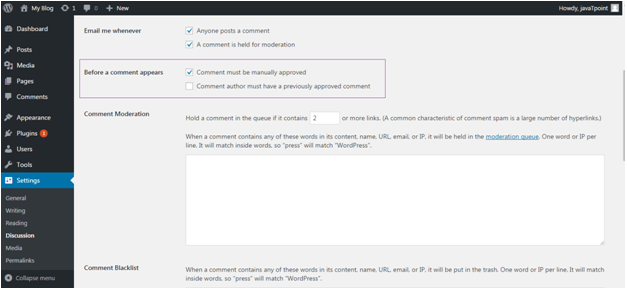
Comments by the visitors on a post are not published directly unless it is approved by the admin. This is called Moderation. You can change comment moderation settings. Go to Settings > Discussions

When you'll scroll down the page little bit, you'll see following option.
Wordpress Wordpress comment7

Look at the above snapshot, check the option Comment must be manually approved.


How to allow only registered users to Comment

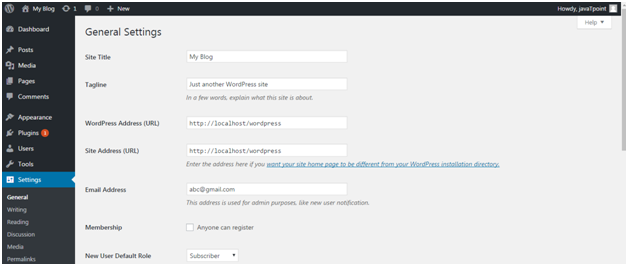
You can allow only registered users to comment on your post. For that, go to Settings > General

Following page will appear.
Wordpress Wordpress comment8

Look at the above snapshot, check the box Anyone can register.

And if you don't want a new user to write post on your site then save the column New user Default Role as Subscriber.

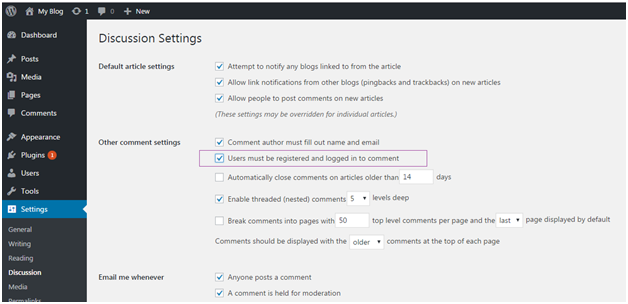
Now go to Settings > Discussions
Wordpress Wordpress comment9

Look at the above snapshot, check the box Users must be registered and logged in to comment.


How to Receive Notification for Comment

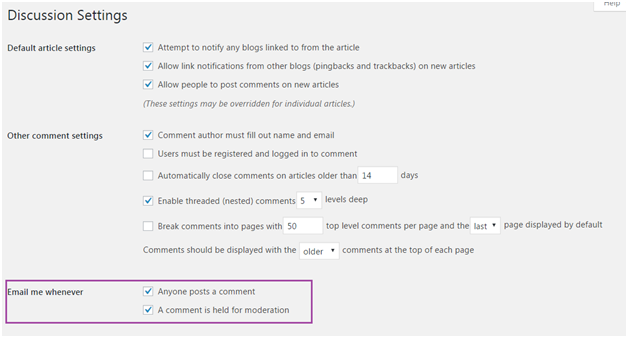
You can receive a notification whenever someone leaves a comment on your site or waiting to be approved.

You will not receive a notification for a comment marked as spam.

To receive notifications, go to Settings > Discussions
Wordpress Wordpress comment10

Look at the above snapshot, check the boxes under Email me Whenever to enable notifications.


What is Avatar or Gravatar

Word Avatar is used for user's profile image in online communications. Gravatar is a web based service which allows its users to use avatar image. When a user creates an account in WordPress, it searches for gravatar image matching user's email address. If user has a gravatar account with an image then this image is displayed as their profile pictures in comments and if not then default avatar image is set.

The default image in WordPress is Mystery Man. You can change it by clicking on Settings > Discussions
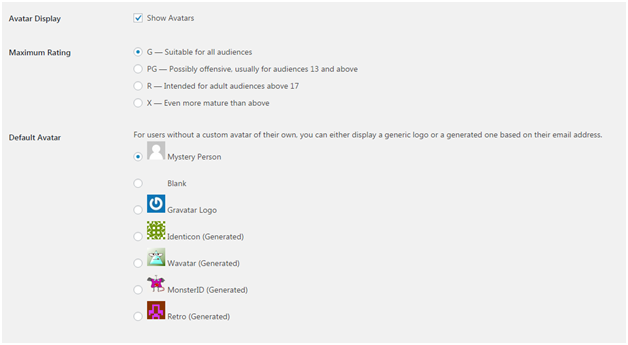
Wordpress Wordpress comment11

Look at the above snapshot, by unchecking Show Avatars, Avatar image will not be there in your website.

Default images can be selected from mystery man and blank image. Other images are selected using algorithms that generate an image based on user's email address.
Read More
  • Share This:  
  •  Facebook
  •  Twitter
  •  Google+
  •  Stumble
  •  Digg

WordPress posts vs pages

 Programing Coderfunda     March 28, 2022     Wordpress     No comments   


WordPress posts vs pages

Post and page appears to be same on the dashboard as both are used to add content on your site. People get confused in their usage.

Pages are static. Then don't change frequently. Some examples of pages are contact us, about us, introduction, etc.

Posts are what you make an update on your post. They need to change very frequently as they need to keep your site fresh and attractive for your users.


Posts

Posts are the site content which are published on a site with an exact date and time. They can be categorized in a systematic way on the basis of category and tags. If you are a blogger, then you'll write posts to update your new blog. They are listed in a reverse chronological order on a site.

They generally consist of informational topics related to education, news, regular activities, feminism or any other topic. The content frequently changes for the end user as new posts are updated regularly. As the post gets older, a user has to dig inside to find it.

Posts have the commenting feature, which can be turned on or off. It allows discussion on your blog if you have turned on the commenting.

As posts are published timely, they made up the RSS content of your blog. Your users will be notified about your most recent posts via RSS feeds.


Pages

Pages are static and not changed frequently such as contact us, about us, privacy policy, etc. They don't have date and time published, however, database stores the published date or time of the page.

They are not included in RSS feeds as they don't have date and time published on the page.

They are neither listed by date nor can be categorized by the category and tags. They can make a hierarchy by nesting pages under each other making one of them the parent page.

They are not social, hence they don't have the commenting option.


Read More
  • Share This:  
  •  Facebook
  •  Twitter
  •  Google+
  •  Stumble
  •  Digg

WordPress Pages

 Programing Coderfunda     March 28, 2022     Wordpress     No comments   


WordPress Pages

Pages are different from Posts. They are static and they do not change often. Some examples of pages are About, Contact, etc. you can add pages containing information about you and your site.

Wordpress Wordpress pages1

How to Add New Page

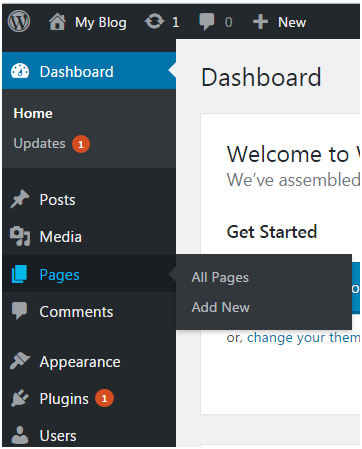
Go to Pages > Add New

Wordpress Wordpress pages2

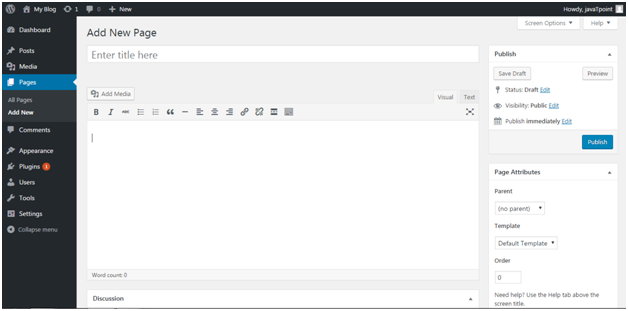
Look at the above snapshot, this is the editorial page where you can give a title and content to your page.

Here you can upload media, write content, add a title to your page. Click on Publish button once you have completed the page.


How to Edit Page

To edit page, go to Pages > Add New

Wordpress Wordpress pages3

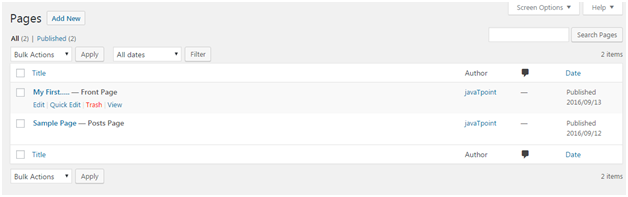
Look at the above snapshot, this is the list of all the created posts. Bring your mouse above a post, following options will appear.

There are two options to edit. One is Edit and other one is Quick Edit.

On clicking Edit, following page will appear.

Wordpress Wordpress pages4

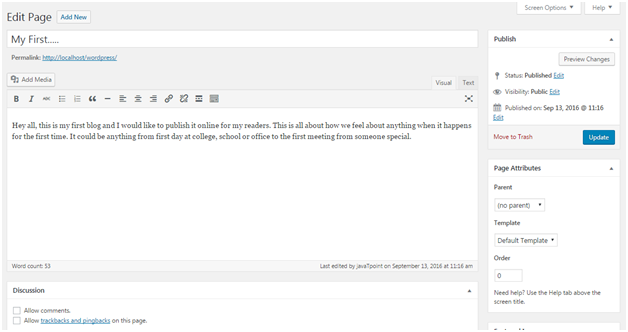
Look at the above snapshot, here you can edit title or content of your post.

On clicking Quick Edit, following page will appear.

Wordpress Wordpress pages5

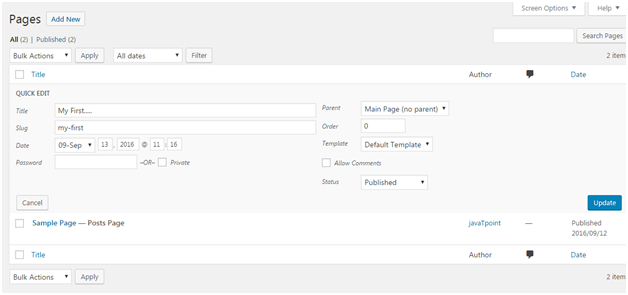
Look at the above snapshot, here you can edit title, date and slug of your post. And if want, you can also change category for your post.


How to Delete a Page

To delete a post, go to Posts > All Pages

Wordpress Wordpress pages6

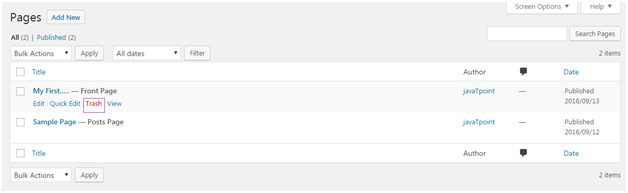
Look at the above snapshot, Trash option will let you delete the respective post.


Read More
  • Share This:  
  •  Facebook
  •  Twitter
  •  Google+
  •  Stumble
  •  Digg

WordPress Posts

 Programing Coderfunda     March 28, 2022     Wordpress     No comments   


WordPress Posts

Posts allow you to write a blog and post it on your site. They are listed in reverse chronological order in front page of your blog.

Wordpress Post1

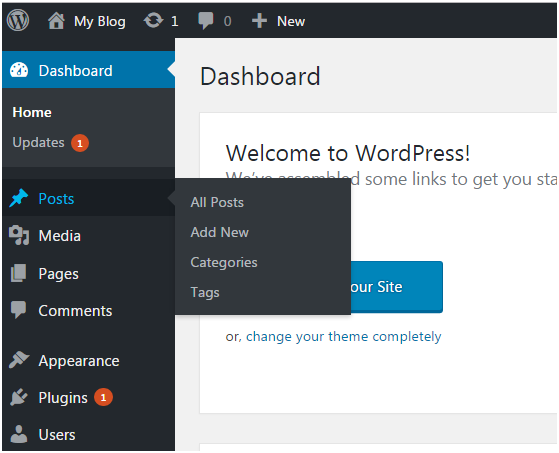
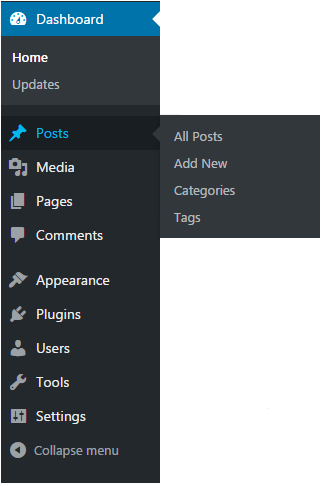
Look at the above snapshot, these are the sub-menus of posts.


How to Adding new Post

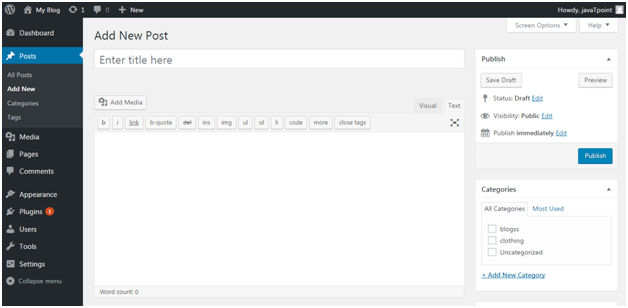
Go to Posts > Add New.

Wordpress Post2

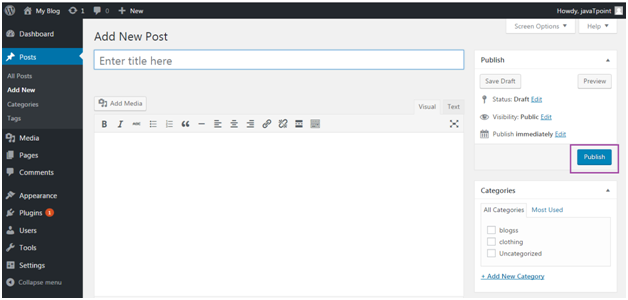
Look at the above snapshot, editor page will appear in front of you. There are two fields,

Title - Enter the title of your post

Content - Here you have to write content of your post.

In Visual mode, you can write in normal format.

In Text mode, you can write in HTML format.

Preview - This button allows you to have a look on your post before publishing it.


How to Publishing Post

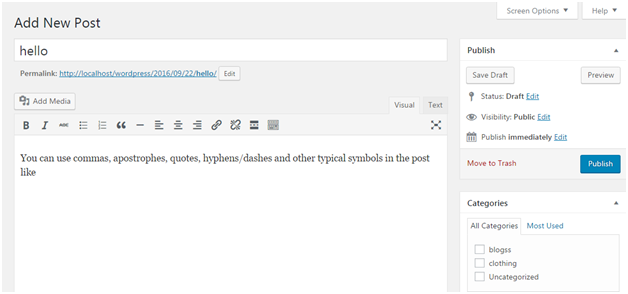
After filling above two fields click on Publish button. It means you are ready to publish your blog on your site.

Wordpress Post3

Look at the above snapshot, there are some other options available in publish section.

Preview Post/Preview - Let you see a preview of your post before publishing it

Permalink - It stands for permanent link. It contains a user-friendly post name derived from post title. This can be edited using "Edit" button.

Save Draft - A post can be saved here

Status - Let you change the status of your post to Pending and Draft.

Visibility - Change visibility to Public, Password protected and Private.

Publish - Change the post publish date and time


How to Edit Post

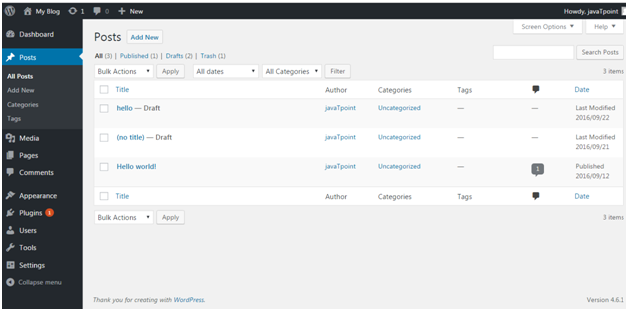
To edit post, go to Posts > All Posts.

Wordpress Post4

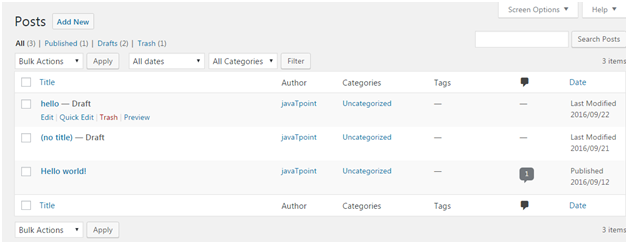
Look at the above snapshot, this is the list of all the created posts. Bring your mouse above a post, following options will appear.

Wordpress Post5

Look at the above snapshot, there are two options to edit. One is Edit and other one is Quick Edit.

On clicking Edit, following page will appear.

Wordpress Post6

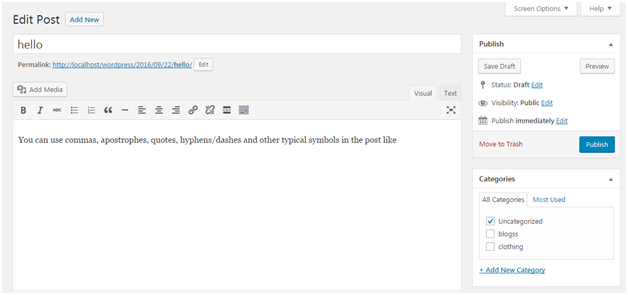
Look at the above snapshot, here you can edit title or content of your post.

On clicking Quick Edit, following page will appear.

Wordpress Post7

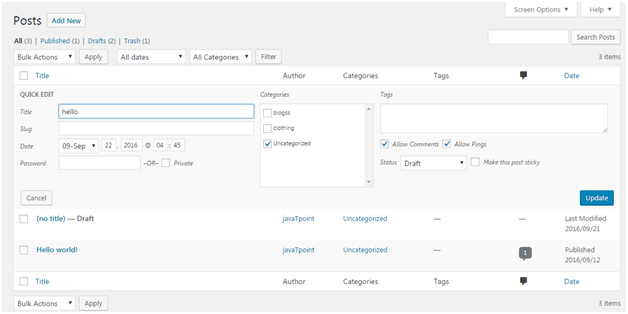
Look at the above snapshot, here you can edit title, date and slug of your post. And if want, you can also change category for your post.


How to Deleting a Post

To delete a post, go to Posts > All Posts

Wordpress Post8

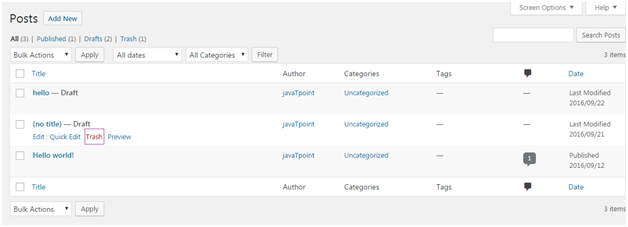
Look at the above snapshot, Trash option will let you delete the respective post.


How to Preview Post

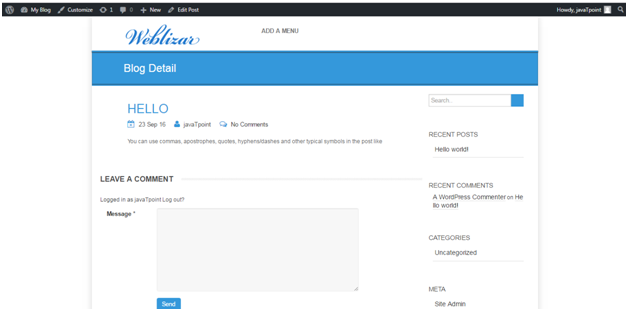
Preview option helps to see you your post before publishing it to the public. It is better to have a look on your post that how it looks before publishing it to the world.

Go to Posts > All Posts

Wordpress Post9

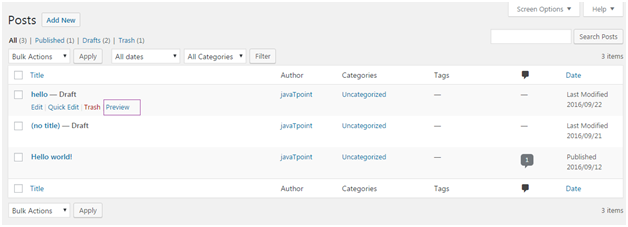
Look at the above snapshot, on clocking Preview, following page will appear.

Wordpress Post10

Look at the above snapshpot, this is the preview of our post. It gives you an idea whether your post need an edit or not.


How to Publish Post

From Publish button you can make your post available to your viewers.

Go to Posts > Add New

Wordpress Post11

Look at the above snapshot, after writing your post click on Publish button. And your post will be published publically.

Read More
  • Share This:  
  •  Facebook
  •  Twitter
  •  Google+
  •  Stumble
  •  Digg

How to create a WordPress website

 Programing Coderfunda     March 28, 2022     Wordpress     No comments   


How to create a WordPress website

Creating a site on WordPress is very easy. WordPress is designed in such a way that even non-tech users can also design their own websites easily and attractively.

Here, we'll discuss each and every step involved in creating a WordPress site.

  • Selecting a right platform
  • Choosing a domain name and host
  • Choosing a theme/template
  • Creating new pages
  • Adding Content
  • Adding Media
  • Installing plugins

Selecting a right platform

First you have to decide a suitable platform to build your website with. Here platform means either you want to create your website using HTML, CSS or using a CMS (Content Management Systems).

There are various popular CMS in the market like WordPress, Drupal, Joomla, DotNetNuke, etc.

Why choosing WordPress

For a beginner WordPress will be the best as it doesn't need any technical skills and due to its flexibility it is suited for all type of users.

You'll get a lot of options to select a theme as a wide range of community design themes for WordPress. It can handle any type of website whether large or small. Most known websites like CNN, NASA, eBay use WordPress.

Above all, it gives you a responsive site which makes it compatible with small screen devices like mobile phones and tablets.

Shared hosting is best choice for beginners. You can later upgrade your site's hosting according to the site's traffic.


Choosing a domain name and host

You need a domain name and a hosting space to get your website online.

Domain name enables you to give your site your own name while hosting gives a space to your site on a server which makes sure your website loads quickly and won't go down for hours.

Domain name should be short and easy to remember, brand able and catchy which defines your business.

Choosing a domain name is not easy with fulfilling all the criteria as million of domain names are active.


Choosing a theme/template

After installing WordPress, a site appears very plain. To make it more attractive, users install best suitable themes for their site. It adds visuals and views to the front page.

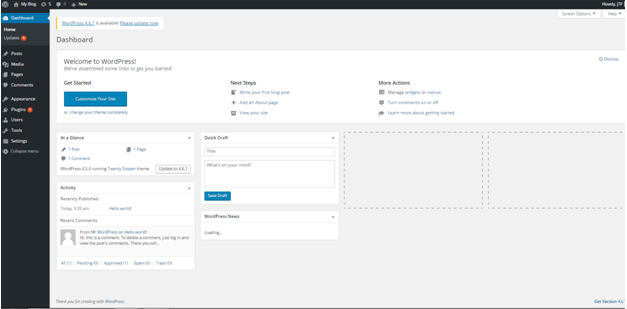
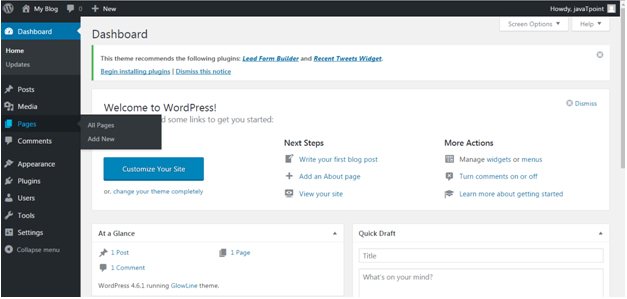
First of all, login to your WordPress site. By default, first screen will be your dashboard.

Wordpress How to create a wordpress site1

Accessing Free themes

After login, you'll get access for 150 free themes.

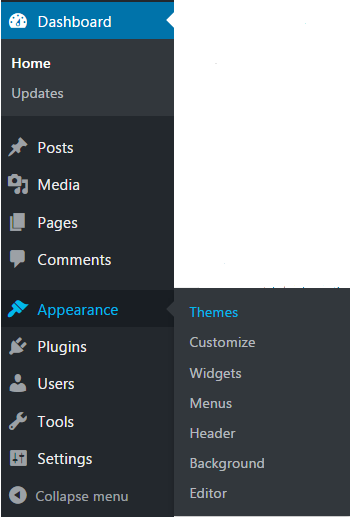
Wordpress How to create a wordpress site2

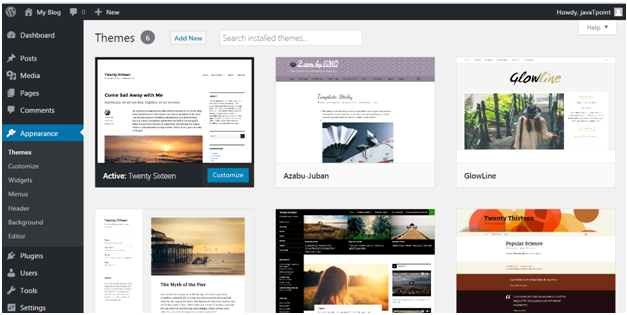
Look at the above snapshot, to look at the free themes, got the side bar menu of your dashboard, select Appearance >Themes.

Below screen will appear including all the installed themes.

Wordpress How to create a wordpress site3

Look at the above snapshot, if you want to install more themes click on Add New button above and install it.

To install a theme, click on Install followed by Activate button.


Creating new pages

Wordpress How to create a wordpress site4

Look at the above snapshot, go the sidebar menu, click Pages > Add New option.


Adding Content

Wordpress How to create a wordpress site5

Adding new post

At the end we all will come to this point to make our site popular. We need to post different things to increase the popularity of our site.

Wordpress How to create a wordpress site6

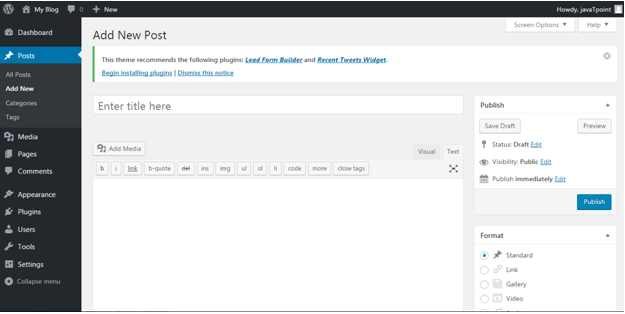
Clicking on Post > Add New option, the above page will appear on the screen.

There are two ways to write a post, either you may write in Visual editor or in Text editor (in HTML format). Currently this snapshot is of Text editor.

Adding Categories

You can divide your content in different categories by adding categories to them. This tool is handy when you are publishing content for more than one field.

Wordpress How to create a wordpress site7

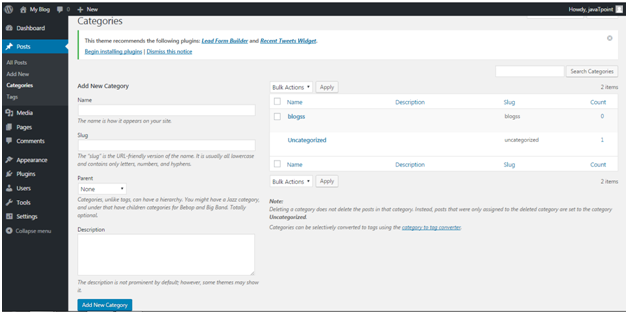
Click on Posts > Categories, you will be directed to the above page.

Here, in Name add a title to your new category. In Slug, you can add some words which will become part of URL while searching.

Tags

Tags are very much similar to Categories with only one difference that each post has its own set of tags.

Enabling or Disabling Comment

Comment creates a debate on some posts or sites. Some users don't want their visitors to comment. They can shut comment off in WordPress.

Wordpress How to create a wordpress site8

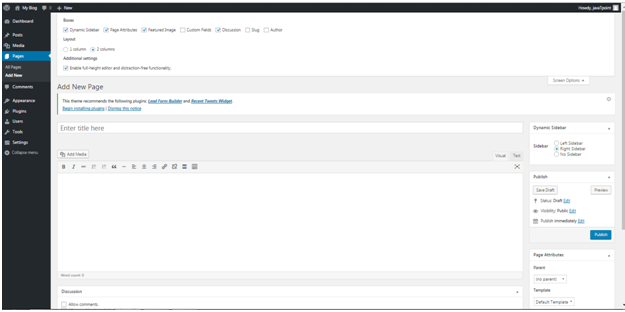
To disable a comment for a particular page

  • Go to Pages > Add New
  • Click on Screen Options on top right
  • Tick on Discussions box
  • Scroll down, untick Allow Comments option
  • To disable a comment by default

    Wordpress How to create a wordpress site9
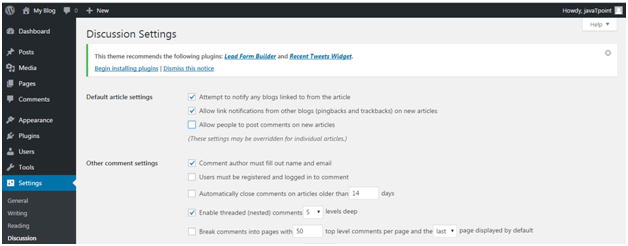
  • Go to Settings > Discussions
  • Untick "Allow people to post comments on new articles"

Editing sidebar

Sidebar which generally appears on the right side (sometimes appears on left) contains widgets like Archives, Categories and Meta, etc.

To edit the side bar, go to Appearance > Widgets

Use drag n drop method to either use a widget or remove a widget.

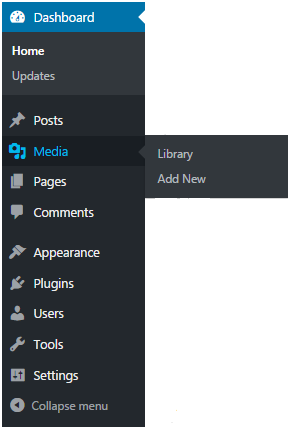
Adding Media

Wordpress How to create a wordpress site10

Every website needs some photos and videos to describe its content and value. WordPress also provide functionality to add a media. You can add image caption, title and description along with media. Also add alt text helps search engine to identify the image.


Installing plugins

Plugins are the extensions in the WordPress with certain piece of coding expanding specific function to you site. They are not built-in.

There are almost 25,000 different plugins options to choose from.

Installation a plugin is very simple. Click Plugins. You will see three options, as shown in the snapshot below.

Wordpress How to create a wordpress site11

Click on Plugins > Add New. Following screen will appear in front of you.

Wordpress How to create a wordpress site12

You can choose a plugin from the given options. Just click Install Now and you will be able to use it.


Read More
  • Share This:  
  •  Facebook
  •  Twitter
  •  Google+
  •  Stumble
  •  Digg
Newer Posts Older Posts Home

Meta

Popular Posts

  • Generate Migrations from an Existing Database With the Migration Generator Package
    Laravel Migration Generator Migration Generator for Laravel is a package by Bennett Treptow to generate migrations from existing database ...
  • Tailwindcss best practices for responsive design
    Tailwind CSS provides powerful utilities for responsive design out of the box. To use it effectively and maintain clean, scalable code, here...
  • Search Through Models with Laravel Searchable
      Laravel Searchable   is a package by   Spatie   to search through models and other sources pragmatically. Using this package, you can get ...
  • Laravel Razorpay Integration | Payment gateway integration Laravel in 30 mins | Laravel Razorpay
    1 Integration of Razorpay with Laravel. In this tutorial, I have taught how to integrate payment gateway with laravel with mini-project. If...
  • Vue.js Render functions
        Vue.js Render functions Vue.js recommends us to use templates to build HTML. Here, we can use the render function as a closer-to-the-co...

Categories

  • Ajax (26)
  • Bootstrap (30)
  • DBMS (42)
  • HTML (12)
  • HTML5 (45)
  • JavaScript (10)
  • Jquery (34)
  • Jquery UI (2)
  • JqueryUI (32)
  • Laravel (1017)
  • Laravel Tutorials (23)
  • Laravel-Question (6)
  • Magento (9)
  • Magento 2 (95)
  • MariaDB (1)
  • MySql Tutorial (2)
  • PHP-Interview-Questions (3)
  • Php Question (13)
  • Python (36)
  • RDBMS (13)
  • SQL Tutorial (79)
  • Vue.js Tutorial (69)
  • Wordpress (150)
  • Wordpress Theme (3)
  • codeigniter (108)
  • oops (4)
  • php (853)

Social Media Links

  • Follow on Twitter
  • Like on Facebook
  • Subscribe on Youtube
  • Follow on Instagram

Pages

  • Home
  • Contact Us
  • Privacy Policy
  • About us

Blog Archive

  • ▼  2026 (3)
    • ▼  07/26 - 08/02 (2)
      • A stormwater pond in Calgary appears filled with P...
      • Inside Kriti Sanon's duplex sea-facing penthouse w...
    • ►  06/28 - 07/05 (1)
  • ►  2025 (4)
    • ►  07/06 - 07/13 (2)
    • ►  06/29 - 07/06 (2)
  • ►  2024 (486)
    • ►  09/15 - 09/22 (30)
    • ►  09/08 - 09/15 (35)
    • ►  09/01 - 09/08 (35)
    • ►  08/11 - 08/18 (2)
    • ►  08/04 - 08/11 (33)
    • ►  07/28 - 08/04 (30)
    • ►  07/07 - 07/14 (11)
    • ►  06/30 - 07/07 (35)
    • ►  06/23 - 06/30 (5)
    • ►  06/02 - 06/09 (31)
    • ►  05/26 - 06/02 (20)
    • ►  05/05 - 05/12 (29)
    • ►  04/28 - 05/05 (26)
    • ►  04/07 - 04/14 (10)
    • ►  03/31 - 04/07 (34)
    • ►  03/24 - 03/31 (10)
    • ►  03/03 - 03/10 (35)
    • ►  02/25 - 03/03 (15)
    • ►  02/04 - 02/11 (22)
    • ►  01/28 - 02/04 (30)
    • ►  01/07 - 01/14 (8)
  • ►  2023 (484)
    • ►  12/31 - 01/07 (35)
    • ►  12/24 - 12/31 (10)
    • ►  12/03 - 12/10 (33)
    • ►  11/26 - 12/03 (20)
    • ►  11/05 - 11/12 (35)
    • ►  10/29 - 11/05 (20)
    • ►  10/22 - 10/29 (9)
    • ►  10/15 - 10/22 (7)
    • ►  10/08 - 10/15 (9)
    • ►  10/01 - 10/08 (10)
    • ►  09/24 - 10/01 (9)
    • ►  09/17 - 09/24 (9)
    • ►  09/10 - 09/17 (7)
    • ►  09/03 - 09/10 (9)
    • ►  08/27 - 09/03 (9)
    • ►  08/20 - 08/27 (8)
    • ►  08/13 - 08/20 (8)
    • ►  08/06 - 08/13 (8)
    • ►  07/30 - 08/06 (8)
    • ►  07/23 - 07/30 (7)
    • ►  07/16 - 07/23 (8)
    • ►  07/09 - 07/16 (7)
    • ►  07/02 - 07/09 (8)
    • ►  06/25 - 07/02 (7)
    • ►  06/18 - 06/25 (7)
    • ►  06/11 - 06/18 (7)
    • ►  06/04 - 06/11 (11)
    • ►  05/28 - 06/04 (7)
    • ►  05/21 - 05/28 (8)
    • ►  05/14 - 05/21 (11)
    • ►  05/07 - 05/14 (7)
    • ►  04/30 - 05/07 (7)
    • ►  04/23 - 04/30 (8)
    • ►  04/16 - 04/23 (9)
    • ►  04/09 - 04/16 (7)
    • ►  04/02 - 04/09 (4)
    • ►  03/26 - 04/02 (21)
    • ►  03/19 - 03/26 (2)
    • ►  03/12 - 03/19 (9)
    • ►  03/05 - 03/12 (26)
    • ►  02/26 - 03/05 (25)
    • ►  01/15 - 01/22 (7)
    • ►  01/08 - 01/15 (1)
  • ►  2022 (1037)
    • ►  12/11 - 12/18 (13)
    • ►  12/04 - 12/11 (1)
    • ►  11/27 - 12/04 (40)
    • ►  11/06 - 11/13 (1)
    • ►  10/16 - 10/23 (13)
    • ►  09/04 - 09/11 (5)
    • ►  08/21 - 08/28 (24)
    • ►  08/14 - 08/21 (24)
    • ►  07/03 - 07/10 (9)
    • ►  06/19 - 06/26 (3)
    • ►  05/29 - 06/05 (3)
    • ►  05/22 - 05/29 (3)
    • ►  05/15 - 05/22 (109)
    • ►  05/01 - 05/08 (7)
    • ►  04/24 - 05/01 (7)
    • ►  04/17 - 04/24 (64)
    • ►  04/10 - 04/17 (115)
    • ►  04/03 - 04/10 (73)
    • ►  03/27 - 04/03 (77)
    • ►  03/13 - 03/20 (2)
    • ►  03/06 - 03/13 (25)
    • ►  02/27 - 03/06 (18)
    • ►  02/20 - 02/27 (153)
    • ►  02/13 - 02/20 (187)
    • ►  01/30 - 02/06 (45)
    • ►  01/23 - 01/30 (15)
    • ►  01/16 - 01/23 (1)
  • ►  2021 (412)
    • ►  10/24 - 10/31 (2)
    • ►  07/25 - 08/01 (1)
    • ►  07/11 - 07/18 (10)
    • ►  06/13 - 06/20 (29)
    • ►  05/23 - 05/30 (1)
    • ►  05/02 - 05/09 (24)
    • ►  04/25 - 05/02 (24)
    • ►  04/18 - 04/25 (112)
    • ►  04/11 - 04/18 (1)
    • ►  04/04 - 04/11 (6)
    • ►  03/28 - 04/04 (86)
    • ►  03/21 - 03/28 (19)
    • ►  03/14 - 03/21 (2)
    • ►  03/07 - 03/14 (10)
    • ►  02/28 - 03/07 (1)
    • ►  02/21 - 02/28 (29)
    • ►  02/14 - 02/21 (13)
    • ►  02/07 - 02/14 (12)
    • ►  01/31 - 02/07 (6)
    • ►  01/17 - 01/24 (2)
    • ►  01/10 - 01/17 (8)
    • ►  01/03 - 01/10 (14)
  • ►  2020 (376)
    • ►  12/27 - 01/03 (37)
    • ►  12/20 - 12/27 (92)
    • ►  12/13 - 12/20 (29)
    • ►  12/06 - 12/13 (37)
    • ►  11/29 - 12/06 (4)
    • ►  11/15 - 11/22 (14)
    • ►  11/08 - 11/15 (8)
    • ►  11/01 - 11/08 (2)
    • ►  10/18 - 10/25 (14)
    • ►  10/11 - 10/18 (16)
    • ►  10/04 - 10/11 (10)
    • ►  09/20 - 09/27 (10)
    • ►  09/06 - 09/13 (19)
    • ►  08/30 - 09/06 (26)
    • ►  08/23 - 08/30 (4)
    • ►  08/16 - 08/23 (2)
    • ►  07/12 - 07/19 (48)
    • ►  05/17 - 05/24 (2)
    • ►  01/05 - 01/12 (2)
  • ►  2019 (74)
    • ►  07/07 - 07/14 (6)
    • ►  06/16 - 06/23 (6)
    • ►  02/10 - 02/17 (17)
    • ►  01/13 - 01/20 (37)
    • ►  01/06 - 01/13 (8)
  • ►  2018 (376)
    • ►  12/30 - 01/06 (24)
    • ►  12/16 - 12/23 (8)
    • ►  12/09 - 12/16 (98)
    • ►  12/02 - 12/09 (16)
    • ►  11/18 - 11/25 (36)
    • ►  11/04 - 11/11 (18)
    • ►  10/28 - 11/04 (10)
    • ►  10/21 - 10/28 (26)
    • ►  10/14 - 10/21 (52)
    • ►  10/07 - 10/14 (4)
    • ►  09/30 - 10/07 (2)
    • ►  09/23 - 09/30 (68)
    • ►  09/16 - 09/23 (4)
    • ►  09/09 - 09/16 (4)
    • ►  08/26 - 09/02 (6)

Data Publish News

Loading...

Al Jazeera – Breaking News, World News and Video from Al Jazeera

Loading...

Laravel News

Loading...

Copyright © CoderFunda | Powered by Blogger
Design by Coderfunda | Blogger Theme by Coderfunda | Distributed By Coderfunda