CoderFunda
  • Home
  • About us
    • Contact Us
    • Disclaimer
    • Privacy Policy
    • About us
  • Home
  • Php
  • HTML
  • CSS
  • JavaScript
    • JavaScript
    • Jquery
    • JqueryUI
    • Stock
  • SQL
  • Vue.Js
  • Python
  • Wordpress
  • C++
    • C++
    • C
  • Laravel
    • Laravel
      • Overview
      • Namespaces
      • Middleware
      • Routing
      • Configuration
      • Application Structure
      • Installation
    • Overview
  • DBMS
    • DBMS
      • PL/SQL
      • SQLite
      • MongoDB
      • Cassandra
      • MySQL
      • Oracle
      • CouchDB
      • Neo4j
      • DB2
      • Quiz
    • Overview
  • Entertainment
    • TV Series Update
    • Movie Review
    • Movie Review
  • More
    • Vue. Js
    • Php Question
    • Php Interview Question
    • Laravel Interview Question
    • SQL Interview Question
    • IAS Interview Question
    • PCS Interview Question
    • Technology
    • Other

28 March, 2022

WordPress Dashboard

 Programing Coderfunda     March 28, 2022     Wordpress     No comments   


WordPress Dashboard

WordPress Dashboard allows full access to manage a website behind the scenes. It is the default page in admin panel which comes right after the login page. It mainly represents everything that is happening with your blog. You can check everything here related to your post. It gives you the updates about your website. If you want to change your password or change any type of setting this is the place where you need to come.

All the content of dashboard is grouped into widgets. You can be hide/show these widgets as per your requirement. Their positions can also be changed using drag and drop action.
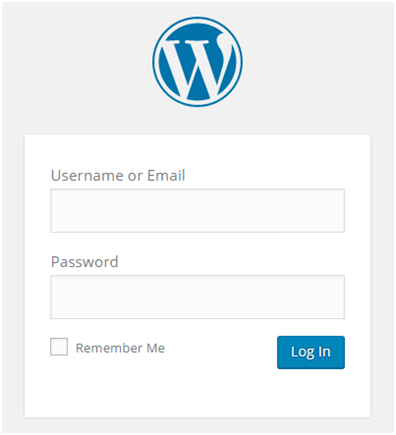
Wordpress Dashboard1

Look at the above snapshot, this is the login page for WordPress. After filling information click on Log In button, you will be directed to Dashboard screen which is shown below.
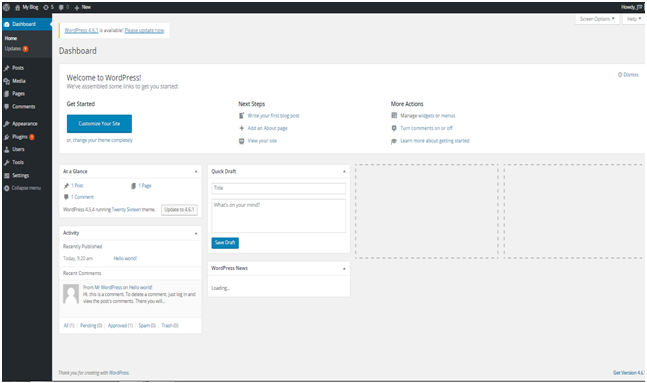
Wordpress Dashboard2

The above snapshot is the dashboard of WordPress.

We'll explain following points from the dashboard.

  • Admin bar
  • Sidebar Menu
  • Welcome to WordPress
  • At a Glance
  • Activity
  • Quick Draft
  • WordPress News
  • Screen Options

Admin Bar

The black bar at the top represents admin bar. It only displays when admin is logged in. That's why this is called admin bar.

Wordpress Dashboard3

Look at the above snapshot, this is the admin bar displayed at our account.

It contains the following items:

  • A WordPress icon - It contains information about WordPress, WordPress.org, documentation, etc.
  • Home of your site - It brings you to the Home page of your site
  • Notifications - All the notifications will be shown here. We have 5 notifications here.
  • Comments - Display comments on your blog where you can edit, reply or delete a comment.
  • New - You can add up a new page, post, media or user.
  • Admin name - It is displayed at the right end of the admin bar showing logged in user name (currently logged in user name is JTP). You can edit your profile and Logout from here.

Sidebar Menu
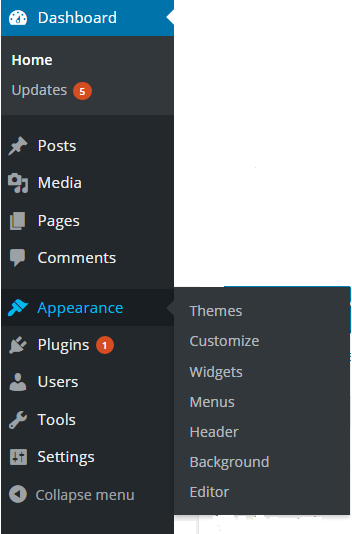
Wordpress Dashboard4

Look at the above snapshot, it is the side menu of the dashboard which contains full menu of options. These options allow easy access to different areas of your site.

A sub-menu list may appear on selecting an option. Like here we have shown sub-menu list of Appearance.


Menu content:

Dashboard - Display received updates

Posts - Manage posts on your blog

Media - Manage media content library like images, audio and video

Pages - creating and managing pages

Comments - display all the comments on your blog

Appearance - change the appearance of your site

Plugins - extend capabilities of the website and manage them

Users - shows all your site's users. Allows editing your site by changing password and name

Tools - setting of website


Welcome to WordPress
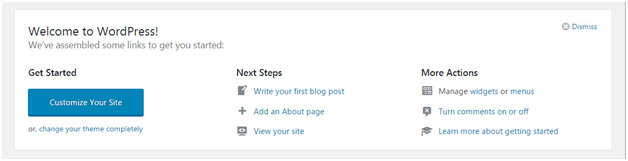
Wordpress Dashboard5

This is displayed at the top middle of the dashboard. There is a button to customize your site using different themes. It contains different links to create blog, view your site and many more as shown above.

There is an option at the top right corner to remove this widget. If you want to remove it you can. But if you want it back, click on screen options drop-down menu.


At a Glance
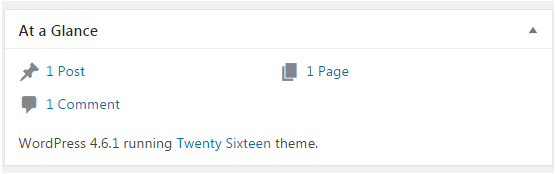
Wordpress Dashboard6

You can have a look on how many posts, pages and comments are there in your site. These comments also include spammed comments. It tells about which theme is currently running on your site.

It also tells about some additional information if some plugins are installed.


Activity

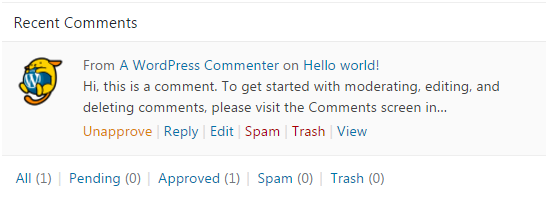
This widget provides you information about some of your recent posts. It displays the recent comment on your post.
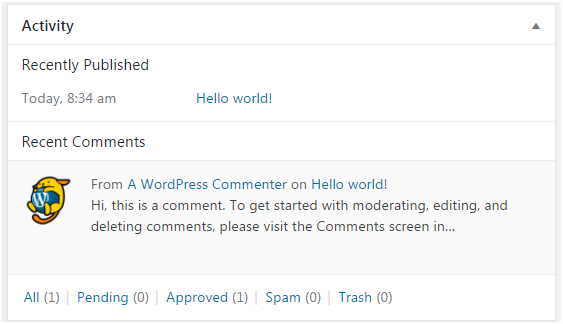
Wordpress Dashboard7

Look at the above snapshot, there is one recent comment in our activity widget.

On doing hover with mouse at a comment, different actions appear below the comment like editing, deleting, replying, etc.
Wordpress Dashboard8

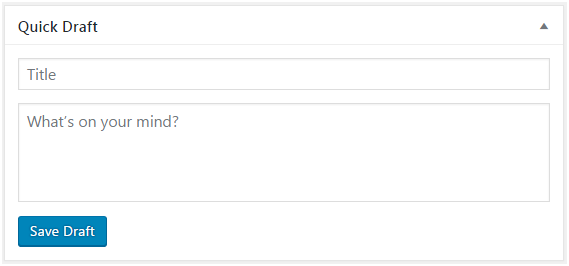
Quick Draft

Wordpress Dashboard9

Quick draft widget is a way through which you can write your ideas and save it in a draft form. Later you can write a blog on it.


WordPress News
Wordpress Dashboard10

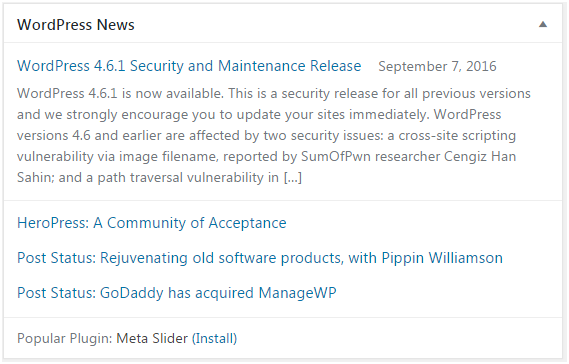
This widget displays latest blog posts from the WordPress official blogs. Look at the top right corner if you'll click on this arrow, this widget will hide.


Screen Options

Wordpress Dashboard11

As you already know each of the widget can be enabled and disabled in your dashboard area. To do so, there is Screen Options widget which allows you to enable or disable different widgets.

You can also minimize or drag a widget according to your need.

Read More
  • Share This:  
  •  Facebook
  •  Twitter
  •  Google+
  •  Stumble
  •  Digg

WordPress Installation using MS Webmatrix

 Programing Coderfunda     March 28, 2022     Wordpress     No comments   

WordPress Installation using MS Webmatrix

Webmatrix is a free and lightweight software tool launched by Windows to download different applications. This software is only for Window users. It is very easy to download WordPress from Webmatrix. You can create a website on WordPress using Webmatrix very easily.


Steps to install WordPress

  • Download and Install Webmatrix
  • Open installed Webmatrix
  • Opening App Gallery
  • Choosing Web Application
  • Selecting Database
  • Selecting Password and admin name
  • Start Insatallation
  • Installation complete
  • Running site first time
  • Entering information

Download and Install Webmatrix

Download Webmatrix in your system with the following link

Wordpress Webmatrix1

Look at the above snapshot, you will see this type of file getting downloaded. This is a file with .exe extension.

On opening this file, you'll be directed to the following window.

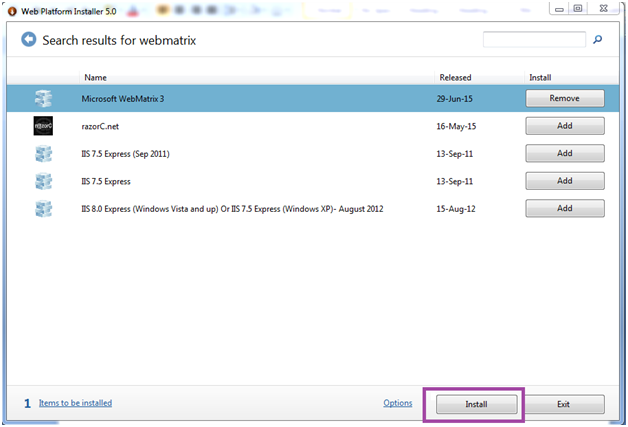
Wordpress Webmatrix2

Look at the above snapshot, on the top right search for Webmatrix. Now, click on add button in front of Microsoft Webmatrix 3. This button will be converted into Remove icon. Now click on install.

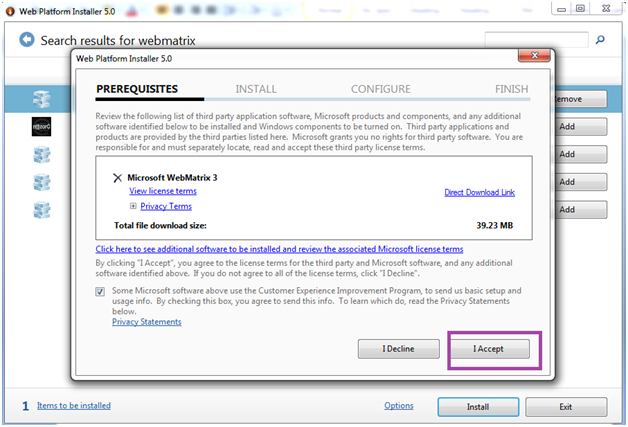
Wordpress Webmatrix3

Look at the above snapshot, click on I agree to start installation.

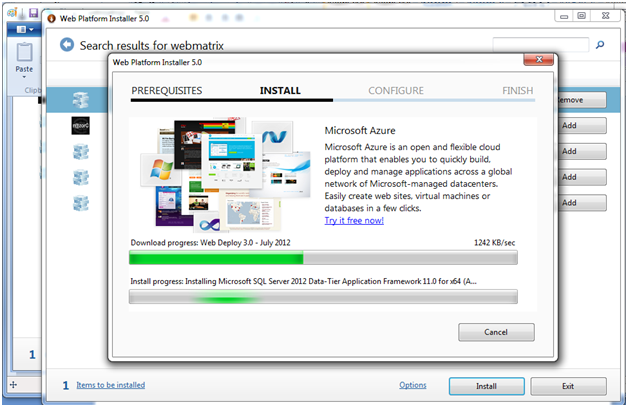
Wordpress Webmatrix4

Look at the above snapshot, all the servers are getting installed.

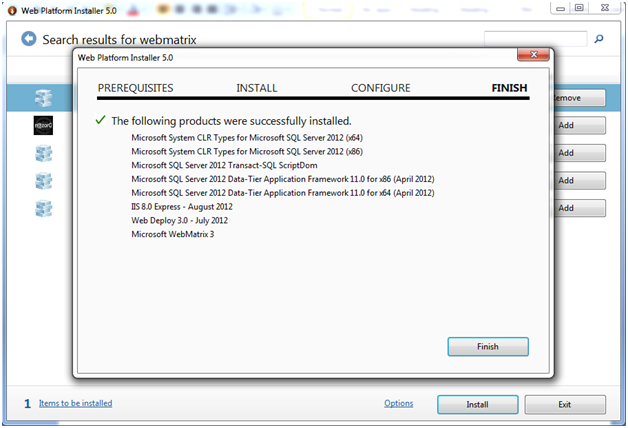
Wordpress Webmatrix5

Look at the above snapshot, we have successfully installed Webmatrix on our system with above mentioned applications.


Open Quick Start Webmatrix

Once you have downloaded Webmatrix, open it on your system to install WordPress.

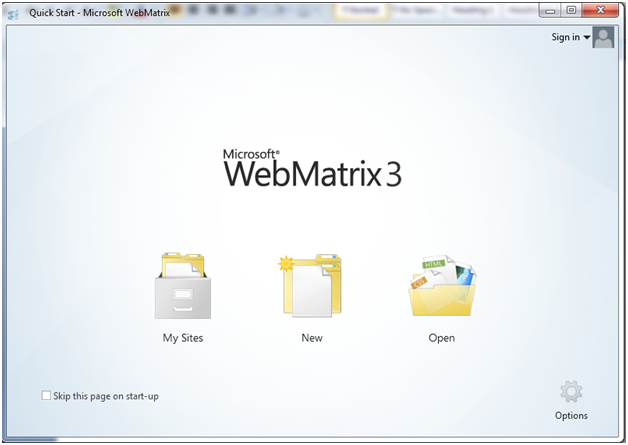
Wordpress Webmatrix6

Look at the above snapshot, the above window is the Quick Start page.

Click on New, you'll be directed to the following page.

Note: If you don't want this page to appear every time, click on the check-box.


Opening App Gallery

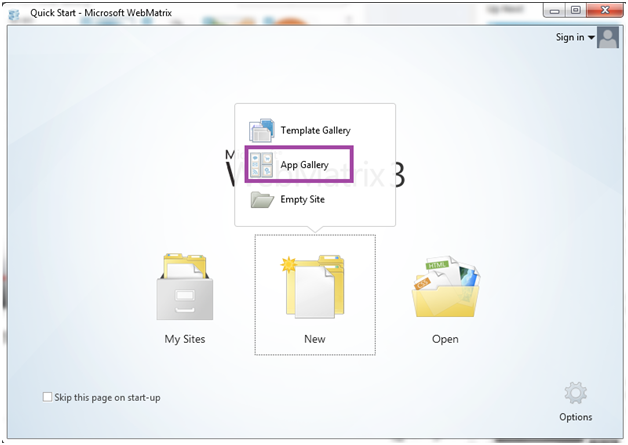
There are three options displayed. You have to go to App Gallery which will provide you a lot of options to create a website.

Wordpress Webmatrix7

Look at the above snapshot, on clicking New, three options generated out of which you have to select App Gallery.


Choosing Web Application

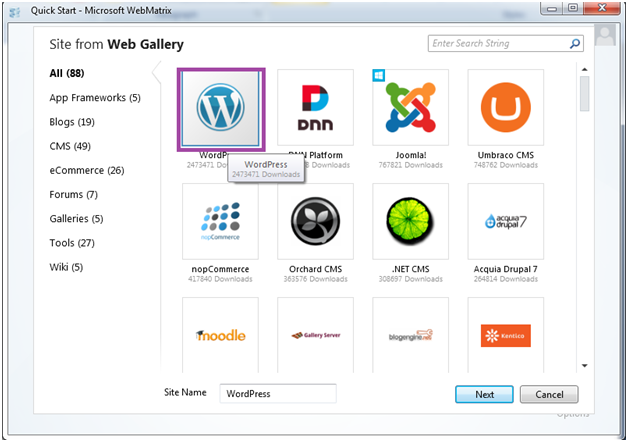
Here, we have to choose WodPress application.

Wordpress Webmatrix8

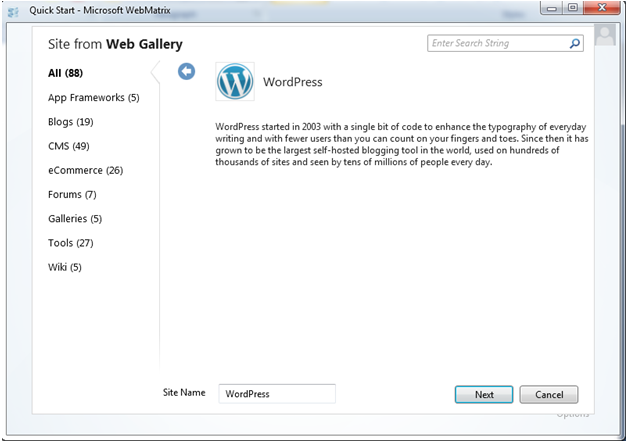
Look at the above snapshot, these are the applications which Microsoft Webmatrix offers. Select WordPress from this and click on Next.

Wordpress Webmatrix9

This page will appear, again click on Next.


Selecting Database

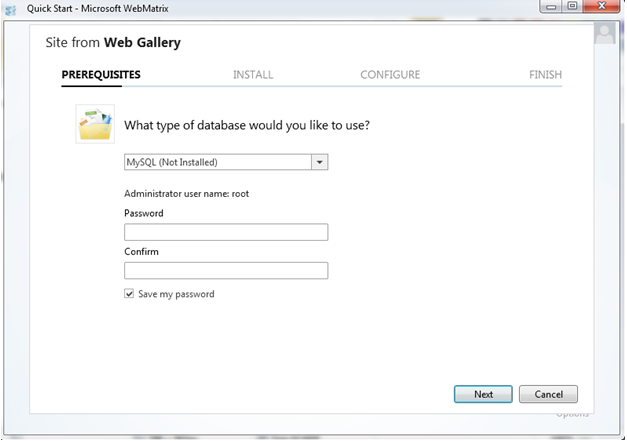
We need to select database. By default, WordPress is only compatible with MySQL. If MySQL is not installed on your system, Webmatrix will install it.

Wordpress Webmatrix10

Look at the above snapshot, by default Webmatrix selects MySQL database.


Selecting Password and admin name

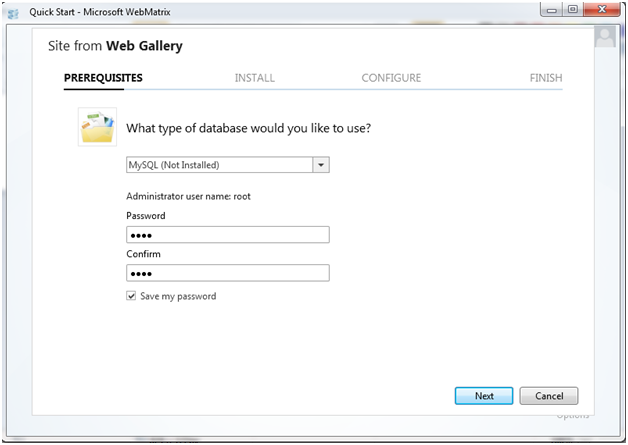
Here, default administrator name will be root. You can type any Password, but remember the admin name and password.

Wordpress Webmatrix11

Start Insatallation

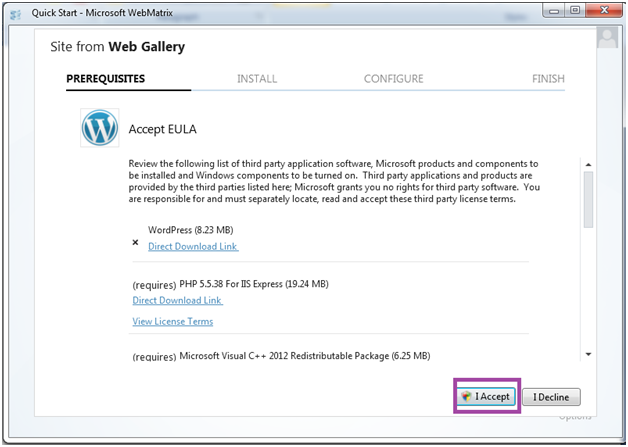
This page will display you all the applications required to be installed with the WordPress. All the software will be installed by itself, you don't have to do anything.

Wordpress Webmatrix12

Look at the above snapshot, after accepting EULA (End User License Agreement), installation begins.

If your Internet connection is good, then your installation will approximately take 1-2 minutes.


Installation complete

Wordpress Webmatrix13

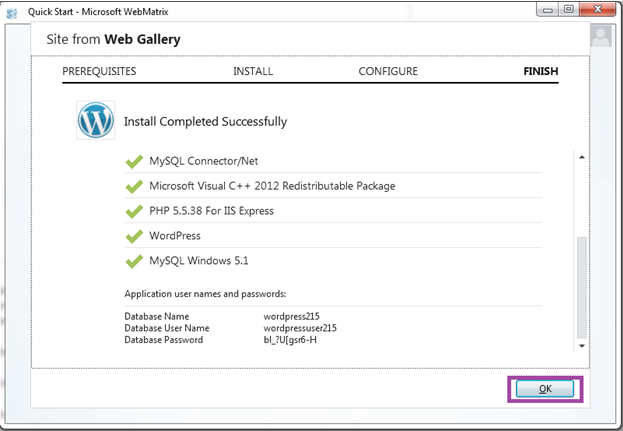
Look at the above snapshot, installation is complete. It shows the list of the applications which we have installed just now.

It also shows user name and password


Running site first time

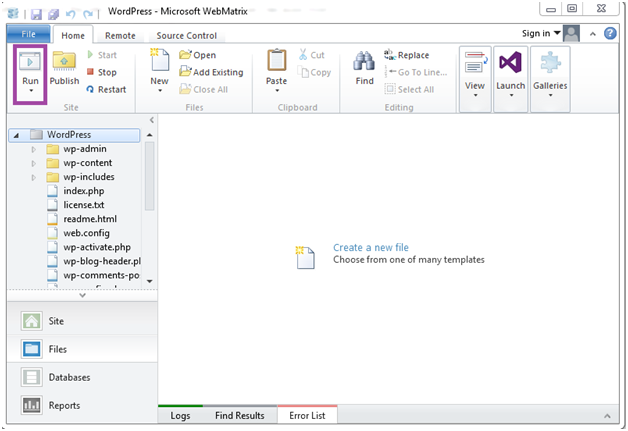
After finishing installation, workspace appears in Webmatrix site. In the Webmatrix ribbon click on Run.

Wordpress Webmatrix14

Look at the above snapshot, after clicking on Run button, you have to select language.


Entering information

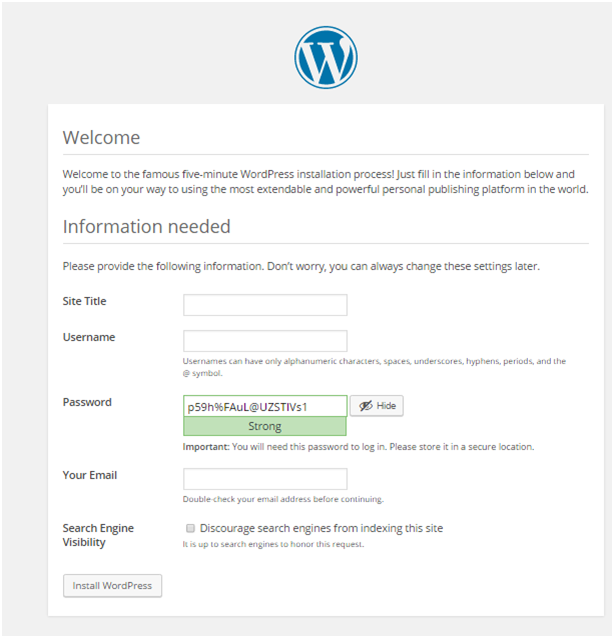
After selecting language, you have to enter further information about your site.

Wordpress Webmatrix15

Look at the above snapshot, in above information you can fill anything as per your wish.

If you will not provide a password, it will automatically generate a password for you.

Wordpress Webmatrix16

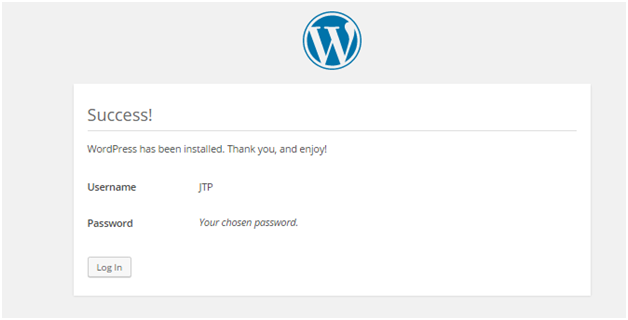
Look at the above snapshot, it shows successfully installed WordPress with username as JTP and a password.

Note: If a username and password will not be provided, then by default username will be admin and password will be generated itself.

Read More
  • Share This:  
  •  Facebook
  •  Twitter
  •  Google+
  •  Stumble
  •  Digg

Installing WordPess on local server

 Programing Coderfunda     March 28, 2022     Wordpress     No comments   


Installing WordPess on local server

WordPress can be installed using local servers like XAMPP, WAMPP, etc. We?ll assume that your system already has installed a local server.

We have XAMPP server installed in our system. Now, we?ll see the installation of WordPress.


Creating Database

Open phpmyadmin from the XAMPP server control panel.

Here, at the top you can see option Databases. Select it.

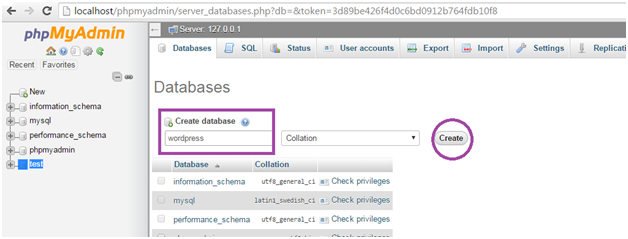
Look at the above snapshot, click on the Databases above to create a database. You'll be directed to the next window.

Wordpress Local server2

Look at the above snapshot, you have to create a database to connect with your WordPress. You can name it anything. Here, we have named it as wordpress. Write the database name and click on Create.


Download and Install WordPress

First you have to download the latest version of WordPress from the official WordPress site www.wordpress.org in your system.

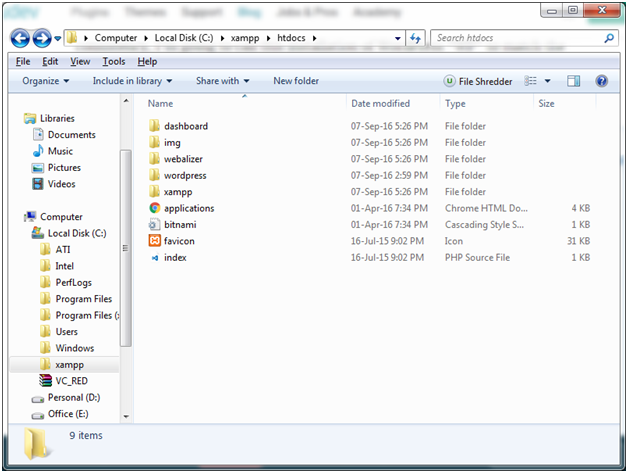
WordPress will be downloaded in zipped format. This WordPress zipped folder has to be placed in XAMPP folder C:/xampp/htdocs

Unzip the WordPress folder here and name it anything. Here, we have named it as wordpress.

Wordpress Local server3

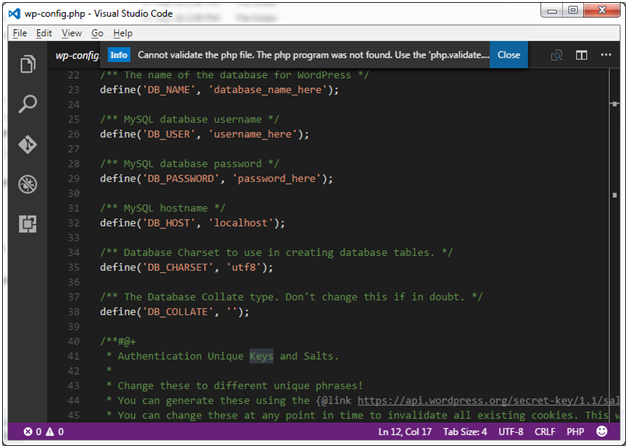
Open the created wordpress folder. In the folder, find the file wp-config-sample.php file and rename it as wp-config.php file. Scroll down the file untill line number 23 as shown in the below snapshot.

Wordpress Local server4

These lines define the login credentials for your database.

  • Replace "database_name_here" with your database name. In our case it is "wordpress".
  • Replace "username _here" with your "root".
  • "password_here" field will remain blank.
  • Save and close the file.

Now, open your browser and go to http://localhost/wordpress/


Here, wordpress is the folder name of unzipped WordPress file.

Wordpress Local server5

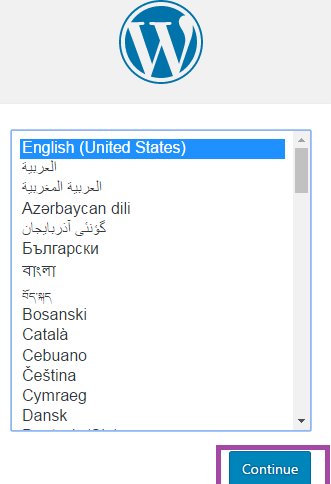
Look at the above snapshot, select your language and click the Continue button.

You'll be directed to the following page.

Wordpress Local server6

Look at the above snapshot, you have to fill all the details in the fields above and then click Install button.

That's all, you have installed WordPress.

Wordpress Local server7

If all the above processes are done correctly then you?ll be successfully logged in the WordPress as shown in the above snapshot.


Read More
  • Share This:  
  •  Facebook
  •  Twitter
  •  Google+
  •  Stumble
  •  Digg

Installing WordPress

 Programing Coderfunda     March 28, 2022     Wordpress     No comments   


Installing WordPress

Installing WordPress is very easy and takes less than five minutes to complete. It is best known for its ease of installation. All web hosting companies allow WordPress installation within few clicks.

There are different methods to install WordPress on a system.


Methods to install WordPress

Using cPanel

This is the fastest and easiest way to install WordPress on your system using cPanel software. The most common tools available to automatically install WordPress are Softaculous, SimpleScripts, Fantastico and De Luxe. All the web hosts allow one-click installation through these tools.

You only have to choose one WordPress host and use installation script in cPanel. You will get your login details and URL link of cPanel via email after signing up for hosting plan.

Using MS Webmatrix

There is a free software program named Microsoft Webmatrix which allows WordPress installation on local system. But this installation is only for Microsoft users.

This software creates a local server, database and everything else needed for the WordPress installation on the system itself and hence, it doesn't need any live server.

After installation through this method you can easily switch to live web server after choosing a web host.

On local server

To install WordPress on local server you can use software like XAMPP, WAMP and MAMP (for Mac users). These software provide you a server generally Apache, database MySQL on PhpMyAdmin which is required for the installation.

Here, you only have to create a WordPress database using PhpMyAdmin and edit wp config file.

Manually using cPanel or FTP

Manually WordPress can be installed using either cPanel or FTP. It creates a new database to connect your files and database by uploading WordPress files to the root directory on your web server.

This process involves a bit technical knowledge and hence this is not recommended for the beginners level.


Prerequisites before installing WordPress

Before installing WordPress you need to make sure the availability of certain things.

They are as follows:

  • Downloaded latest version of WordPress
  • A good web hosting company's hosting account with FTP access
  • cPanel access
  • A standard database like MySQL
Read More
  • Share This:  
  •  Facebook
  •  Twitter
  •  Google+
  •  Stumble
  •  Digg

WordPress.com vs WordPress.org

 Programing Coderfunda     March 28, 2022     Wordpress     No comments   


WordPress.com vs WordPress.org

Both the sites are part of WordPress. Only difference is about "who is hosting your website".

WordPress.com

WordPress.com is the site where you don't have to do anything. All the developing work will be handled itself. You don't have to purchase software, manage web server or pay for hosting.

There are some limitations with this site. For example, by default your domain name includes wordpress.com, you can't modify your site's coding, upload any themes or plugins. Your site will be free for the lifetime, but you have to pay to upgrade it for more specifications.

Upgrades also allow you to use a custom domain like you can use anything as the domain. Further upgradation also enhances appearance of your site, upload videos or photos and many more.


Your site will be secured and spam free as it will be under WordPress security. You only have to sign in and choose your blog name and focus on your content.

This site is preferred by everyone but mostly bloggers, photographers, artists, etc.

WordPress.org

WordPress.org is the site where you have to manage your own blog or website. You can find free WordPress software and install on your web server.

It gives full control and freedom over your site including the WordPress software. Most of the WordPress showcase sites are made on self hosting.

With full control it also places full responsibility of the site upon the user. From technical dealing to security issues each and everything has to be managed by the user itself.


WordPress.com vs WordPress.org

FeaturesWordPress.comWordPress.org
DefinitionFully hosted versionSelf hosted version
CostCharges required for upgradationNo charges for upgradation
Freedom and limitationsInclude more limitationsInclude less limitation
MaintenanceNo responsibility to maintain the siteAll responsibilities comes on user
AdvantageSecurity and backups are providedYou need to find a host to provide backup and security
ThemesChoose a theme and use it with the help of custom designNeed to install custom themes then use it with PHP and CSS
PluginsPlugin features are includedNeed to install plugin to add functionality
RegistrationRegistration is required on WordPress.comNo registration is required on WordPress.org
Read More
  • Share This:  
  •  Facebook
  •  Twitter
  •  Google+
  •  Stumble
  •  Digg

WordPress Licensing

 Programing Coderfunda     March 28, 2022     Wordpress     No comments   


WordPress Licensing

WordPress is licensed under GPLv2 (GNU General Public License) which makes it free and open-source software. Each copy of WordPress has a license copy with it.

Predecessor version of WordPress b2/cafelog was also licensed under the GPLv2.

GPL is very popular in licensing open-source software under it. It allows free installation, modification and distribution of its source-code to others. Although, it maintains some rules and regulations under it.

Here free is referred to freedom and not price. It may apply some minimal charges on certain stages.


What is GPL

GNU software was written by Richard Stallman.

The GNU General Public License is called GPL in short. It has some terms and conditions to copy, modify and distribute the software licensed under its name.

GNU makes sure that any software source-code licensed under it has to make originating source code open and freely available to all its users. Here, freely doesn't mean by cost but it means that it is freely available to users to distribute and modify the code, but they can't impose any restrictions on further distribution, source code has to be made available.

Software allowing these facilities comes under the category of Free Software. And if those rights need to be retained, then these are called Copylefted. The GPL demands both.

On 29th June 2007, the third version GNU GPLv3 (version 3) was released. It was discovered to deal with some problems that were present in the second version.

Updating GNU version is optional.

Read More
  • Share This:  
  •  Facebook
  •  Twitter
  •  Google+
  •  Stumble
  •  Digg

Reasons to use WordPress

 Programing Coderfunda     March 28, 2022     Wordpress     No comments   


Reasons to use WordPress

There are many reasons to use WordPress in today's scenario as it provides a great help to its users in all respect.


Creating a website without logical skill

The most interesting and best part about WordPress is that anyone can create his/her own website on this without any coding or designing skills. Out of million users on WordPress, most of them are neither designers nor programmers.

To create a website on WordPress you only need an Internet connection and a web browser.


Provide a range of Themes

It gives thousand types of template options to give any type of feel and look to a website. They are very easy to customize as they come with their own option panel which allows users to select colors, background, sliders, fonts, logos and many more.


Read More
  • Share This:  
  •  Facebook
  •  Twitter
  •  Google+
  •  Stumble
  •  Digg

WordPress Versions

 Programing Coderfunda     March 28, 2022     Wordpress     No comments   

WordPress Versions

Till now many versions of WordPress has launched. Some of them are older versions, some are older but still supported, some are latest and some are still not launched.

The name of WordPress versions are kept on the United States musicians name.

Older Versions

VersionReleased dateMusicianPurpose
0.7May 27, 2003noneNumbering is continued with last release of b2
1.0Jan 3, 2004DavisAdditions of search engine friendly links
1.2May 22, 2004MingusPlugin support added
1.5Feb 17, 2005StrayhornAdded features to manage static page and theme system
2.0Dec 31, 2005DukeAdded features like rich editing, faster posting, image uploading and many more
2.1Jan 22, 2007EllaRedesigned interface, corrected security issues, improved editing tools and content management system
2.2May 16, 2007GetzWidget support for templates were added
2.3Sept 24, 2007DexterSome security fixes, added native tagging support and brought easy notification of updates
2.5Mar 29, 2008BreckerImproved systems like plugin, editor, multi-file upload, extended search
2.6Jul 15, 2008TynerMade WordPress as more powerful CMS, enables track changes to every post and page and allows posting from anywhere
2.7Dec 11, 2008ColtraneAdded automatic upgrade, administration interface redesigned fully
2.8June10,2009BakerRedesigned widget interface, added improvement in speed
2.9Dec 19, 2009CarmenAdded built-in image editor, global undo, batch plugin updating
3.0June17,2010TheloniousAdded a new theme APIs, new default theme "Twenty Ten", new UI
3.1Feb23, 2011ReinhardtAdded admin bar which is displayed in all pages when admin is logged in, a new writing interface
3.2Jul 4, 2011GershwinMade WordPress faster and lighter seeing growing speed in WordPress community
3.3Dec 12, 2011SonnyFocus on making WordPress familiar for tablet users and beginners
3.4June13,2012GreenImprovements on theme customization and other minor changes
3.5Dec 11,2102Elvinnew theme "Twenty Twelve", support for color picker, retina display
3.6Aug 1, 2013OscarNew theme "Twenty Thirteen", autosave, post locking, admin enhancements

Older Supported Versions

VersionReleased dateMusicianPurpose
3.7Oct 24, 2013BasieAutomatic apply maintenance and security updates in background, recommendation of strong password
3.8Dec 12, 2013ParkerNew theme "Twenty Fourteen", responsive for mobile devices, improved admin interface, easy main dashboard
3.9Apr 16, 2014SmithNew theme browser, improvements in live widget, header previews
4.0Sept 4, 2014BennyEasy language change, plugin compatibility with PHP 5.5 and MySQL 5.6
4.1Dec 18, 2014DinahNew theme "Twenty Fifteen", vine embeds and distraction free writing
4.2Apr 23, 2015Powell"Press This" feature, emoji and improved character support
4.3Aug 18, 2015BillieMore focus on mobile users, improved customizer and better passwords
4.4Dec 8, 2015CliffordNew theme "Twenty Sixteen", improved responsive images
4.5Apr 12, 2016ColemanAdded live responsive features, inline linking and some other updates

Latest Version

VersionReleased dateMusicianPurpose
4.6Aug 16, 2016PepperAdded native fonts, streamline updates and content recovery

Future Version

VersionReleased dateMusicianPurpose
4.7Dec 2016noneRelease is scheduled for December 2016
Read More
  • Share This:  
  •  Facebook
  •  Twitter
  •  Google+
  •  Stumble
  •  Digg
Newer Posts Older Posts Home

Meta

Popular Posts

  • Generate Migrations from an Existing Database With the Migration Generator Package
    Laravel Migration Generator Migration Generator for Laravel is a package by Bennett Treptow to generate migrations from existing database ...
  • Tailwindcss best practices for responsive design
    Tailwind CSS provides powerful utilities for responsive design out of the box. To use it effectively and maintain clean, scalable code, here...
  • Search Through Models with Laravel Searchable
      Laravel Searchable   is a package by   Spatie   to search through models and other sources pragmatically. Using this package, you can get ...
  • Laravel Razorpay Integration | Payment gateway integration Laravel in 30 mins | Laravel Razorpay
    1 Integration of Razorpay with Laravel. In this tutorial, I have taught how to integrate payment gateway with laravel with mini-project. If...
  • Vue.js Render functions
        Vue.js Render functions Vue.js recommends us to use templates to build HTML. Here, we can use the render function as a closer-to-the-co...

Categories

  • Ajax (26)
  • Bootstrap (30)
  • DBMS (42)
  • HTML (12)
  • HTML5 (45)
  • JavaScript (10)
  • Jquery (34)
  • Jquery UI (2)
  • JqueryUI (32)
  • Laravel (1017)
  • Laravel Tutorials (23)
  • Laravel-Question (6)
  • Magento (9)
  • Magento 2 (95)
  • MariaDB (1)
  • MySql Tutorial (2)
  • PHP-Interview-Questions (3)
  • Php Question (13)
  • Python (36)
  • RDBMS (13)
  • SQL Tutorial (79)
  • Vue.js Tutorial (69)
  • Wordpress (150)
  • Wordpress Theme (3)
  • codeigniter (108)
  • oops (4)
  • php (853)

Social Media Links

  • Follow on Twitter
  • Like on Facebook
  • Subscribe on Youtube
  • Follow on Instagram

Pages

  • Home
  • Contact Us
  • Privacy Policy
  • About us

Blog Archive

  • ▼  2026 (3)
    • ▼  07/26 - 08/02 (2)
      • A stormwater pond in Calgary appears filled with P...
      • Inside Kriti Sanon's duplex sea-facing penthouse w...
    • ►  06/28 - 07/05 (1)
  • ►  2025 (4)
    • ►  07/06 - 07/13 (2)
    • ►  06/29 - 07/06 (2)
  • ►  2024 (486)
    • ►  09/15 - 09/22 (30)
    • ►  09/08 - 09/15 (35)
    • ►  09/01 - 09/08 (35)
    • ►  08/11 - 08/18 (2)
    • ►  08/04 - 08/11 (33)
    • ►  07/28 - 08/04 (30)
    • ►  07/07 - 07/14 (11)
    • ►  06/30 - 07/07 (35)
    • ►  06/23 - 06/30 (5)
    • ►  06/02 - 06/09 (31)
    • ►  05/26 - 06/02 (20)
    • ►  05/05 - 05/12 (29)
    • ►  04/28 - 05/05 (26)
    • ►  04/07 - 04/14 (10)
    • ►  03/31 - 04/07 (34)
    • ►  03/24 - 03/31 (10)
    • ►  03/03 - 03/10 (35)
    • ►  02/25 - 03/03 (15)
    • ►  02/04 - 02/11 (22)
    • ►  01/28 - 02/04 (30)
    • ►  01/07 - 01/14 (8)
  • ►  2023 (484)
    • ►  12/31 - 01/07 (35)
    • ►  12/24 - 12/31 (10)
    • ►  12/03 - 12/10 (33)
    • ►  11/26 - 12/03 (20)
    • ►  11/05 - 11/12 (35)
    • ►  10/29 - 11/05 (20)
    • ►  10/22 - 10/29 (9)
    • ►  10/15 - 10/22 (7)
    • ►  10/08 - 10/15 (9)
    • ►  10/01 - 10/08 (10)
    • ►  09/24 - 10/01 (9)
    • ►  09/17 - 09/24 (9)
    • ►  09/10 - 09/17 (7)
    • ►  09/03 - 09/10 (9)
    • ►  08/27 - 09/03 (9)
    • ►  08/20 - 08/27 (8)
    • ►  08/13 - 08/20 (8)
    • ►  08/06 - 08/13 (8)
    • ►  07/30 - 08/06 (8)
    • ►  07/23 - 07/30 (7)
    • ►  07/16 - 07/23 (8)
    • ►  07/09 - 07/16 (7)
    • ►  07/02 - 07/09 (8)
    • ►  06/25 - 07/02 (7)
    • ►  06/18 - 06/25 (7)
    • ►  06/11 - 06/18 (7)
    • ►  06/04 - 06/11 (11)
    • ►  05/28 - 06/04 (7)
    • ►  05/21 - 05/28 (8)
    • ►  05/14 - 05/21 (11)
    • ►  05/07 - 05/14 (7)
    • ►  04/30 - 05/07 (7)
    • ►  04/23 - 04/30 (8)
    • ►  04/16 - 04/23 (9)
    • ►  04/09 - 04/16 (7)
    • ►  04/02 - 04/09 (4)
    • ►  03/26 - 04/02 (21)
    • ►  03/19 - 03/26 (2)
    • ►  03/12 - 03/19 (9)
    • ►  03/05 - 03/12 (26)
    • ►  02/26 - 03/05 (25)
    • ►  01/15 - 01/22 (7)
    • ►  01/08 - 01/15 (1)
  • ►  2022 (1037)
    • ►  12/11 - 12/18 (13)
    • ►  12/04 - 12/11 (1)
    • ►  11/27 - 12/04 (40)
    • ►  11/06 - 11/13 (1)
    • ►  10/16 - 10/23 (13)
    • ►  09/04 - 09/11 (5)
    • ►  08/21 - 08/28 (24)
    • ►  08/14 - 08/21 (24)
    • ►  07/03 - 07/10 (9)
    • ►  06/19 - 06/26 (3)
    • ►  05/29 - 06/05 (3)
    • ►  05/22 - 05/29 (3)
    • ►  05/15 - 05/22 (109)
    • ►  05/01 - 05/08 (7)
    • ►  04/24 - 05/01 (7)
    • ►  04/17 - 04/24 (64)
    • ►  04/10 - 04/17 (115)
    • ►  04/03 - 04/10 (73)
    • ►  03/27 - 04/03 (77)
    • ►  03/13 - 03/20 (2)
    • ►  03/06 - 03/13 (25)
    • ►  02/27 - 03/06 (18)
    • ►  02/20 - 02/27 (153)
    • ►  02/13 - 02/20 (187)
    • ►  01/30 - 02/06 (45)
    • ►  01/23 - 01/30 (15)
    • ►  01/16 - 01/23 (1)
  • ►  2021 (412)
    • ►  10/24 - 10/31 (2)
    • ►  07/25 - 08/01 (1)
    • ►  07/11 - 07/18 (10)
    • ►  06/13 - 06/20 (29)
    • ►  05/23 - 05/30 (1)
    • ►  05/02 - 05/09 (24)
    • ►  04/25 - 05/02 (24)
    • ►  04/18 - 04/25 (112)
    • ►  04/11 - 04/18 (1)
    • ►  04/04 - 04/11 (6)
    • ►  03/28 - 04/04 (86)
    • ►  03/21 - 03/28 (19)
    • ►  03/14 - 03/21 (2)
    • ►  03/07 - 03/14 (10)
    • ►  02/28 - 03/07 (1)
    • ►  02/21 - 02/28 (29)
    • ►  02/14 - 02/21 (13)
    • ►  02/07 - 02/14 (12)
    • ►  01/31 - 02/07 (6)
    • ►  01/17 - 01/24 (2)
    • ►  01/10 - 01/17 (8)
    • ►  01/03 - 01/10 (14)
  • ►  2020 (376)
    • ►  12/27 - 01/03 (37)
    • ►  12/20 - 12/27 (92)
    • ►  12/13 - 12/20 (29)
    • ►  12/06 - 12/13 (37)
    • ►  11/29 - 12/06 (4)
    • ►  11/15 - 11/22 (14)
    • ►  11/08 - 11/15 (8)
    • ►  11/01 - 11/08 (2)
    • ►  10/18 - 10/25 (14)
    • ►  10/11 - 10/18 (16)
    • ►  10/04 - 10/11 (10)
    • ►  09/20 - 09/27 (10)
    • ►  09/06 - 09/13 (19)
    • ►  08/30 - 09/06 (26)
    • ►  08/23 - 08/30 (4)
    • ►  08/16 - 08/23 (2)
    • ►  07/12 - 07/19 (48)
    • ►  05/17 - 05/24 (2)
    • ►  01/05 - 01/12 (2)
  • ►  2019 (74)
    • ►  07/07 - 07/14 (6)
    • ►  06/16 - 06/23 (6)
    • ►  02/10 - 02/17 (17)
    • ►  01/13 - 01/20 (37)
    • ►  01/06 - 01/13 (8)
  • ►  2018 (376)
    • ►  12/30 - 01/06 (24)
    • ►  12/16 - 12/23 (8)
    • ►  12/09 - 12/16 (98)
    • ►  12/02 - 12/09 (16)
    • ►  11/18 - 11/25 (36)
    • ►  11/04 - 11/11 (18)
    • ►  10/28 - 11/04 (10)
    • ►  10/21 - 10/28 (26)
    • ►  10/14 - 10/21 (52)
    • ►  10/07 - 10/14 (4)
    • ►  09/30 - 10/07 (2)
    • ►  09/23 - 09/30 (68)
    • ►  09/16 - 09/23 (4)
    • ►  09/09 - 09/16 (4)
    • ►  08/26 - 09/02 (6)

Data Publish News

Loading...

Al Jazeera – Breaking News, World News and Video from Al Jazeera

Loading...

Laravel News

Loading...

Copyright © CoderFunda | Powered by Blogger
Design by Coderfunda | Blogger Theme by Coderfunda | Distributed By Coderfunda