CoderFunda
  • Home
  • About us
    • Contact Us
    • Disclaimer
    • Privacy Policy
    • About us
  • Home
  • Php
  • HTML
  • CSS
  • JavaScript
    • JavaScript
    • Jquery
    • JqueryUI
    • Stock
  • SQL
  • Vue.Js
  • Python
  • Wordpress
  • C++
    • C++
    • C
  • Laravel
    • Laravel
      • Overview
      • Namespaces
      • Middleware
      • Routing
      • Configuration
      • Application Structure
      • Installation
    • Overview
  • DBMS
    • DBMS
      • PL/SQL
      • SQLite
      • MongoDB
      • Cassandra
      • MySQL
      • Oracle
      • CouchDB
      • Neo4j
      • DB2
      • Quiz
    • Overview
  • Entertainment
    • TV Series Update
    • Movie Review
    • Movie Review
  • More
    • Vue. Js
    • Php Question
    • Php Interview Question
    • Laravel Interview Question
    • SQL Interview Question
    • IAS Interview Question
    • PCS Interview Question
    • Technology
    • Other

28 March, 2022

WordPress Table

 Programing Coderfunda     March 28, 2022     Wordpress     No comments   

WordPress Table

WordPress table is an easy way to show the data in the table format. In the past, we had used the HTML code or table plugin to create a table in WordPress page or post. In this topic, we will discuss how to create a table in WordPress site and page without using HTML code or table plugin.

Creating a table in WordPress Block Editor

If we want to create a table in WordPress site, page, post or blog, we can use the WordPress Block Editor.

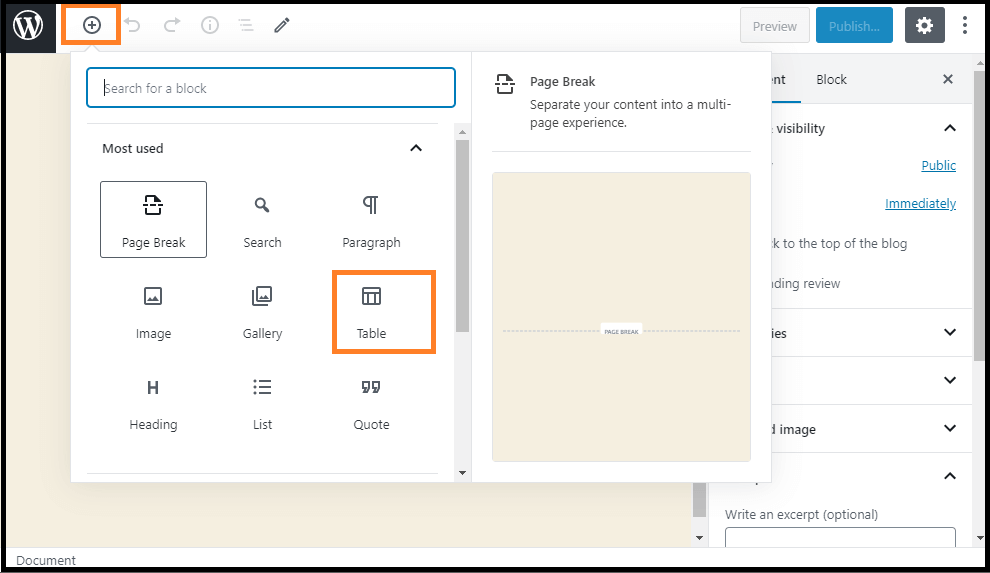
Firstly, we need to create a post, page, or edit an existing page or site. Inside the WordPress block editor, click on the plus (+) sign button to add a new block on the page, and then choose the "Table" option.
WordPress Table

We can find the "Table" option by selecting the Formatting option or directly type its name into the "Search for a block" bar.

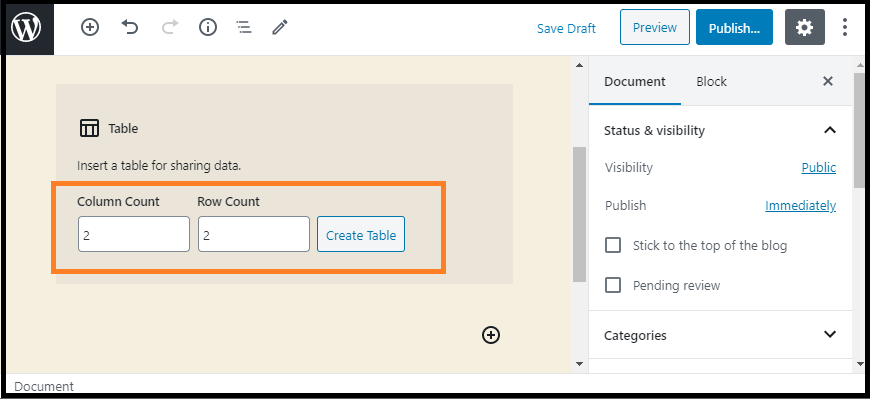
Now, we will be prompted to select how many rows and columns we want to keep in the table. By default, both figures two rows and columns.
WordPress Table

In WordPress sites, we can anytime add or remove the table rows and columns. Here, we can select any rows and columns according to the requirements.

We can type into the table cells, and they will resize automatically depending on how much content there is in each one. If we want to select a fixed width for our table cells, we can set this option to the right side.

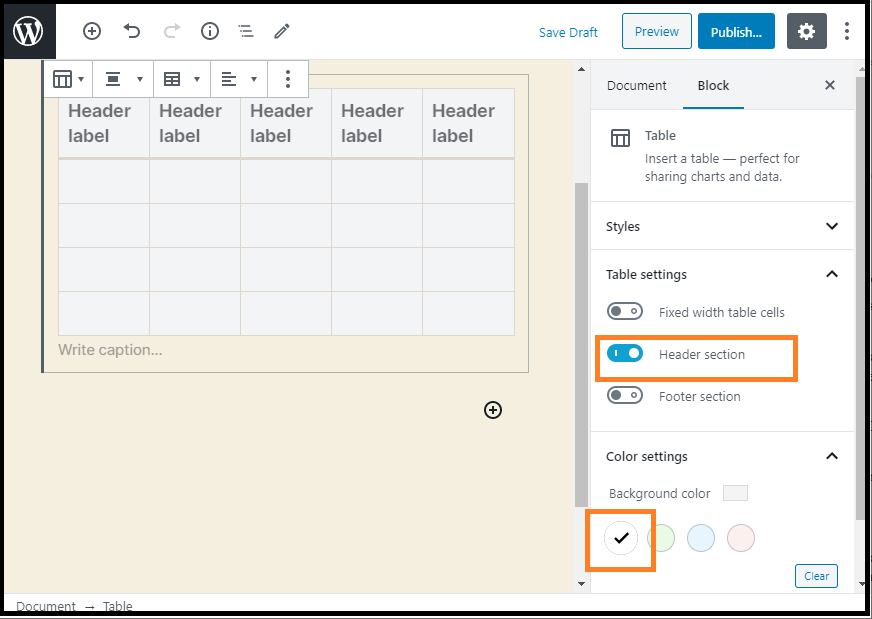
We may also add a table header or footer section in the table. Let's take an example to understand this:

We've added a header to our table and set the background color to grey under the "Color Settings" tab.
WordPress Table

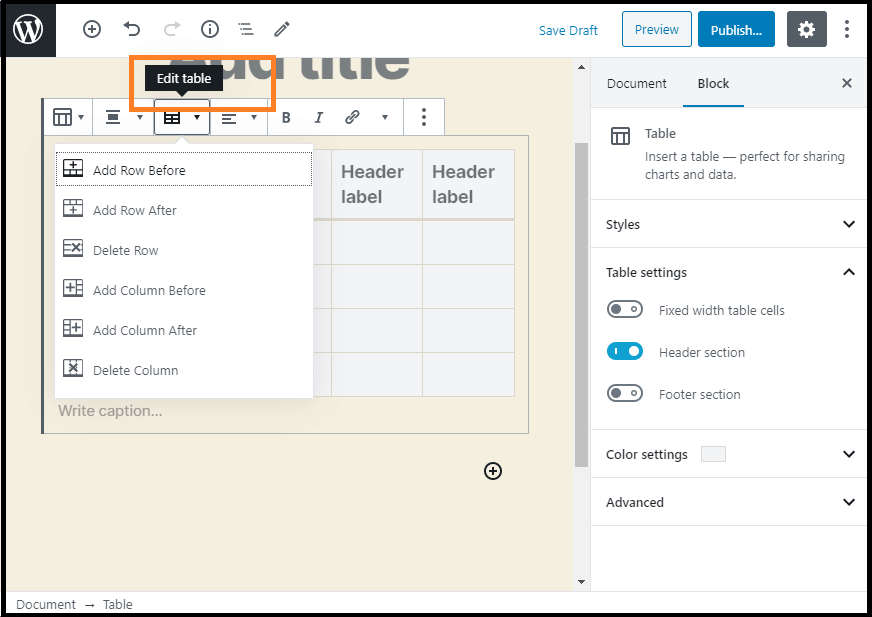
If we want to add a new row or column in the table, click on the table cell to add them. After that, click on the "Edit Table" button. Now, we can add a new column and row in our table.
WordPress Table

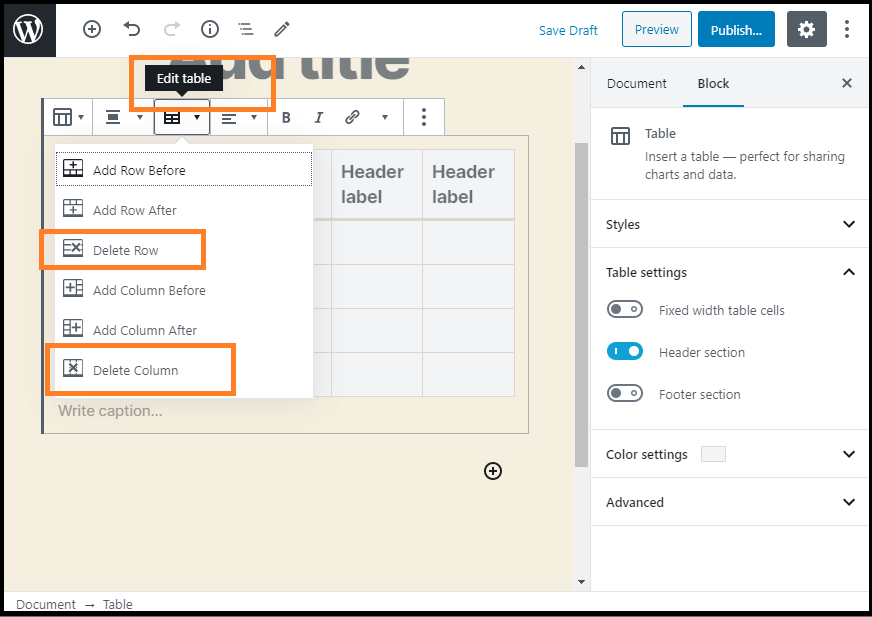
Similarly, we can also delete rows and columns. If we want to delete a cell, click on the table cell that we want to remove, and then choose the "Delete Row" or "Delete Column" option from the "Edit Table" menu.
WordPress Table

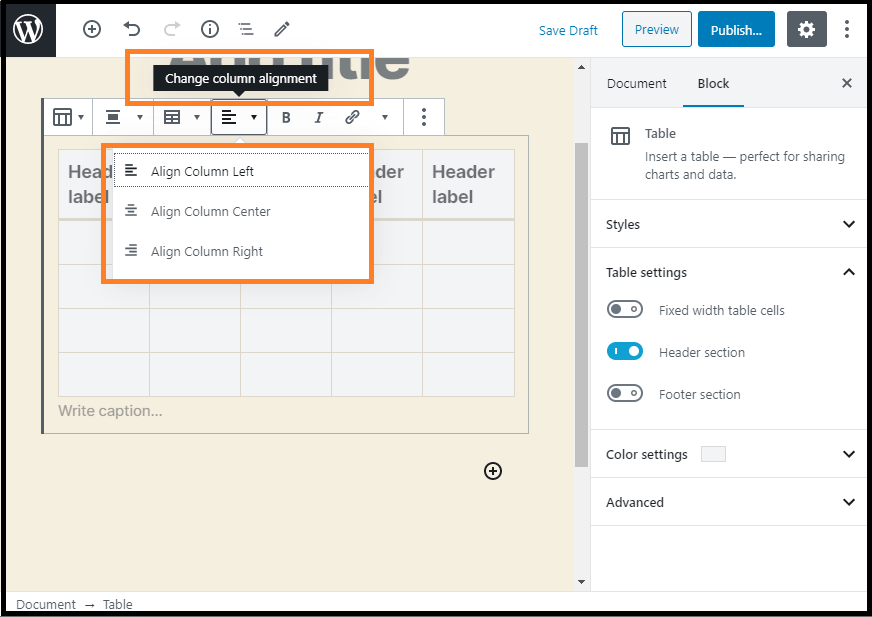
By default, the text in our table columns aligns to the left. By clicking the column, we can change this alignment and then click the "Change Column Alignment" button.
WordPress Table

We can change the alignment within the entire table's page or post by clicking on the "Change Alignment" button and choosing an option from the list.

Now the table is set to "Wide Width" as it appears on the site.

As we can see, the post extends beyond the area's left and right edges. The table tools developed in the Gutenberg editor provide us with a great deal of versatility on how our tables are presented. However, table blocks do not have some advanced features such as custom sorting, search filtering, etc. It doesn't permit us to use a single table in different website areas, including sidebar widgets or other websites. If we want to build advanced tables, it is required to use a WordPress table plugin.

Create Tables using the TablePress plugin

It is one of the best table plugins available in the market to create and manage tables easily. This plugin's important thing is that we may edit our table separately and even add many rows and columns. If we use an old classic WordPress editor that does not come with table functionality, TablePress plugin is also required.

TablePress lets us build and handle beautiful tables with ease. With a quick Shortcode, we can insert the tables into pages, posts, or text widgets. Tables can contain any data type, including formulas to be evaluated. An additional JavaScript library adds many features for site visitors, such as searching, sorting, pagination, etc.

Installation of TablePress Plugin

We can use the following steps to install the WordPress Table plugin.

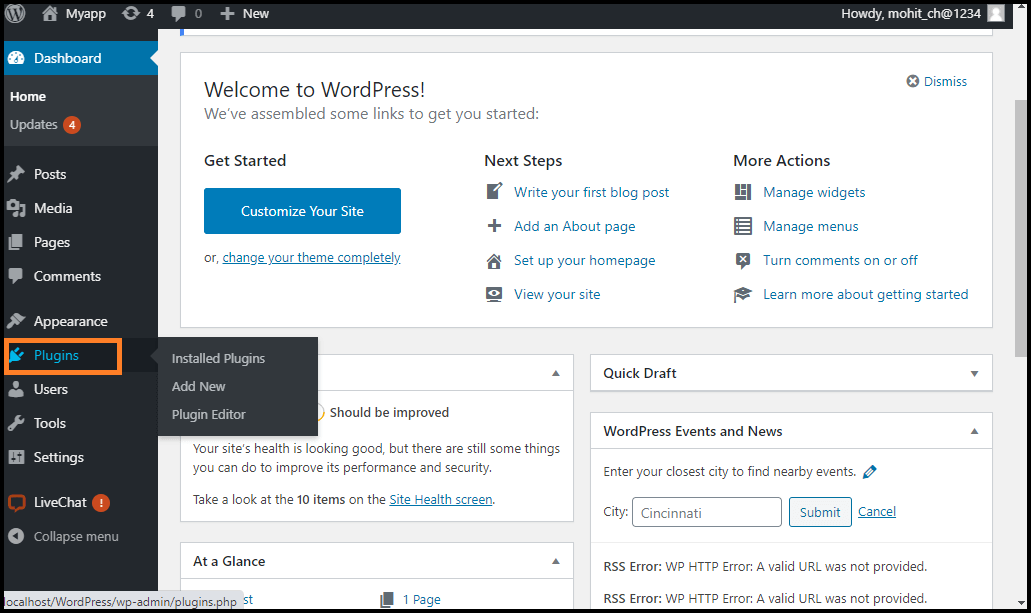
Step 1: Firstly, go to the WordPress dashboard and choose the "plugin" option.
WordPress Table

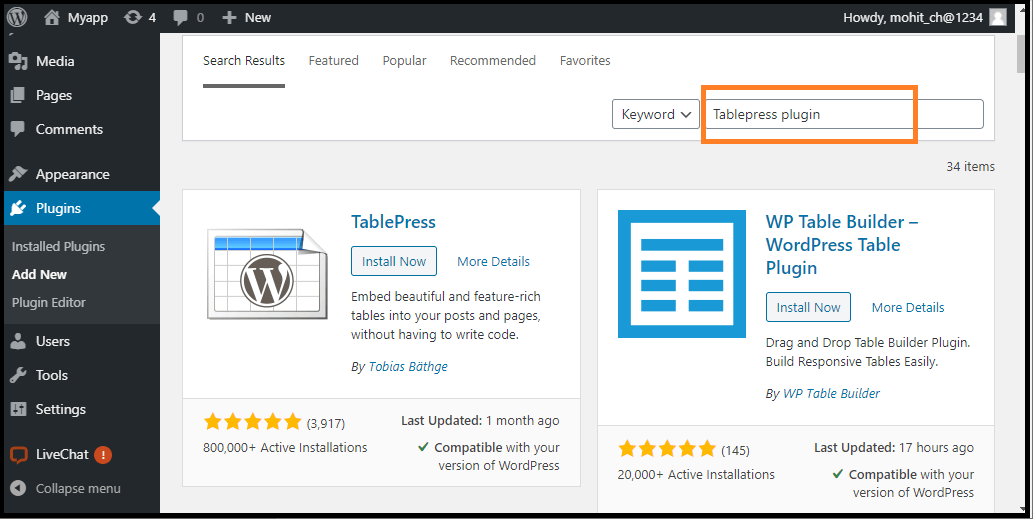
Step 2: Next, go to the search box and enter the plugin name you want to install.
WordPress Table

Step 3: Once we find the plugin, click on the "Install Now" button.
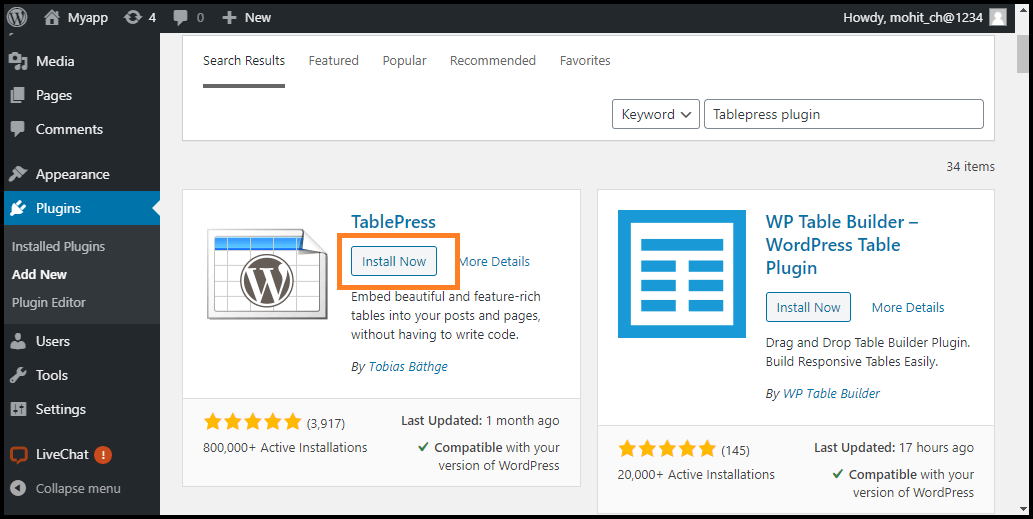
WordPress Table

Step 4: After completing all the installation process, activate the plugin.
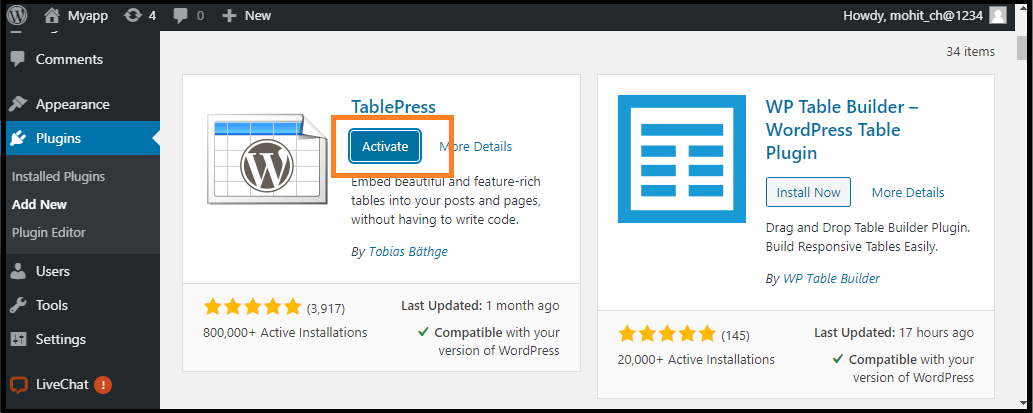
WordPress Table

How to create a table using TablePress plugin?

We can the following steps to create a table using the TablePress plugin:

Step 1: Firstly, go to the WordPress dashboard and click on the TablePress option.
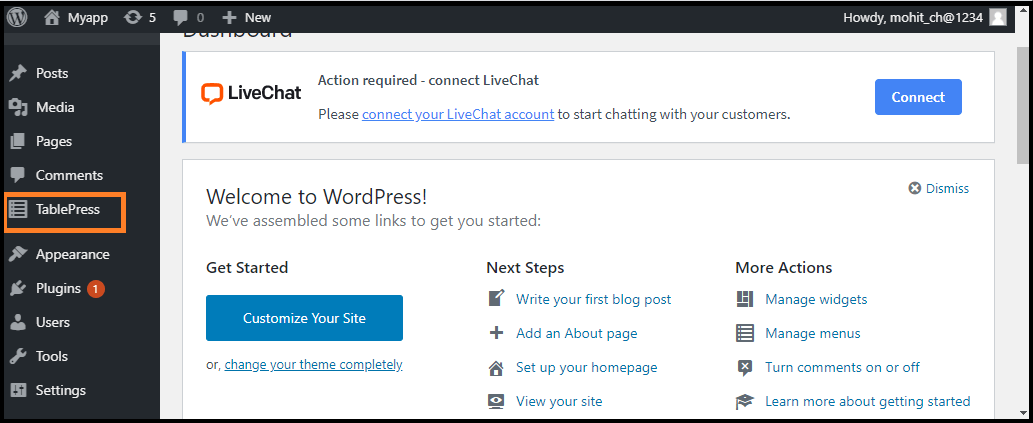
WordPress Table

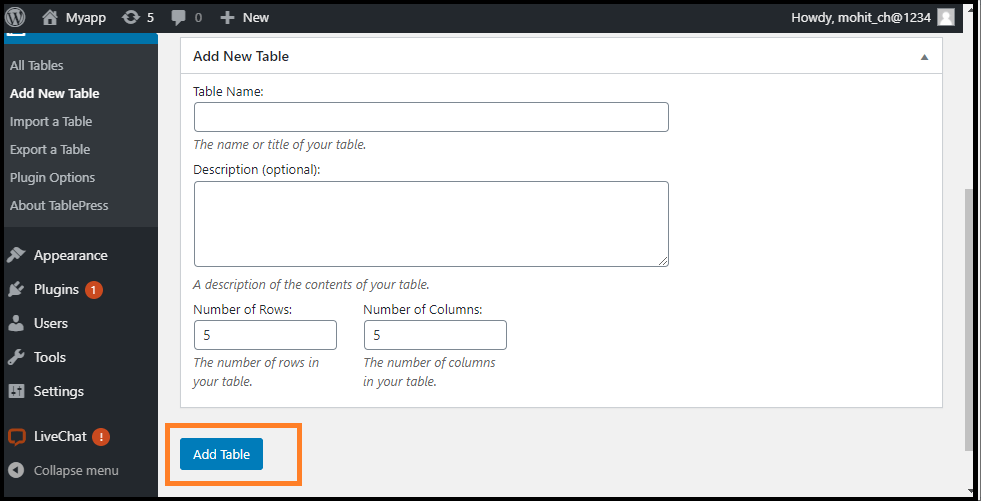
Step 2: Next, click on the "Add New Table" button to create a table.
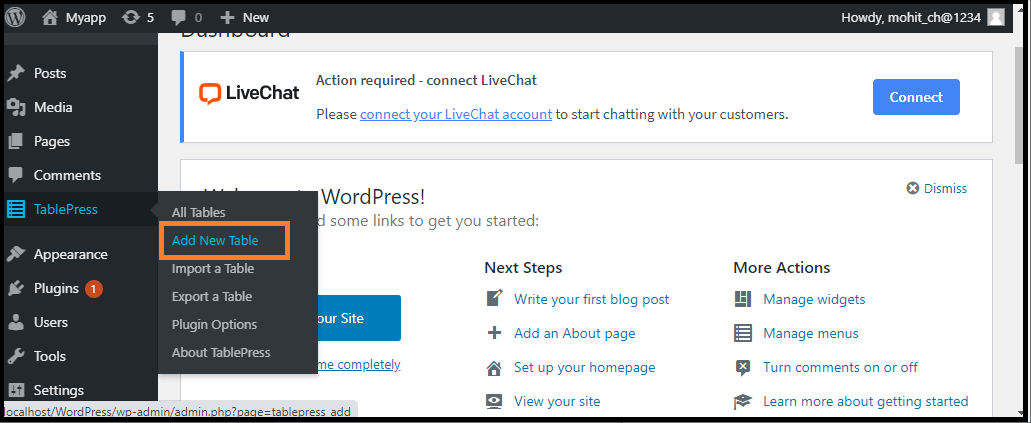
WordPress Table

Step 3: After that, we need to type the name of the table, and then select the rows and columns whatever we want. We can anytime add or remove the rows and columns from the table cells.

Step 4: Once the table name, rows, and columns have been inserted, click the "Add Table" button to create a table.
WordPress Table

Here, we can see all the table information and an area where we can add the content.

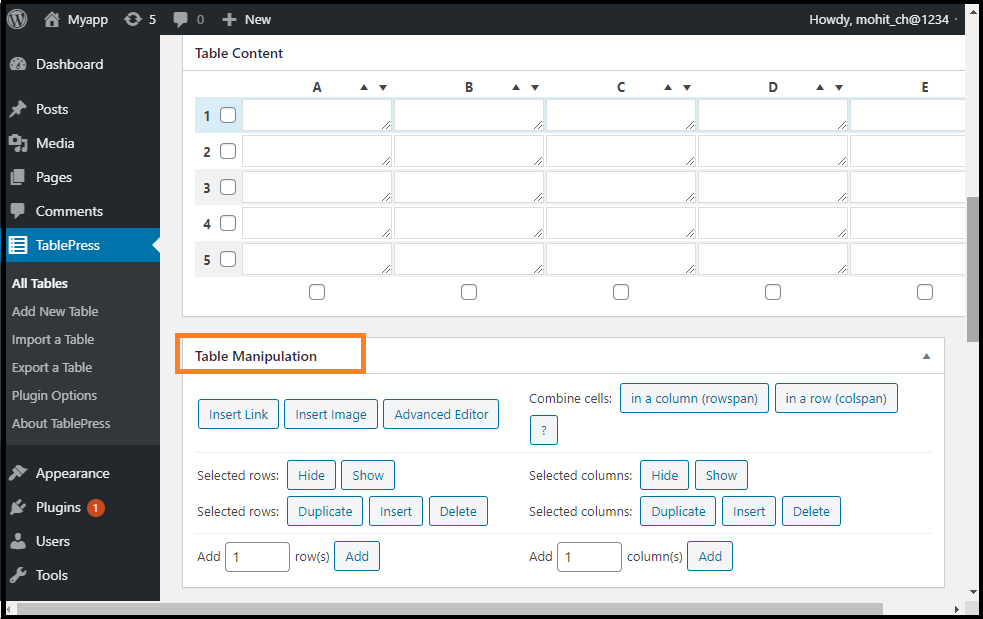
Step 5: Similarly, type the rows and column numbers in the table cell. We may sort the table columns using the arrows above them. These sorting will act in numerical order and alphabetical.

Some advanced features are shown below the "Table Content" area. In "Table Manipulation", we can insert, remove, and duplicate rows in the table cell.
WordPress Table

In "Table Options", we can also include a header or footer row in the table that would not be sorted with the data. We may also decide where we want to display the table name and description.

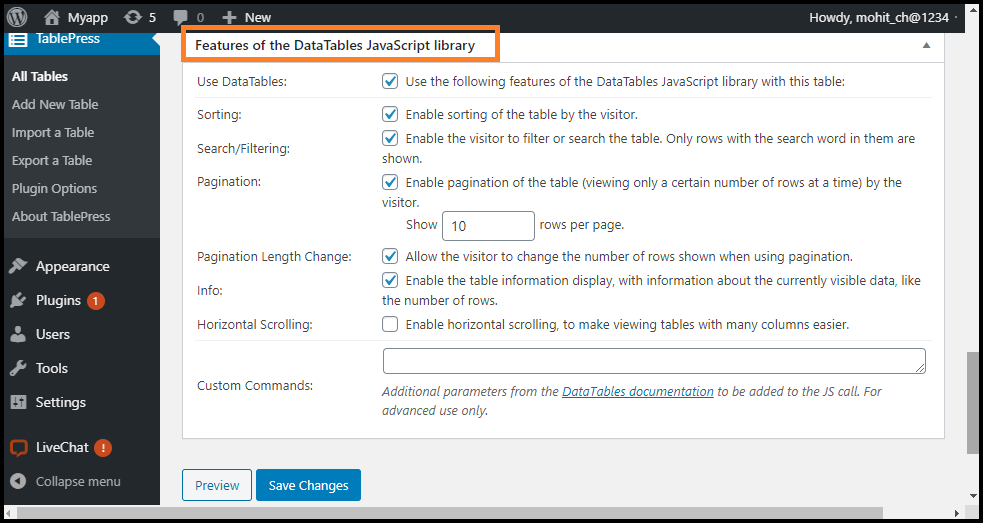
Step 6: We can fix several options in the "Features of the DataTables JavaScript library" section. It helps us to create a responsive table that can be searched, filtered, and sorted by the visitors.
WordPress Table

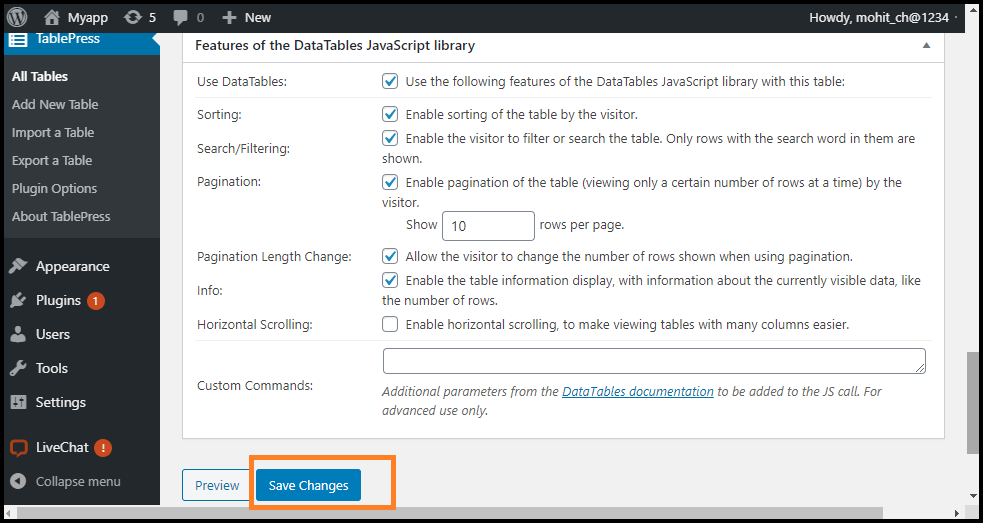
Step 7: After completing all the process, click on the "Save Changes" button.
WordPress Table

If we want to modify the table in the future, we can just use the TablePress in the WordPress dashboard and modify the table. The table would be automatically updated on any pages or posts that we have used in it. TablePress can also import data from CSV and spreadsheet files. Similarly, we may also transfer data to a CSV file from a TablePress table that we can open with any spreadsheet software like Google Sheets or Microsoft Excel.
Read More
  • Share This:  
  •  Facebook
  •  Twitter
  •  Google+
  •  Stumble
  •  Digg

WordPress Hosting

 Programing Coderfunda     March 28, 2022     Wordpress     No comments   


WordPress Hosting

There are different types of web hosts available today, the large majority of which meets WordPress's minimum requirements, and it can be a challenge to choose one from the developers. WordPress does the best work if it's in a rich hosting environment. It is essential to choose the best hosting for our WordPress website because our website's quality will depend on the hosting provider we are using.

Whenever we want to select the host for WordPress, we must keep these three important factors:

  1. Speed: It is also known as "load time".
  2. Uptime: It must be at least 94%.
  3. Customer Support: They should help us to solve the WordPress related queries.

We cannot ensure that the user will have similar results in terms of uptime or speed to their website. It depends on the various factors such as their chosen hosting plan, the website's size and the number of visitors.

There are different types of WordPress website hosting. Some of the popular WordPress hosting's are as follows:

  • Bluehost
  • DreamHost
  • Site Ground
  • Hostinger
  • HostGator Managed WordPress

Bluehost

It is the best WordPress hosting service between small business owners and bloggers. It is cheap ($2.75 per month), simple to use, and doesn't have any performance problem.

Bluehost has the best cost-value ratio. Our Pingdom uptime and speed monitoring tool shows 99.99% of the total time duration with just 24 outages and full-page loading speed of 390 ms in less than an hour in the last 12 months.

It is one of the few best web hosts officially recommended by the WordPress.org community. This web host's plans come with free SSL, WordPress staging area, and a simple installation feature for WordPress. Although it's not cheap, its prices start at $2.75 per month, but they set up a free SSL domain name for a year. Some of the important features of this hosting service are as follows:

  • Speed: Its speed is 390 ms.
  • Uptime: Its uptime is 99.99%.
  • Customer Support: It provides customer support for 24/7 live chat.
  • Features: Its features are one-click installation for WordPress, free domain for one year, and http (SSL).
  • Website: bluehost.com

DreamHost

It is a popular and well-established WordPress hosting server from the USA with more than 340000 users. It is also a recommended WordPress hosting service by the WordPress.org website. This hosting service is simple, fast, optimized, and reliable for WordPress users. Site transfers are not free, its cost is $99, but free with their $16.95 per month DreamPress plan and no support service is available 24/7. They have a chat service with live support, which is available at 5:30 a.m. Up to 9:30 a.m. for a week.

It doesn't need an ideal website hosting to serves visitors outside the United States or Asia, but it certainly offers a stable page speed of 569 ms and 99.92 percent "OK" uptime. Features of DreamHost are as follows:

  • Speed: Its speed is 569 ms.
  • Uptime: Its uptime is 99.92%.
  • Customer Support: It provides customer support for 24/7 live chat.
  • Features: DreamHost features include the pre-installation of WordPress, Infinite bandwidth or storage, and the drag and drop builder.
  • Website: dreamhost.com

SiteGround

It is another popular and valid WordPress hosting service recommended by the WordPress.org community. Since 2004 it has grown to a large network of more than 2,000,000 domain names worldwide. It has tools that make it easy to handle WordPress websites such as one-click installation, managed updates, WP-Cli, staging WordPress, and git integration. It has a strong support team that is available 24/7 with a specialized WordPress experience. It provides the latest speed technologies, including PHP 7, CDN, NGINX-based caching, and SSD-drives, allowing WordPress sites to load faster. It quickly and effectively protects WordPress sites from hacks.

It is maintained an average uptime of 99.98% (with 34 outages) followed by a high speed of 629 ms in terms of uptime. The features of SiteGround are as follows:

  • Speed: Its speed is 629 ms.
  • Uptime: Its Uptime is 99.98%, with 34 outages.
  • Customer Support: It provides customer support 24/7.
  • Features: Features of SiteGround is Google cloud servers, free https (SSL), and free emails.
  • Website: siteground.com

Hostinger

It is a popular WordPress Host server originally from Europe, but its data centers are available in Europe, USA, and Asia. It doesn't provide the option to select a data center right away, but once we are signed up, we can ask for their support to change out server location from Europe to the USA or the USA to Asia. It also adds a WordPress website builder feature, which is not good, but it can help a lot to a beginner. It also provides customer support services for 24/7 live chat. Their performance is actually on the great side, even after being on the cheapest WordPress hosts. Its speed is 339 ms, and Uptime is all right, coming in at 99.93% over the last 12 months. The features of Hostinger are as follows:

  • Speed: Its speed is 339 ms.
  • Uptime: Its uptime is 99.93%.
  • Customer Support: It provides Customer Security for 24/7 live chat.
  • Features: It provides a free email account, 24/7 customer support, and free (SSL).
  • Website: hostinger.com

HostGator Managed WordPress

HostGator WordPress Hosting server provides the service to more than 10 million domains, which makes it the most popular web hosting service provider in the market. It is similar to the Bluehost and also provides the specialized WordPress hosting solution like WordPress hosting. It is the best choice for high website traffic, which needs quicker loading time. Hostgator WordPress plan must provide our website loads quicker in several regions, mainly for mobile users. Its last 12-month speed average is 369 ms, and the uptime average is 99.99%. The features of HostGator WordPress hosting are as follows:

  • Speed: Its speed is 369 ms.
  • Uptime: Its uptime is 99.99%.
  • Customer Support: It provides customer service for 24/7 live chat.
  • Features: It provides the free website and transfer and backups. WordPress optimized the servers.
  • Website: hostgator.com


Read More
  • Share This:  
  •  Facebook
  •  Twitter
  •  Google+
  •  Stumble
  •  Digg

WordPress Event Calendar Plugin

 Programing Coderfunda     March 28, 2022     Wordpress     No comments   

 WordPress Event Calendar Plugin

What is WordPress Event Calendar?

The Event Calendar is a free and popular calendar plugin. It is used to display the visitor event based on dates on the website. It is a structured way to display upcoming events based on calendar dates. On our WordPress websites, we can add an event calendar as an external plugin.

A traditional event calendar contains a link to the event page when we click on a specific date. It shows a preview of events and some calendar settings. It could be set to show events based on specified conditions. For example, we could configure an event calendar to display only upcoming events or events from a specific category.

Installation of WordPress Event Calendar Plugin

The installation of the Event Calendar plugin is easy. We can use the following steps to install the WordPress Event Calendar Plugin:

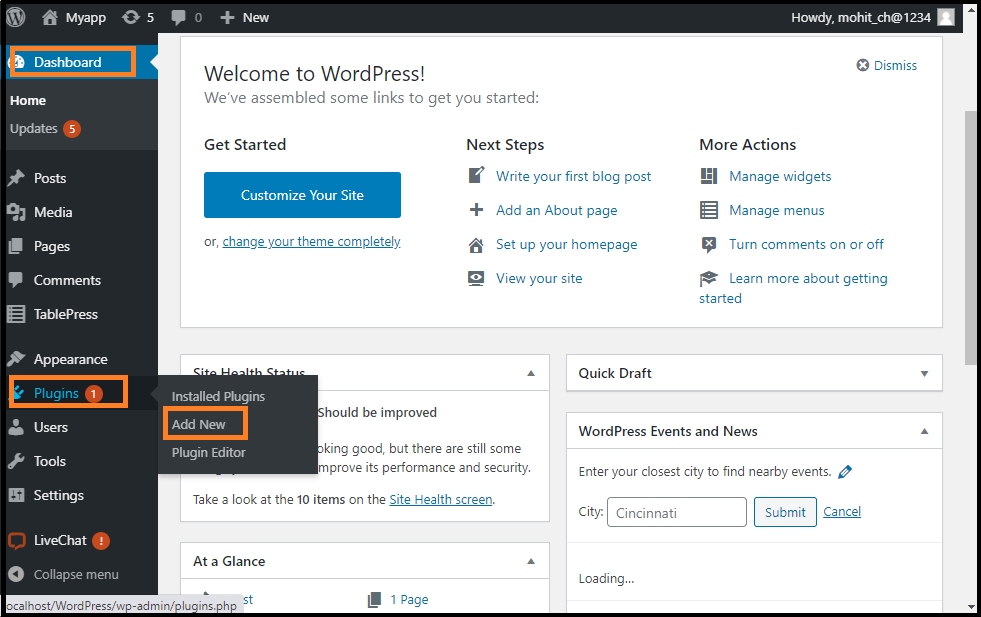
Step 1: Firstly, go to the WordPress Dashboard and choose the "plugins" option and click on the "Add New" button.

WordPress Event Calendar Plugin

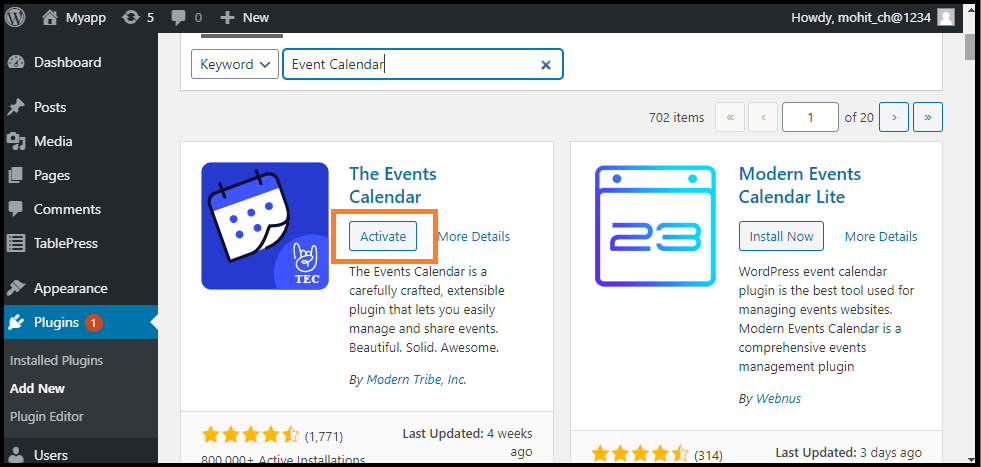
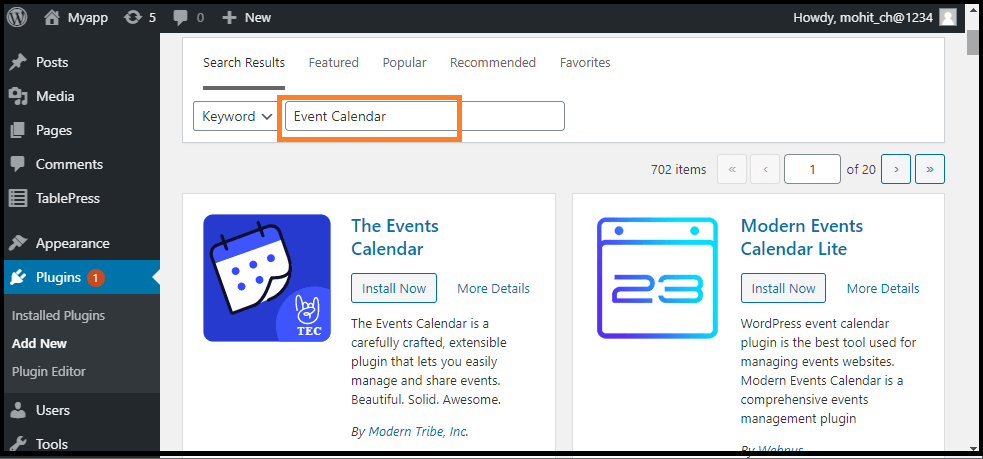
Step 2: After click on the Add New Button, search for "Event Calendar".

WordPress Event Calendar Plugin

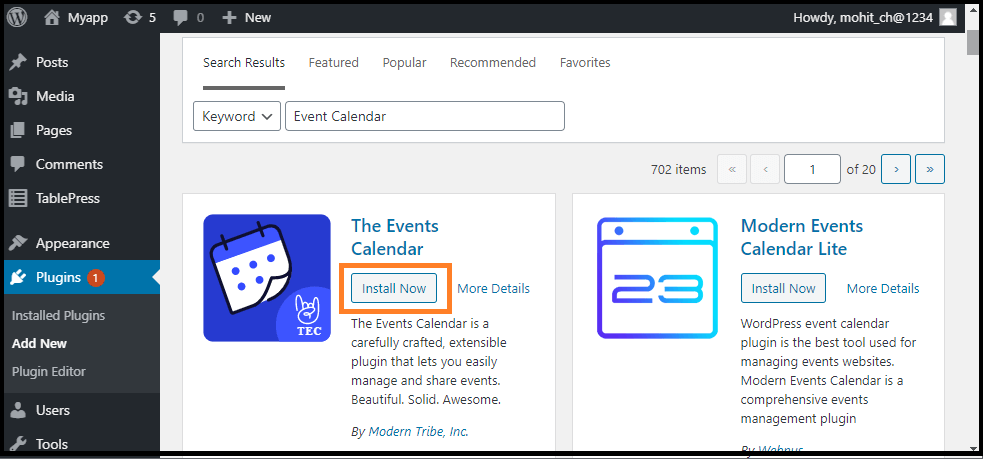
Step 3: After that, click on the "Install Now" button.

WordPress Event Calendar Plugin

Step 4: Once the installation is complete, activate the plugin.

WordPress Event Calendar Plugin

After completing the installation of the Event Calendar plugin on the Website, we are able to make and publish the first event quickly.

Using the plugin dashboard, we can make multiple platforms for the events that can be reused as needed. There are many forms available while publishing the event calendar, including inventory and day views. There are different ways to display the calendar and its event, including some helpful widgets for the sidebars and custom page templates. Developers can appreciate this plugin as it is built to support code customization and is fully documented.

However, the free events calendar plugin is ready to help us add events to our WordPress website, and a pro version is also available with more useful features. By upgrading to the plugin's paid version, we can begin developing recurring events, managing event ticket sales, and integrating Facebook events. With Events Calendar Pro, we may also import the events from other services, including Google Calendar.

Despite the premium upgrade, there are still many offers for the free version of the events calendar, allowing us to publish events on the WordPress website easily.

Creating an Event

Now, we are going to create an event in the WordPress site. We can use the following steps to create an event in WordPress.

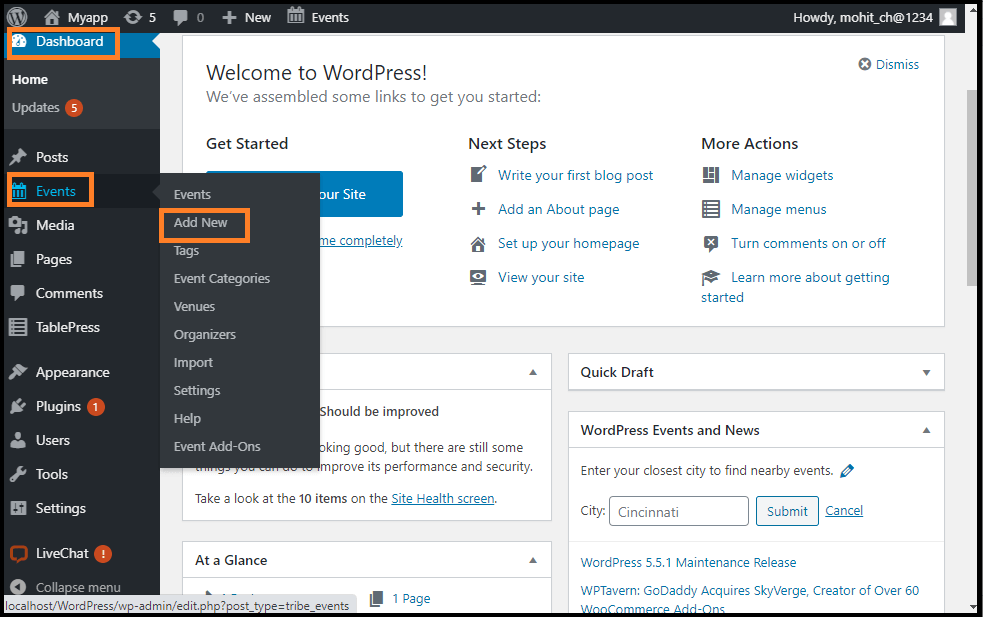
Step 1: Firstly, go to the WordPress Dashboard and select the Events option and then click on the "Add New" button.

WordPress Event Calendar Plugin

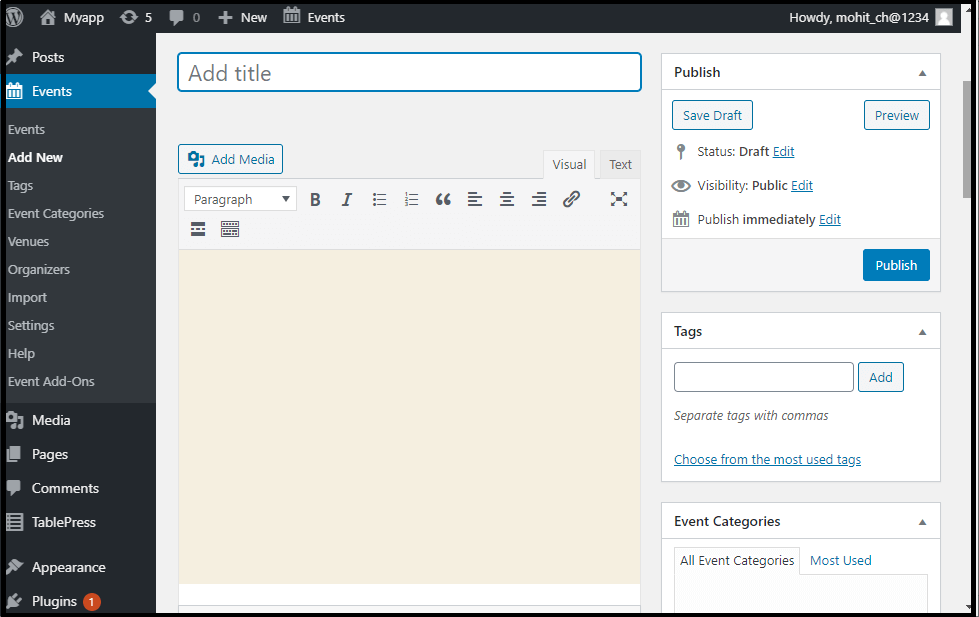
Step 2: Once we click on the "Add New" button, it brings us to the Event editor.

WordPress Event Calendar Plugin

Step 3: Here, we can add a title and description to the event with a WordPress page and post.

Event Time

Events have several pieces of information required by most of the pages and the articles, which are the start and end dates, for example, not to mention venues and organizers in WordPress.

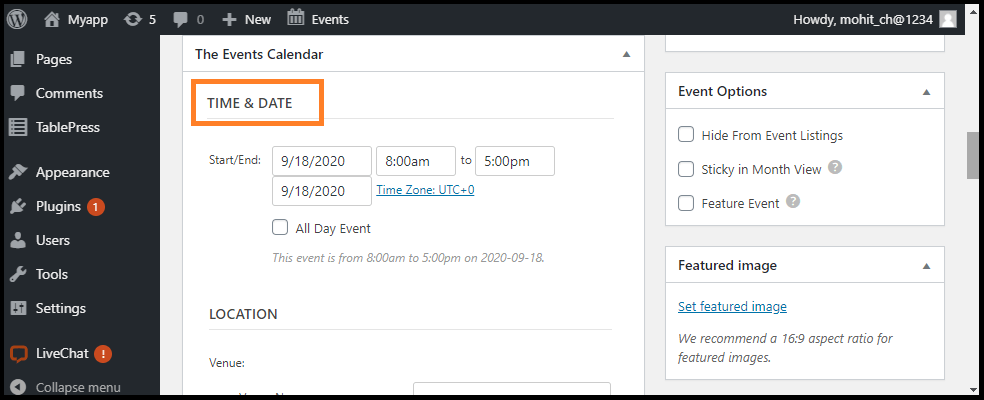
To set all these things, we will find the fields below the editor's summary, in an area called the Events Meta Box. In this field, we can see each of the settings, the date and time fields.

The Start/End

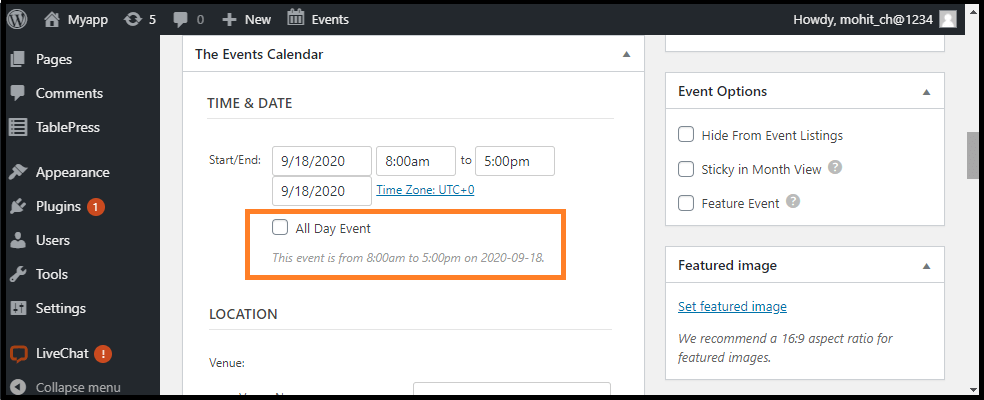
It is simply used when the events start and end. When we click on any date field, a date picker popup will appear, where we can select the date from a calendar according to our needs. Events start and end times can be choosing from a drop-down menu, or we can enter date and time manually. If we already checked the all-Day Event box, we would not be able to define a date or time for the Event.

WordPress Event Calendar Plugin

All Day Event

The All-Day Event checkbox is useful when the event is taking place on a specific date.

WordPress Event Calendar Plugin

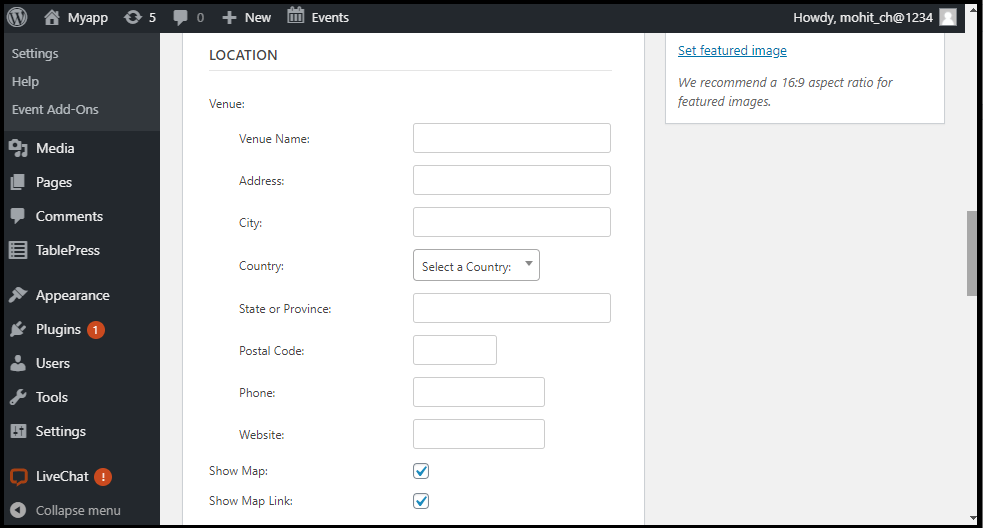
Event Venue

If we are using the Event Calendar first time, we can see the field's list to create the first event venue. If we have created a venue for the previous event, we will have the option to pick an existing venue from the drop-down menu. Entering a new event menu name and choosing the Create option from the menu will show the new event menu from the fields below:

WordPress Event Calendar Plugin

It is also important to remember that we don't have to build a venue. If we do not want to define a location, simply proceed to the next section.

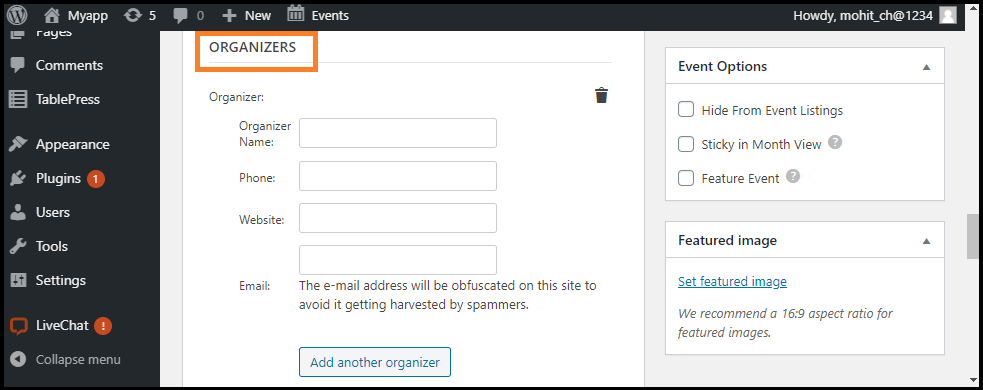
Organizers

Like the venue details, we may choose the pre-existing organizer details that we already entered in the event venue. Rather than the venue details, the area of the organizer has a full option.

WordPress Event Calendar Plugin

Event Website

In this section, the New Event Admin provides us an event website. If we show the events organized by the external organizations and have a particular dedicated event website, it is very useful in the Event Calendar.

WordPress Event Calendar Plugin

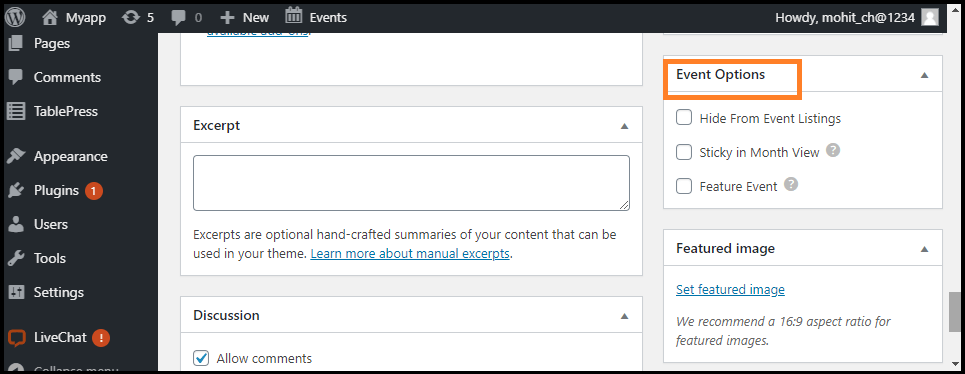
Event Options

We can find the Event Option close to the tag and event category meta boxes. Usually, there are the three Event options used in the Event Calendar, which are: Hide from Event Listings, Sticky in Month View and Feature Event.

WordPress Event Calendar Plugin

Hide from Event Listings

Often, we can link and post events via email or a menu, but it is not included in the views of events, and this is done by checking the Hide from Event listings box.

Feature Events

It allows us to designate the important events for extra emphases on the pages. The featured events will be displayed in event views, files, and widgets, making it an excellent choice for special commitments.


Read More
  • Share This:  
  •  Facebook
  •  Twitter
  •  Google+
  •  Stumble
  •  Digg

WordPress Slider Plugin

 Programing Coderfunda     March 28, 2022     Wordpress     No comments   


WordPress Slider Plugin

What is the Slider?

In the web design terminology, the slider is used to add a slideshow to the web page. Several slider plugins are available in WordPress that help us to create sliders and add them to our home page, landing pages, blogs, or any location where we want.

Sliders may be used on all types of websites but are typically used on commercial websites or technical portfolio websites. The main advantage of using sliders is that website owners can put all of their key content at the top of the front page. It helps users to see the highlights easily and can take action based on them.

Sliders can automatically run slideshows without user input by moving slides at predefined intervals. Sliders can also react to user interactions, such as click or swipe to see the previous and next slide. The slider can contain buttons or thumbnails that can be clicked to see the slider's specific slideshows.

There are many things that a user should consider while using a slider on a WordPress site. Initially, sliders usually load images and slide content, which slows down our site a bit. JavaScript is also used by slider plugins, in particular jQuery, which is loaded separately as scripts. It also affects the load speed of the website.

There are various slider plugins available in WordPress, such as:

  1. MetaSlider
  2. Smart Slider 3
  3. Master Slider
  4. Soliloquy
  5. Slide by Nivo

MetaSlider

It's very simple to create a new slider using MetaSlider that automatically manages all the technical settings for us. It provides options for selecting different sliders, including slider themes and styles, Adds captions, scripts, SEO names, etc. Beginners can override any of these choices and insert a slider anywhere on their web using a Gutenberg block, shortcode, template tag, and Widgets.

Smart Slider 3

Smart Slider 3 uses a unique user interface that looks different from other WordPress admin screens. It is user friendly, and beginners can make their sliders easily.

However, it offers many options that are not easy for beginners to discover. User experience is satisfactory and using default icons, template tags, and shortcodes, we can quickly add the slider to our posts and pages.

Master Slider

It is one of the best slider plugins with a non-native user interface that looks different from the other WordPress slider plugins. It is easy to use, but it is hard to find many of the options. It begins with a collection of templates and automatically imports some sample slides to work with us. After that, we can remove these slides and replace them with our slides.

Master Slider contains beautiful templates and can be easily inserted into WordPress pages, sidebars, and posts using the template tag, shortcode, and Gutenberg block. It works best with WordPress themes, which load jQuery on-page load automatically. If our theme does not do this, we'll require to change the plugin settings and force it to load the tab's assets.

Soliloquy

It is the most appropriate WordPress slider plugin for beginners. Here, we may easily build a new slider and simply drag and drop the pictures. It deals with other things, such as selecting a slider theme, navigation design, resizing pictures, etc. To save the slider, we may simply click on the Publish button.

It's easy to use because it uses WordPress coding standards and combines with the native WordPress site interface. Using the default WordPress media uploader, it has a simple but intuitive user interface to build slides. It provides a range of choices, including the Gutenberg Editor Block, an old classic editor clicks, shortcodes, and a widget.

Slide by Nivo

It is a fast and straight forward free slider plugin. We may easily upload slider images using the media uploader and drag and drop slide order. We can add captions, links, and alternate text to our slide images using the same media uploader user interface. It comes with shortcodes and template tags to include our posts, pages, and template files with a slider.

It is an image slider and does not support multimedia video or other forms. It comes with a fun set of themes from which we can select and a host of transition effects. But if we rely on features and choices, Nivo lags behind other sliders in this list.


Read More
  • Share This:  
  •  Facebook
  •  Twitter
  •  Google+
  •  Stumble
  •  Digg

WordPress Search Plugin

 Programing Coderfunda     March 28, 2022     Wordpress     No comments   


WordPress Search Plugin

The search system that works for a website is completely comprehensive these days. It does not matter whether we run a blog, a website, an online store or anything else. Since the internet is saturated with content, we can't stay behind when it comes to features. Of course, just one search system is not enough these days. If we are not using a good search system, we push the visitors too far. It will significantly affect our bounce rate on SEO.

If the WordPress default search function is functional, there is nothing to write about the site. It not only lacks speed and flexibility but also makes it simple and boring. With the right search plugin, we can have a site search system, which is quicker and more accurate than before. In this article, we are going to discuss the free and premium WordPress search plugin. But before discussing them, we will discuss a good search system.

What makes a good Search System?

The following are the various key points that help us to make a good search system:

Fast and Accurate Search: A useful WordPress search plugin help us to ensure that the search is fast, and nobody gets bored. Similarly, if the search system cannot produce an accurate result, there is no good reason for it.

Visible Search bar: The search box for the visitors should be very clear; otherwise, the visitors may go anywhere. However, the search bar must be clearly and easily separated.

Phrase Searching: It is also important that the WordPress search plugin be able to efficiently scan the phrases. Visitors can search for keywords to reduce their search results, but they can also decide how they want them. As a result, visitors will take less time to find out what they are looking for.

Effective Shorting and filters: It can be very helpful in narrowing down the search results. Sorting and filtering, when they are well designed, not only helps visitors to minimize the results but also gives them a way to interact with our web.

Best WordPress Search plugin

There are various Search plugins available in WordPress. Here, we will discuss some of the best WordPress Search plugins based on their features and cost:

  1. Search WP
  2. Better Search
  3. Advanced WOO Search
  4. Ivory Search
  5. Reactive Search Pro

Search WP

If we want to use a WordPress Search Plugin with some advanced features, we can use the Search WP plugin. This advanced plugin may not be free, but it is features-rich, effective, and easy to use. Despite how advanced it is, SearchWP is simple to set up and doesn't need long configuration. We are required to install and activate it, and the visitors will be able to search via all the parts of the site. It contains e-commerce products, custom area data, and other document content.

It allows us to see the unique visitor insight and helps to understand them. Another important feature of the SearchWP plugin is its ability to easily customize the search algorithm. It also provides features such as easy integration with WooCommerce, WP Work Manager, and Quick Digital Downloads. It uses keyword steaming instead of exact matches to give more useful results. It comes with a user-friendly interface.

Better Search

It is a free WordPress Search Plugin that changes the default search form with a better plugin. It not only improves search speed but also provides more relevant answers to users. With this plugin, we can easily search the posts, pages, and custom posts. Not only that, but it also helps us to optimize the search output in a variety of ways. We can also choose whether the title or content is more important.

Another useful feature is the "search heatmap" feature in Better search. It may track searches and naturally display the most popular ones.

Advanced WOO Search

The Advanced Woo search plugin is designed to include a useful search to the WooCommerce websites. The visitors will be able to search via all the items with the help of this plugin. To make things easy, it comes with quick, easy to use and many other good features. To have a search box, we can use the shortcode or widget wherever we want.

It allows the user to search the product form title, excerpts, tags, content, contents, and SKUs. Each search product shows the image of the item and price to clarify things. It uses smart ordering to display search results according to the priority of the source they find. It provides a lot of helpful options to search for the products. It is compatible with plugins like WooCommerce Multilingual, WPML, and qTranslate to make it very simple to improve things.

Ivory Search

It is a versatile WordPress search plugin; it is user-friendly despite the advanced features. This plugin helps us to build our own custom search form. To fulfill our requirements, we can build unlimited search forms and configure each one individually. It also helps us to display the custom search forms in various parts of the site, like posts, pages, header, footer, widget areas, sidebars, etc.

It provides us a huge control over the search for items. Using the post title, content, description, custom fields, taxonomy, metadata, and more, we may search for specific content. It also helps us to search for content based on passwords. We can exclude positions independently based on certain criteria.

Reactive Search Pro

It is another important WordPress search plugins and helps to enhance our viewer's search experience. It has various features to work here, and everything is easy to configure and maintain. It comes with various search features, including Range Box, Min-Max Button, Color Picker, etc. Map Auto Complete is another great feature that allows us to access it. Visitors may search for any location from existing Geo-Box data. Searching is also fast with lazy loading and code splitting.

It is compatible with our convenience with WPML, WooCommerce and Grid Creator. In terms of features, it has a very extremely intuitive drag and drops builder, which makes everything easy. We can combine and match the layout to suit our site. It comes with an effective price of $26 for 6 months of support from redqteam. We can also extend the support to 12 months with an additional price of $7.88.


Read More
  • Share This:  
  •  Facebook
  •  Twitter
  •  Google+
  •  Stumble
  •  Digg

WordPress Popup Plugins

 Programing Coderfunda     March 28, 2022     Wordpress     No comments   


WordPress Popup Plugins

A WordPress popup plugin allowed us to convert website visitors to email subscribers and paid customers. Various popup plugins are available in WordPress, which can help us to increase conversion rates. However, most of the WordPress popup plugins will slow down the site and provide inaccurate statistics. In this article, we will discuss the WordPress Popup plugins.

What we see in a WordPress popup plugin

WordPress popup plugins offer a range of functionality. It provides features from screen display locations to usability and advanced analytics. But targeting and trigger options are the essential features to bear in mind.

Targeting refers to where a popup is displayed on a website and to whom it is displayed. The common ways to target visitors with WordPress popup include app, geolocation, traffic source, and page-level targeting.

Triggers are acts that a consumer has to make the popup appear. The most popular trigger contains page entry, exit intent, scroll depth, page time, clicks, etc.

Best WordPress Popup Plugins

Various popup plugins are available in WordPress; some of them are as follows:

  • Popups
  • Popup Maker
  • Popup Builder
  • WP Popups
  • Elementor Popups
  • OptinMonster
  • PopUp Domination

Popups

Popups are an easy and intuitive way to make all kinds of popups. Popups provide different targeting options for WordPress, using AND/OR rules and requirements like referral, page, user activity and logged-in status, and device. Trigger options contain timing, exit purpose, scroll depth, and different page features. Popups are often compatible with several shape plugins, but AJAX must be used to configure such integrations.

This popup plugin starts with free of charge, but for more features, we can buy a one-site license for $39.

Popup Maker

Popup Maker is another best WordPress popup plugin, which is incredibly versatile and flexible. We may also build notification boxes, cookie notifications, video lightboxes, and so on.

WooCommerce integration is the main advantage of this plugin that helps us to target the visitors based on their shopping cart items, purchase details, etc. However, the lack of a visual editor on this plugin makes it less user friendly.

We can start it free of cost, but if we need additional functionality, we can purchase individual extensions at $35 each or purchase a complete extension kit at $16/month.

Popup Builder

It allows us to add content to the popup and generate custom animation effects. It's easy to use and lets us attention the visitor with our offers, discounts or other promotional information. It provides various features like time delay triggers, automatic closing, user retargeting, and integration with AWeber and MailChimp email services providers.

It may be used for free, but we can purchase it if we want to use additional features. Its extension prices vary from $5 to $15, but we'll get a full package of $49 a month.

WP Popups

WP Popups is the best WordPress popup maker. We'll create and customize the popup with just a few clicks using the easy and intuitive template builder. It doesn't require coding skills.

It is the ideal solution to display important messages like the EU Cookie notifications, increase the mailing lists, add calls to actions, increase the social followers by including a form like MailChimp or show any other messages in a simple popup.

Elementor Popups

By using the elementor page builder plugin or popup builder app, we can create the popups. It uses a similar interface like the page builder and helps us to add the same widgets and styling options to the popups, such as countdown timers, buttons, email types, etc. It allows us to create WordPress specific pages targeting options like categories, tags, posts, and formats with more than 100 better templates.

It can be used free of cost, but we can buy its premium edition at $49 for a single site and $199 for unlimited sites if we want some additional features.

OptinMonster

OptinMonster popup plugin was among the first to popularize the marketing space's use of popup forms. Its drag-and-drop feature makes it extremely easy to use. We may select from a variety of pre-constructed templates, or from scratch, build our own pop-up. Their Canvas feature helps us use custom HTML/CSS languages and WordPress shortcodes to create popups.

The lack of a free version is a significant disadvantage of this plugin. This plugin's premium plan starts at $9/ month, but for more advanced features such as A/B testing and exit purpose, we will need to upgrade to a higher package.

PopUp Domination

It is one of the best tools for popup out there. However, it didn't stop them from making the right changes to stay competitive on the market. Its visual interface also allows customization of one of the more than 100 pre-built templates accessible fairly easy. This plugin allows us to display popups for different users based on-page time, user inactivity, total time on the site, exit intent, clicks, and mouse hover. More advanced targeting options include top-of-page targeting at geolocation, traffic source, and computer.

Its pricing structure is very interesting. Each level gives us access to all the features like unlimited domains and pop-ups, A and B testing, live chat support, etc. Instead of being paid for accessing more features, we are charged based on our popup's total number of views across all of our websites. Popup Domination may be a reasonable option if we select to use the popups on other low-traffic websites. If we do have some high-traffic sites, this might not be the best option for us.


Read More
  • Share This:  
  •  Facebook
  •  Twitter
  •  Google+
  •  Stumble
  •  Digg
Newer Posts Older Posts Home

Meta

Popular Posts

  • Generate Migrations from an Existing Database With the Migration Generator Package
    Laravel Migration Generator Migration Generator for Laravel is a package by Bennett Treptow to generate migrations from existing database ...
  • Search Through Models with Laravel Searchable
      Laravel Searchable   is a package by   Spatie   to search through models and other sources pragmatically. Using this package, you can get ...
  • Laravel Razorpay Integration | Payment gateway integration Laravel in 30 mins | Laravel Razorpay
    1 Integration of Razorpay with Laravel. In this tutorial, I have taught how to integrate payment gateway with laravel with mini-project. If...
  • Tailwindcss best practices for responsive design
    Tailwind CSS provides powerful utilities for responsive design out of the box. To use it effectively and maintain clean, scalable code, here...
  • Vue.js Render functions
        Vue.js Render functions Vue.js recommends us to use templates to build HTML. Here, we can use the render function as a closer-to-the-co...

Categories

  • Ajax (26)
  • Bootstrap (30)
  • DBMS (42)
  • HTML (12)
  • HTML5 (45)
  • JavaScript (10)
  • Jquery (34)
  • Jquery UI (2)
  • JqueryUI (32)
  • Laravel (1017)
  • Laravel Tutorials (23)
  • Laravel-Question (6)
  • Magento (9)
  • Magento 2 (95)
  • MariaDB (1)
  • MySql Tutorial (2)
  • PHP-Interview-Questions (3)
  • Php Question (13)
  • Python (36)
  • RDBMS (13)
  • SQL Tutorial (79)
  • Vue.js Tutorial (69)
  • Wordpress (150)
  • Wordpress Theme (3)
  • codeigniter (108)
  • oops (4)
  • php (853)

Social Media Links

  • Follow on Twitter
  • Like on Facebook
  • Subscribe on Youtube
  • Follow on Instagram

Pages

  • Home
  • Contact Us
  • Privacy Policy
  • About us

Blog Archive

  • ▼  2026 (12)
    • ▼  07/26 - 08/02 (11)
      • 'The Odyssey' crosses USD 639.6 million globally
      • 'Ramayana' to have 'Baahubali'-style cliffhanger e...
      • Kim Kardashian remember late granny on 92nd heaven...
      • Emma Roberts weds Cody John in intimate Idaho cere...
      • 'Jana Nayagan' BO day 4: Film crosses Rs 100 Cr Net
      • 'Chennai Love Story' BO jumps 11.1%
      • China’s new hybrid rice can preserve its high-yiel...
      • Quote of the day by Thucydides: 'Self-control is t...
      • Quote of the day by Slavoj Žižek: 'The problem for...
      • A stormwater pond in Calgary appears filled with P...
      • Inside Kriti Sanon's duplex sea-facing penthouse w...
    • ►  06/28 - 07/05 (1)
  • ►  2025 (4)
    • ►  07/06 - 07/13 (2)
    • ►  06/29 - 07/06 (2)
  • ►  2024 (486)
    • ►  09/15 - 09/22 (30)
    • ►  09/08 - 09/15 (35)
    • ►  09/01 - 09/08 (35)
    • ►  08/11 - 08/18 (2)
    • ►  08/04 - 08/11 (33)
    • ►  07/28 - 08/04 (30)
    • ►  07/07 - 07/14 (11)
    • ►  06/30 - 07/07 (35)
    • ►  06/23 - 06/30 (5)
    • ►  06/02 - 06/09 (31)
    • ►  05/26 - 06/02 (20)
    • ►  05/05 - 05/12 (29)
    • ►  04/28 - 05/05 (26)
    • ►  04/07 - 04/14 (10)
    • ►  03/31 - 04/07 (34)
    • ►  03/24 - 03/31 (10)
    • ►  03/03 - 03/10 (35)
    • ►  02/25 - 03/03 (15)
    • ►  02/04 - 02/11 (22)
    • ►  01/28 - 02/04 (30)
    • ►  01/07 - 01/14 (8)
  • ►  2023 (484)
    • ►  12/31 - 01/07 (35)
    • ►  12/24 - 12/31 (10)
    • ►  12/03 - 12/10 (33)
    • ►  11/26 - 12/03 (20)
    • ►  11/05 - 11/12 (35)
    • ►  10/29 - 11/05 (20)
    • ►  10/22 - 10/29 (9)
    • ►  10/15 - 10/22 (7)
    • ►  10/08 - 10/15 (9)
    • ►  10/01 - 10/08 (10)
    • ►  09/24 - 10/01 (9)
    • ►  09/17 - 09/24 (9)
    • ►  09/10 - 09/17 (7)
    • ►  09/03 - 09/10 (9)
    • ►  08/27 - 09/03 (9)
    • ►  08/20 - 08/27 (8)
    • ►  08/13 - 08/20 (8)
    • ►  08/06 - 08/13 (8)
    • ►  07/30 - 08/06 (8)
    • ►  07/23 - 07/30 (7)
    • ►  07/16 - 07/23 (8)
    • ►  07/09 - 07/16 (7)
    • ►  07/02 - 07/09 (8)
    • ►  06/25 - 07/02 (7)
    • ►  06/18 - 06/25 (7)
    • ►  06/11 - 06/18 (7)
    • ►  06/04 - 06/11 (11)
    • ►  05/28 - 06/04 (7)
    • ►  05/21 - 05/28 (8)
    • ►  05/14 - 05/21 (11)
    • ►  05/07 - 05/14 (7)
    • ►  04/30 - 05/07 (7)
    • ►  04/23 - 04/30 (8)
    • ►  04/16 - 04/23 (9)
    • ►  04/09 - 04/16 (7)
    • ►  04/02 - 04/09 (4)
    • ►  03/26 - 04/02 (21)
    • ►  03/19 - 03/26 (2)
    • ►  03/12 - 03/19 (9)
    • ►  03/05 - 03/12 (26)
    • ►  02/26 - 03/05 (25)
    • ►  01/15 - 01/22 (7)
    • ►  01/08 - 01/15 (1)
  • ►  2022 (1037)
    • ►  12/11 - 12/18 (13)
    • ►  12/04 - 12/11 (1)
    • ►  11/27 - 12/04 (40)
    • ►  11/06 - 11/13 (1)
    • ►  10/16 - 10/23 (13)
    • ►  09/04 - 09/11 (5)
    • ►  08/21 - 08/28 (24)
    • ►  08/14 - 08/21 (24)
    • ►  07/03 - 07/10 (9)
    • ►  06/19 - 06/26 (3)
    • ►  05/29 - 06/05 (3)
    • ►  05/22 - 05/29 (3)
    • ►  05/15 - 05/22 (109)
    • ►  05/01 - 05/08 (7)
    • ►  04/24 - 05/01 (7)
    • ►  04/17 - 04/24 (64)
    • ►  04/10 - 04/17 (115)
    • ►  04/03 - 04/10 (73)
    • ►  03/27 - 04/03 (77)
    • ►  03/13 - 03/20 (2)
    • ►  03/06 - 03/13 (25)
    • ►  02/27 - 03/06 (18)
    • ►  02/20 - 02/27 (153)
    • ►  02/13 - 02/20 (187)
    • ►  01/30 - 02/06 (45)
    • ►  01/23 - 01/30 (15)
    • ►  01/16 - 01/23 (1)
  • ►  2021 (412)
    • ►  10/24 - 10/31 (2)
    • ►  07/25 - 08/01 (1)
    • ►  07/11 - 07/18 (10)
    • ►  06/13 - 06/20 (29)
    • ►  05/23 - 05/30 (1)
    • ►  05/02 - 05/09 (24)
    • ►  04/25 - 05/02 (24)
    • ►  04/18 - 04/25 (112)
    • ►  04/11 - 04/18 (1)
    • ►  04/04 - 04/11 (6)
    • ►  03/28 - 04/04 (86)
    • ►  03/21 - 03/28 (19)
    • ►  03/14 - 03/21 (2)
    • ►  03/07 - 03/14 (10)
    • ►  02/28 - 03/07 (1)
    • ►  02/21 - 02/28 (29)
    • ►  02/14 - 02/21 (13)
    • ►  02/07 - 02/14 (12)
    • ►  01/31 - 02/07 (6)
    • ►  01/17 - 01/24 (2)
    • ►  01/10 - 01/17 (8)
    • ►  01/03 - 01/10 (14)
  • ►  2020 (376)
    • ►  12/27 - 01/03 (37)
    • ►  12/20 - 12/27 (92)
    • ►  12/13 - 12/20 (29)
    • ►  12/06 - 12/13 (37)
    • ►  11/29 - 12/06 (4)
    • ►  11/15 - 11/22 (14)
    • ►  11/08 - 11/15 (8)
    • ►  11/01 - 11/08 (2)
    • ►  10/18 - 10/25 (14)
    • ►  10/11 - 10/18 (16)
    • ►  10/04 - 10/11 (10)
    • ►  09/20 - 09/27 (10)
    • ►  09/06 - 09/13 (19)
    • ►  08/30 - 09/06 (26)
    • ►  08/23 - 08/30 (4)
    • ►  08/16 - 08/23 (2)
    • ►  07/12 - 07/19 (48)
    • ►  05/17 - 05/24 (2)
    • ►  01/05 - 01/12 (2)
  • ►  2019 (74)
    • ►  07/07 - 07/14 (6)
    • ►  06/16 - 06/23 (6)
    • ►  02/10 - 02/17 (17)
    • ►  01/13 - 01/20 (37)
    • ►  01/06 - 01/13 (8)
  • ►  2018 (376)
    • ►  12/30 - 01/06 (24)
    • ►  12/16 - 12/23 (8)
    • ►  12/09 - 12/16 (98)
    • ►  12/02 - 12/09 (16)
    • ►  11/18 - 11/25 (36)
    • ►  11/04 - 11/11 (18)
    • ►  10/28 - 11/04 (10)
    • ►  10/21 - 10/28 (26)
    • ►  10/14 - 10/21 (52)
    • ►  10/07 - 10/14 (4)
    • ►  09/30 - 10/07 (2)
    • ►  09/23 - 09/30 (68)
    • ►  09/16 - 09/23 (4)
    • ►  09/09 - 09/16 (4)
    • ►  08/26 - 09/02 (6)

Data Publish News

Loading...

Al Jazeera – Breaking News, World News and Video from Al Jazeera

Loading...

Laravel News

Loading...

Copyright © CoderFunda | Powered by Blogger
Design by Coderfunda | Blogger Theme by Coderfunda | Distributed By Coderfunda