CoderFunda
  • Home
  • About us
    • Contact Us
    • Disclaimer
    • Privacy Policy
    • About us
  • Home
  • Php
  • HTML
  • CSS
  • JavaScript
    • JavaScript
    • Jquery
    • JqueryUI
    • Stock
  • SQL
  • Vue.Js
  • Python
  • Wordpress
  • C++
    • C++
    • C
  • Laravel
    • Laravel
      • Overview
      • Namespaces
      • Middleware
      • Routing
      • Configuration
      • Application Structure
      • Installation
    • Overview
  • DBMS
    • DBMS
      • PL/SQL
      • SQLite
      • MongoDB
      • Cassandra
      • MySQL
      • Oracle
      • CouchDB
      • Neo4j
      • DB2
      • Quiz
    • Overview
  • Entertainment
    • TV Series Update
    • Movie Review
    • Movie Review
  • More
    • Vue. Js
    • Php Question
    • Php Interview Question
    • Laravel Interview Question
    • SQL Interview Question
    • IAS Interview Question
    • PCS Interview Question
    • Technology
    • Other

29 March, 2022

How to improve WordPress security

 Programing Coderfunda     March 29, 2022     Wordpress     1 comment   

How to improve WordPress security

Security in WordPress is a must. Your WordPress site may be hacked or some security issues may arise. WordPress websites are favorite targets for hackers.

No one can make a site perfectly secured. This thing is impractical or impossible to achieve. But one can at least reduce the risk by applying different security measures. With this article, you?ll be able to keep your website relatively safe.

To protect your website and your viewer's data following measures can be adopted. These steps will not eliminate the security risk but surely minimize the risk.

  • Choosing a host
  • Strong password
  • Don't use admin as username
  • 2 step Login authentication
  • Limit number of login attempts
  • Disable login hints
  • Change login page URL
  • Trusted themes and plugins
  • Use SSL
  • Use WordPress security keys
  • Use secure FTP
  • Keep wp updated
  • Keep it clean
  • Disable trackbacks

Choosing a host

Choose a reputable and reliable host for your website. Don't go for a cheap one. Your hosting company affects your site security in a great way.

There are many host providers who use outdated software. Outdated software does not guarantee the future safety even if there were no issue in the past.

Look for the following features for choosing a host.

  • Attack monitoring and prevention
  • Update their software
  • Should be able to isolate sites which are hacked to prevent other sites on a shared server.

Pick strong password

Choose a complex password for your safety. Just follow three things (complex, long and unique) while choosing a password. Version 2.5 and above have the password strength indicator for your help to recognize whether your password is strong enough or not.

Keep the following points in mind:

  • Use a fresh and unique password.
  • Use a mixture of Capital and small letters, symbols and numbers.
  • Avoid common information about you like mobile no, anniversaries or birthdays.
  • Keep it long for at least 10 characters.
  • Try to have a password which doesn't make any meaning or sense.
  • Change your password frequently.

Don't use admin as username

WordPress has admin as the default username. Being the default, it is the most common username and hence easily crackable.

When people start using WordPress, especially for the first time they stick to the admin as the username. Changing username will make a bit harder for the hacker to crack it.

To change the username:

  • Create a new user by clicking on Users > New User with administrative privileges.
  • Delete the previous admin user.
  • While deleting, WordPress will ask you "what to do with the content of this user", and you'll have the option either to delete all content or assign it to new user.

2 step Login authentication

Two step login authentication (also known as 2FA) add more security to your login page. It requires an authentication code that can only be received through a mobile message to log into your account.

There are some plugins available for 2FA.


Limit number of login attempts

Generally login pages are attacked by the hackers. They may attack a number of times for the correct username and password. Although their attempts may be unsuccessful but the number of attempts they made consumes an enormous amount of server memory. Due to this your website may slow down. On a shared server, this will affect your site as well as neighboring site.

One solution for this is to limit the number of login attempts. There are some plugins available for this like Jetpack.


Disable login hints

Whenever you type a wrong password or username, you'll get a hint stating you that either your username or password is incorrect.

It is very useful information for the hacker. That's why login hints should be disabled for a WordPress site.


Change login page URL

Hackers generally attack on the login page. If you'll hide your login page from the hackers, it will increase your site's security to a great extent.

This can be done by changing the login page URL with WPS hide login plugin. There are also some other plugins available for this. They simply intercept page requests and makes wp-admin directory and wp-login.php pages inaccessible. You have to remember the new login page set during the activation of the pluign.


Trusted themes and plugins

Plugins and themes are always in suspect when they are not maintained or updated. Before downloading a plugin or theme, check its reviews and comments, author is responsive or not and whether it is free or paid.

Before downloading a plugin or theme, do a backup of your website and theme.


Use SSL

SSL stands for Secure Socket Layer. It turns the http to https. It is important on the pages containing sensitive information. It is an extra layer of protection./p>

It scrambles your site information into an unreadable form, so when this information travels from your server to a browser, it is in unreadable format and does not make any sense. At the browser end, private key is used which makes the data readable again.


WordPress security keys

WordPress uses cookies to verify their users. These cookies contain login information and authentication details. The password is hashed out with public and private keys.

One extra layer can be added around this cookie with WP security keys. These are a set of random variables that improve stored information's security in cookie.

A non-encrypted password can easily be cracked if one reconstructs the authentication key. But encrypting with WP security keys makes it very tough.

How to add WP security keys

  • Open wp-config.php file.
  • Go to the line "authentication unique keys and salts"
  • Use an online automatic keys generator tool.
  • Replace existing set of keys in wp-config.php file from online tool keys and save it.

You can repeat this process at fixed time duration. Whenever, you?ll change the security keys, users will be logged out from their accounts.


Use secure FTP (SFTP)

A file Transfer Protocol is used to carry information from your website to your host when you make some changes or update information to your site.

FTP connection increases the chances for intercepting data while SFTP greatly reduces it.


Keep wp updated

The best security for your site is to update it regularly. Updating all your files to the latest version increases the security of your WordPress site.

From version 3.7 WordPress automatically get updated. But your files, themes and plugins need to be updated via your dashboard or FTP.


Keep it clean

Always remove unused themes and plugins from your site as they might bring some security issues because they have not been updated since a long time. Always keep your website clean.


Disable trackbacks

Trackbacks notify that your site content got linked up with another web page. Through trackbacks, hackers can attack your site.

So for a new WordPress site, disable this feature by clicking on Settings > Discussion. Uncheck the "Allow link notifications from other blogs" option.

Read More
  • Share This:  
  •  Facebook
  •  Twitter
  •  Google+
  •  Stumble
  •  Digg

How to backup WordPress site

 Programing Coderfunda     March 29, 2022     Wordpress     No comments   


How to backup WordPress site

A backup is just the copy of your original site through which you can restore your original site if anything goes wrong. Keeping backup on safe side is always advisable.

A site is generally made up of two parts. One is all the installed themes/plugins, media, etc and other is Database which stores all your blogs, posts and comments, etc. Without files there is no site and without database there is no data. Hence both of them is important and need a backup.


Why Backup is important

Backup allows you to retrieve your site back if something goes wrong or if your site breaks. There could be many reasons for this like external attack, hacking, server down, etc.

You can lose everything from data to all the posts on your site. To avoid this, backup is important.

Securing your backup is also an important issue. Make sure to update your plugins and themes regularly or in a certain interval. Use strong Username and Password. Database name should also be uncommon.


Backup WordPress root Files

There are many files in your WordPress directory. These files can be downloaded back from wordpress.org site. Some of them can be retrieved back but some can't.

The wp-content directory contains all your installed themes and plugins including all your media files like images, audio or video files which you uploaded on your site. Hence, it makes it personnel and unique.

The wp-config.php file consists of your Database and other personnel options which make it also a unique file.

Both the above files can't be replaced by other default files hence, they need to be backed up.


Backing up site

Most hosts allow backup the entire server, including your site but this process takes some time in recovery. Check your host for what programs and services they are providing.

Using FTP clients you can copy the files on your system and zip them. It is better to make three or four copies of your backup for safe side.


Backing up Database

In the database all your posts, media files, comments and metadata will be stored. It also contains user's information and all your plugin settings. All these informations are personnel and unique, if you'll lose them they will be gone permanently.

The entire WordPress table in your database will start from the prefix wp_. So it will be easily recognizable.

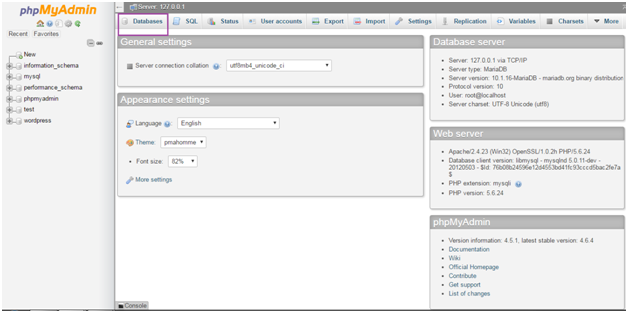
  • First of all, go to phpMyAdmin on local host.
  • Wordpress How to backup wordpress site1

    Look at the above snapshot, click in Databases to access all the databases.

  • Select your WordPress database (which you created during installation of WordPress).
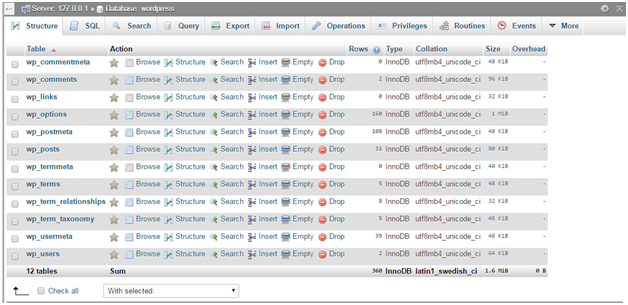
  • You will see a lot of tables from the WordPress database.
  • Wordpress How to backup wordpress site2

    Look at the above snapshot, all the above tables will be in your WordPress database. If you have some more tables then they may be anti-spam plugins or static plugins.

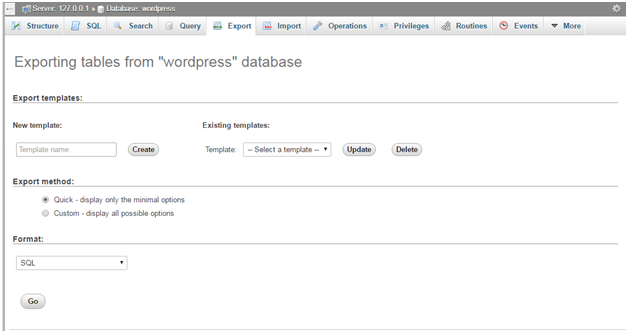
  • Click on Export.
  • Wordpress How to backup wordpress site3

    Look at the above snapshot, there are two methods to export, Quick and Custom.

    Quick is used when the database is small.

    Custom is used when the database is large.

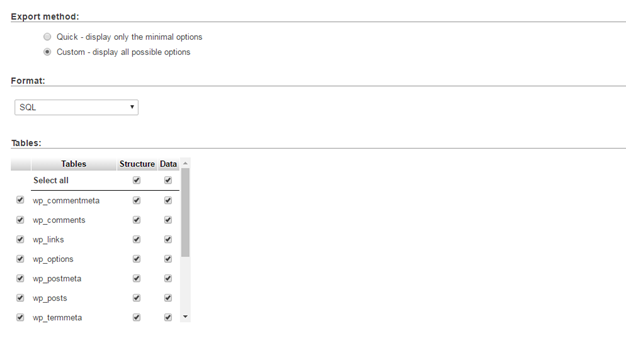
    We are choosing Custom.

  • After choosing Custom, a table will appear. Select all the tables.
  • Wordpress How to backup wordpress site4
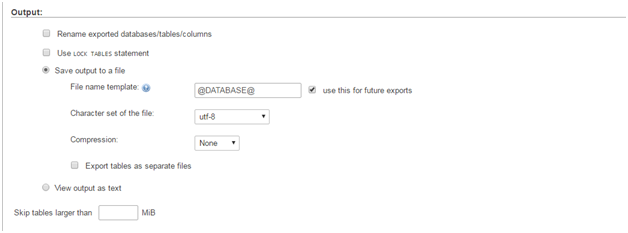
  • Now come to the Output section. Following screen will appear.
  • Wordpress How to backup wordpress site5

    Look at the above snapshot, select Save output to a file and None for Compression.

  • Choose SQL from Format drop-down menu.
  • Check "Add drop table". This is useful for over writing an existing table.
  • Check "If not exists". It prevents from errors when tables are already there.
  • Now click Go. Your data will be saved in your system.
  • Store these files at various places for backup.


Read More
  • Share This:  
  •  Facebook
  •  Twitter
  •  Google+
  •  Stumble
  •  Digg

How to Update WordPress site

 Programing Coderfunda     March 29, 2022     Wordpress     No comments   


How to Update WordPress site

You should always upgrade your site to the latest version of WordPress. Whenever there is a new WordPress version, you'll receive an update message on your admin screen. A site should be updated at the lowest peak time (at lowest traffic time) to avoid problems to your viewers.

There are two methods to update your site. One is with one-click update and other one is manually.

Backup your site

Before doing anything, backup your site for safe side. If there will be any issues you can restore your site.

Automatic Update

Most of the sites automatically apply updates in the background. This is available for versions 3.7+

There are four types of automatic background update

  • Theme update
  • Plugin update
  • Core update
  • Translation file update

One-click Update

In new versions you can update your site with one-click. This feature was added in the versions 2.7+. Whenever there is a new update you'll receive a notification. Just click on Dashboard > Update Screen option. You'll land on Update WordPress page. Now click on Update Now and the process will start. You don't have to do anything else. Once it is finished, you'll be updated.

Failed Update

When you receive a failed update message, delete file .maintenance, from your WordPress directory using FTP. It will remove failed update message.

Manual Update

If you are not receiving updates to automatic WordPress update in newer versions then you need to manually update your site. This could be due to many reasons.

Step 1:Replacing WordPress Files

  • Download latest WordPress zipped file and unzip it.
  • Deactivate plugins from your site.
  • Delete old wp-admin and wp-include directories from your web host.
  • Upload new wp-admin and wp-include directories to your web host. It will replace the old deleted directories.
  • From wp-content directory, overwrite all the files one by one. Keep it in mind, do not delete existing wp-content directory or any file inside it. Only overwrite them.
  • Upload all new files from the root directory to the existing WordPress root directory.

In the last just have a look on wp-config-sample.php file to check for any new setting that need to be added to your wp-config.php file.

Step2: Update your Installation

Go to /wp-admin page. It may ask you to login again. If database upgradation would be necessary, it will give you a link to a URL. Follow the link and all the instructions, your database will be updated with the new WordPress.

Activate all the plugins in your site and start your work.

If you have cache enabled, clear the cache so that the changes will go live immediately. Otherwise, your visitors will see the old version of your site.


Read More
  • Share This:  
  •  Facebook
  •  Twitter
  •  Google+
  •  Stumble
  •  Digg

28 March, 2022

How to Update WordPress Themes

 Programing Coderfunda     March 28, 2022     Wordpress     No comments   


How to Update WordPress Themes

Themes are an important part of all types of websites. It regulates how the site looks, how the content is viewed, and how it looks new, professional and up-to-date. That's why it's important to keep the theme up-to-date and make sure it always works well.

But sometimes, the management of themes is not simple. If we configured a WordPress theme and upgrading it, we have a risk of losing the work. If the theme's new version is not compatible with the site's plugins, we have to specify which code we want to update or which not to. And if we run a store with a WooCommerce theme that we customized, we'll need to make sure it works after the updation.

In this section, we will discuss how to update WordPress themes. But firstly, we have to know why we should update WordPress themes.

Why we need to Update WordPress Theme

Keeping the code up to date on the WordPress site is quite important. WordPress launched the plugins and theme's new version for better benefits, but sometimes it would also put the site at risk. Let's look at the three reasons why we should keep the site updated at all times, such as security, compatibility, and features.

Security

It's most important to ensure that the code security on the site is always updated. Security fixes the substantial proportion of changes to themes, plugins, WordPress core, and minor releases intended to resolve security weaknesses. WordPress is a free and open-source framework with active community testing; if it finds any flaws in the software for security bugs and different issues, it will be publicly addressed and fix as soon as possible. It's one of the essential advantages of WordPress.

Compatibility

Themes are also being revised regularly to ensure that the new version of WordPress is compatible or not. WordPress's new version will come after a short period. A theme developer will check their themes against WordPress's new versions and make any modifications required for compatibility. Over time, however, new versions of WordPress will be published, and compatibility issues will occur with your theme.

Features

The main reason to keep the theme up to date is to use any new features that the developer had added to it. Themes are updated with the latest features from time to time. The user has needed some additional features, or the theme will take advantage of new WordPress elements itself and apply additional features that use them.

How to Update a Theme in WordPress?

WordPress has a powerful framework for installing updates for itself and for themes and plugins. WordPress websites regularly check for the updates that can be shown in the Updates option. For the security and efficiency of the WordPress websites, updates are very necessary. With these updates, apart from security and bug fixes, theme developers may also add new features. If we want to update the themes in WordPress, it is required to use the following steps:

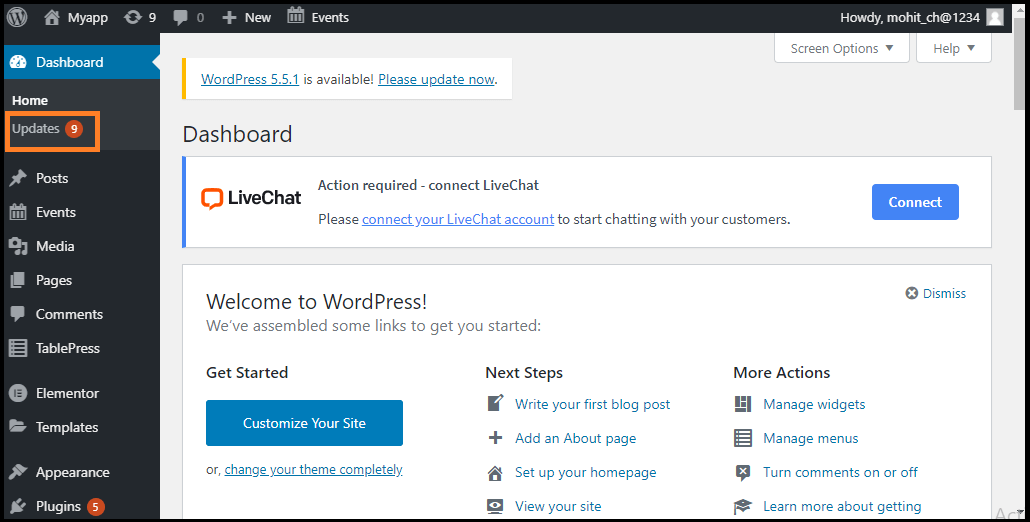
Step 1: First, we need to go to the WordPress Dashboard and choose the Updates option.

How to Update WordPress Themes

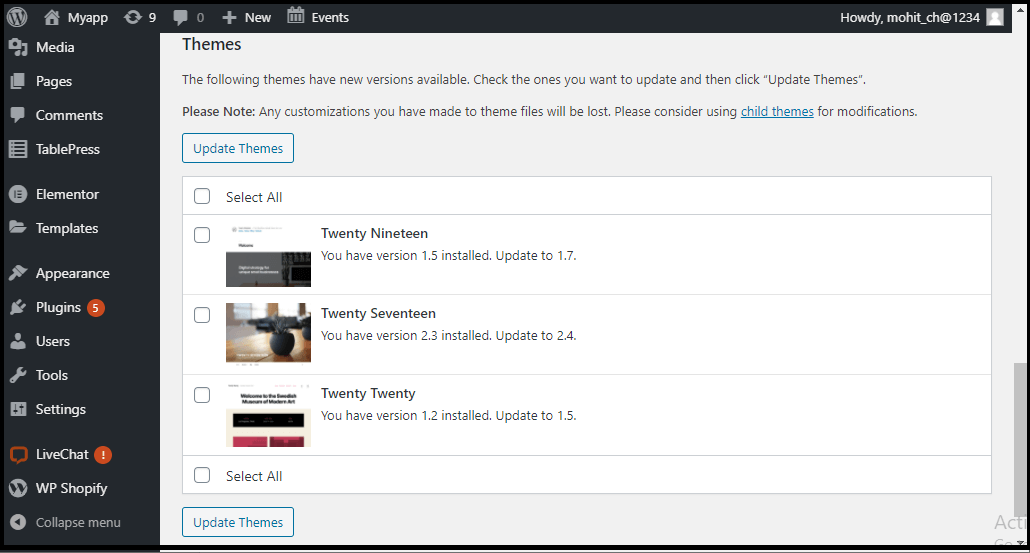
Step 2: When a theme update becomes available, we will see the Themes option's notification.

How to Update WordPress Themes

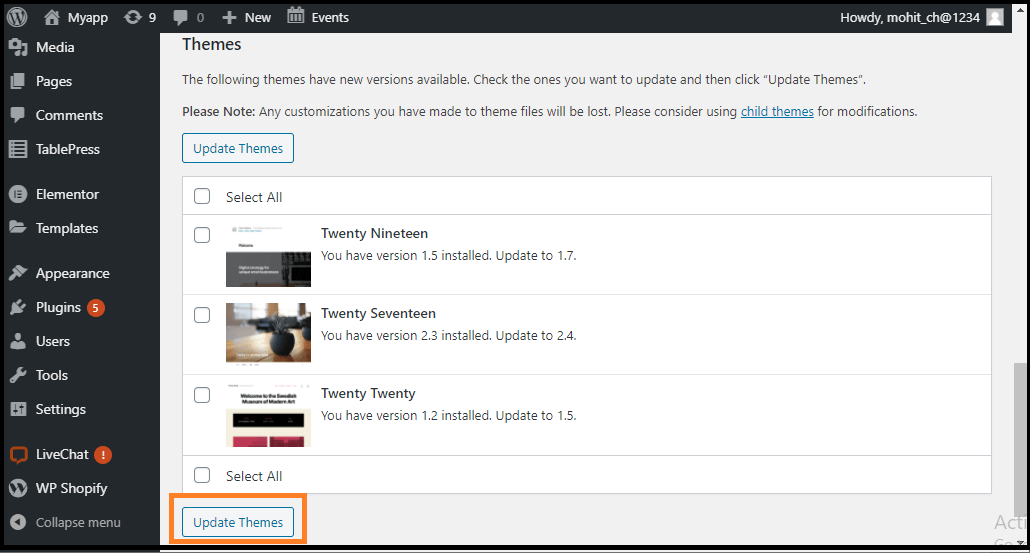
Step 3: To install the WordPress theme's new version, we can click on the "Update Themes" button.

How to Update WordPress Themes

WordPress will then download, unzip, and replace the old files with the newer version of the theme package. This will overwrite all the old theme files that the website has installed. If we manually apply custom code to the WordPress theme, those modifications would be lost.


Read More
  • Share This:  
  •  Facebook
  •  Twitter
  •  Google+
  •  Stumble
  •  Digg

WordPress Permalink

 Programing Coderfunda     March 28, 2022     Wordpress     No comments   

WordPress Permalink

It is the permanent URL for individual blog posts, categories and other lists on our WordPress site. Permalinks will help to link the article with another weblogger and send a link to our story in an e-mail message. The URL for each post or site must be permanent and can never be changed. Permalinks are also known as a pretty link. By default, WordPress URLs use the format of the query string which looks like as below:

  1. http://www.example.com/?p=N  

In this example, N is the Post ID number of the site. It works in all the server environments, but it doesn't look as good as other options.

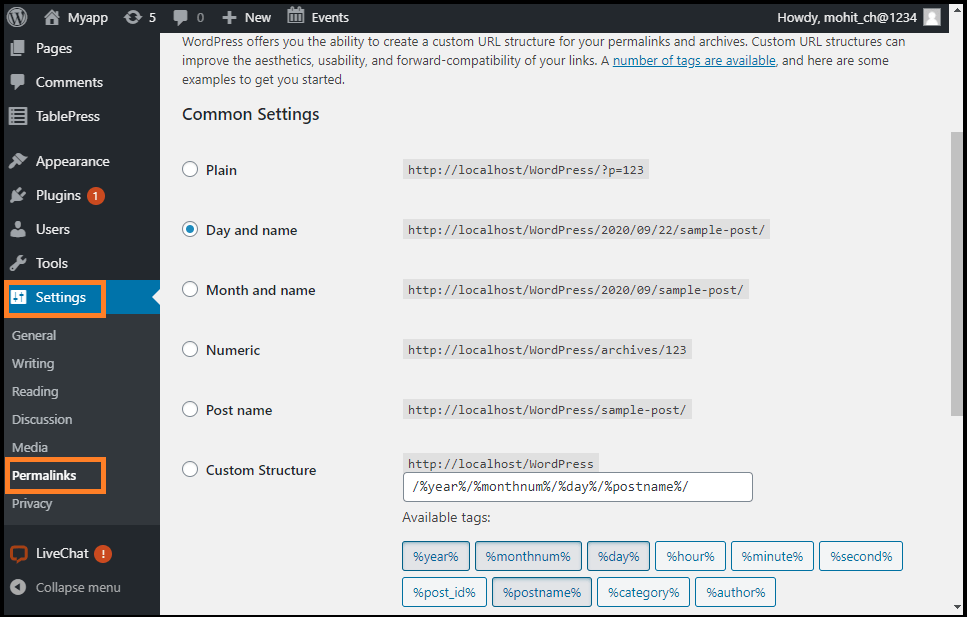
However, we can modify the settings to change those query strings into human-readable strings by going to Settings >> Permalinks options page. For example:

  1. http://www.example.com/2020/4/22/post-name  


WordPress Permalink

Why are permalinks so important in WordPress?

It allows the world to recognize the different content pieces in a blog via the permalinks. There are some instances that help us to know why permalinks are so important in WordPress:

  1. If any blogger wants to connect with the post content, they point to one of the Permalinks.
  2. If we want to share the social media platform's content, we can share the permalink.
  3. If Google wants to index a piece of our content, the permalink will be used.

How to Set the Permalinks in WordPress?

It is easy to set the permalinks in WordPress. We can do it in two ways:

  1. We can set up a permalink structure just after launching a new WordPress site.
  2. For every piece of content, we can set the Permalinks individually.

Permalinks Structure Tag in WordPress

We can use these structure tags to customize the permalinks. The following structure tags are used in WordPress:

Year

It is the year of the post, for example, 2020

Monthnum

It is the Month of the year, for example, 07

Day

It is the day of the Month, for example, 15

Hour

It is the hour of the day, for example, 12

Minute

It is the minute of the hour, for example, 35

Seconds

It is the second of the minute, for example, 49

Post ID

It is the unique ID of the post, for example, 267

Post name

It is the title of the post that is used in the post or page panel.

Category

A sanitized version of the category name which is used in the category panel.

Author name

A detailed version of the author's name.

How to set the permalink structure in WordPress?

Setting up a simple permalink structure

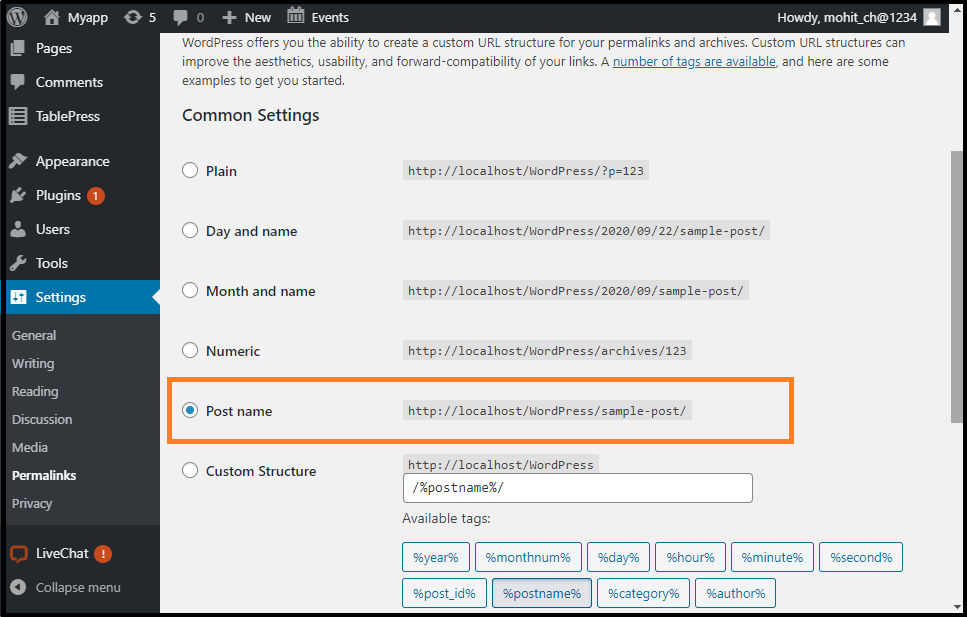
To set the permalink structure, go to the wp-admin >> Settings >> Permalinks. Once we reached there, select the "post name" option.

WordPress Permalink

Adding Custom Permalinks

Permalinks are easy to set up using custom structures. These are permalinks, which end with the extension of .html or .php.

A user migrates to their website with the .html extension in the URL of the post and wants to keep everything almost the same.

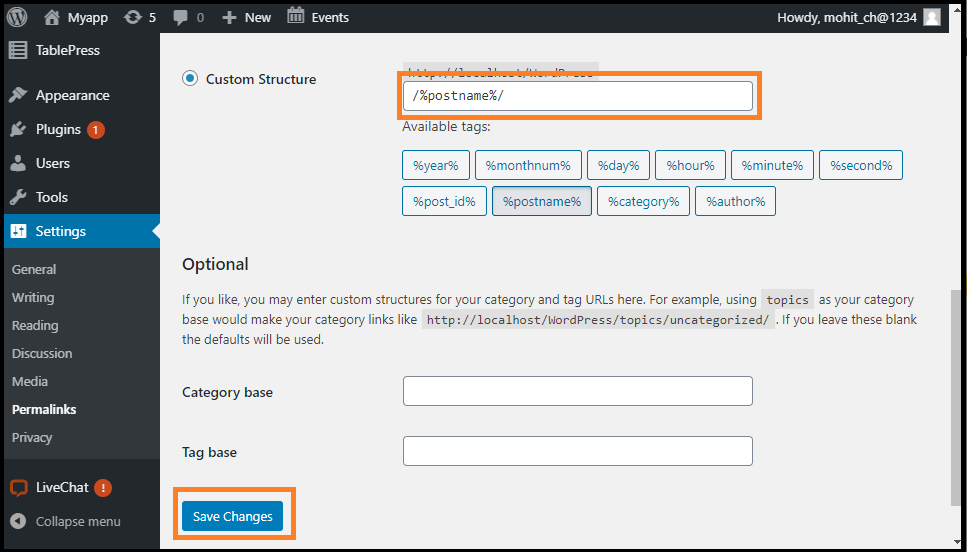
Now, we will follow the same steps mentioned above. Here we will use the custom structure. The website will have the following code for the custom structure:

  1. /%postname%/  


WordPress Permalink

Input the code in the Custom Structure box if we don't see it, and click on the Save Changes button.

Once we are completing all these steps, we can open it by navigating to Settings and then Add Any Extension to pages. Next, we need to enter the .html or any other extension that we want to add and then click on the Update Setting button.

The custom permalink's final step is to go back to the Settings and permalink (Setting >> Permalink), and then click on the "Save Change" button without making any changes to the settings. It will reset the permalinks, and a needed step to make a new extension work with the WordPress site.

How to set the Permalinks for posts and pages?

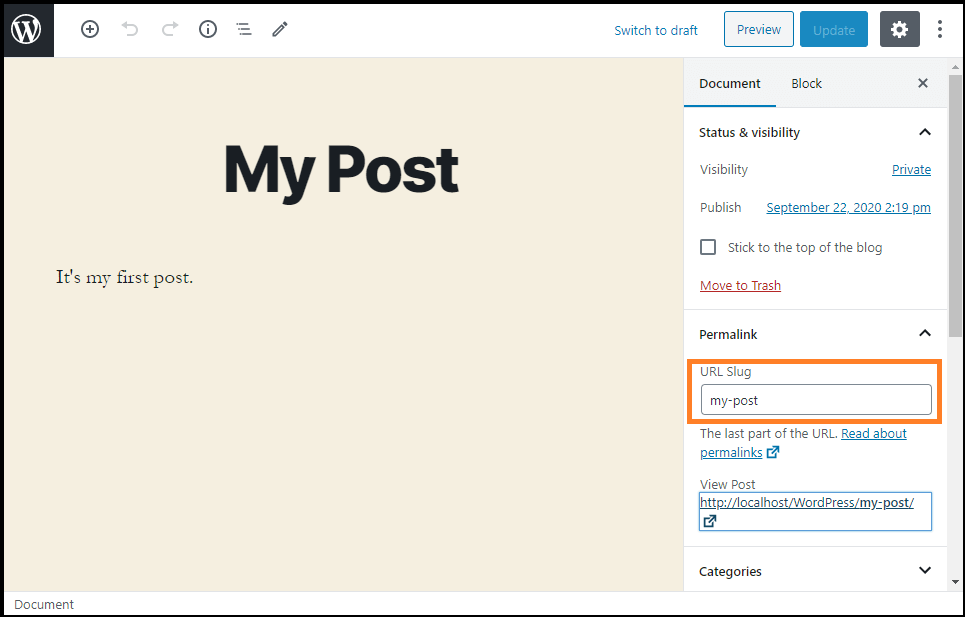
Once we complete the Permalink structure setup, we may tweak the different posts and pages. It can be done via every individual page's and post's editing screen. When we edit the content, we can see this small area directly below the title field.

We can change the permalink by clicking the "Edit" button. A box appears, and we can place whatever we want.

WordPress Permalink

However, it is standard to use the full title or some simplified version of a given post.


Read More
  • Share This:  
  •  Facebook
  •  Twitter
  •  Google+
  •  Stumble
  •  Digg

WordPress Roles

 Programing Coderfunda     March 28, 2022     Wordpress     No comments   

WordPress Roles

WordPress Roles and Capabilities

WordPress uses the Role concept, which provides site owners to control what users can and cannot do. A site owner manages user tasks such as writing and editing tasks, managing content, creating pages, managing plugins, creating categories, moderating comments, and managing other users.

It has six predefined roles, which are given below:

  1. Super Admin
  2. Administrator
  3. Editor
  4. Author
  5. Contributor
  6. Subscriber

Each role can conduct a set of tasks that's called Capabilities. There are various capabilities available, such as "moderate_comments", "edit_users", and "publish_posts". Each role is pre-assigned to the default capability set, but additional capabilities could be added or removed using the added cap() function and remove cap() function.

What is WordPress Roles?

A Role is defined as a collection of tasks that can be performed by the user. By default, there are several predefined positions with predefined permissions in a WordPress installationM.a<. For example, a super admin role includes any possible task that may be performed in a virtual WordPress site. The administrator's role limits the permitted tasks to those who can affect a single site. Now, we are going to discuss the six pre-defined roles that are used in WordPress.

1. Super Admin

By default, Super Admins have all Multisite capabilities. It can access the features of site network management and all other features. The following are the Multisite capabilities that are available only for Super Admins:

  • Create sites
  • Delete sites
  • Manage networks and Sites
  • Manage network users
  • Manage network plugins
  • Manage network themes
  • Manage network options
  • Setup network
  • Upgrade network

In the case of a single WordPress site, installation is effective in Super Admins. They are the only ones who have access to additional capabilities of admin.

2. Administration

In WordPress, Administration is a user role. A user with an administration role may add and remove the other users with the same role. When an Administration role is assigned to a user, it is important to note that the Administration can delete content. The first user is assigned an administrator user role. On a WordPress platform, users can perform all the actions, and they have full capabilities.

The Administration is a user role that can upgrade a blog of WordPress. Using the built-in theme editor, the user may update themes and edit WordPress files. Users also can add, remove, and modify any plugin on the site in the same method.

There is only a single administrator in most cases. In the case of multisite installations, some admin role capabilities are assigned to the super admin role. The super admin role can install and remove plugins, add new users, modify the theme, and manage the website network, while the admin role is only about single website management.

3. Editor

The term Editor in WordPress may refer to a predefined user role in WordPress's user management system. Users with the editor feature can edit, publish, write, and delete posts. Users may also edit, moderate, and remove comments. Users may handle categories, tags, custom taxonomies and upload files as well. A user with Editor rights also can read private pages and posts.

Since editors may delete posts, including those already published, it is strongly recommended that the user may only assign that role to the user on which we can trust. Also, remember in mind that the user roles in WordPress can add or remove capabilities. So, if we are not sure of giving this much control on our website to a user, we can change the user's role to meet our needs. The editor has the ability to anyone can publish and manage the posts, including the other user's posts.

4. Author

The term author in WordPress refers to the user's predefined role. Users with author roles can write, edit, upload, delete and post their articles. We may also update our profile and change our passwords. Since users with the author's role may remove their published posts and edit their own published documents. So, sites with multiple authors usually assign authors a contributor position or use a feature to build a user role with customized capabilities.

Many websites often provide author pages to writers with biographical information about themselves. Typically, it is achieved by the author's built-in archive pages that provide a list of all posts.

We may also show custom information about them by configuring the pages to show such information. That may include items like name, birth date, place, social media, and more.

5. Contributor

Contributor is one of the most user roles in WordPress's predefined capabilities. On a WordPress website, a user with a contributor function can edit and remove their own posts, but they can't remove posts. It makes the contributor role an ideal choice for WordPress website owners who wish to permit other users to come and write to their websites. Plugins are available that give website administrators more control over each user role's capabilities.

6. Subscriber

The subscriber provides the ability to manage the profile only. In WordPress, a subscriber may refer to a user role. Usually, the user role of the subscriber has minimal capabilities. In all WordPress user roles, the subscriber's user role is very limited until the default capabilities are updated. Users can build and manage their profile on a WordPress website, but not write or publish posts. It ensures that users have the minimal right to edit the WordPress database since users can log in and make profile adjustments to the WordPress dashboard. As with the other user roles, this role's default capabilities can be changed.

The subscriber role permits the users to sign in to a WordPress website with default settings and leave comments without entering their information at any time. This role is useful to people who read a blog regularly and actively comments on it. It may leave comments on a blog very simpler and faster.


Read More
  • Share This:  
  •  Facebook
  •  Twitter
  •  Google+
  •  Stumble
  •  Digg

How to Update WordPress Themes

 Programing Coderfunda     March 28, 2022     Wordpress     No comments   


How to Update WordPress Themes

Themes are an important part of all types of websites. It regulates how the site looks, how the content is viewed, and how it looks new, professional and up-to-date. That's why it's important to keep the theme up-to-date and make sure it always works well.

But sometimes, the management of themes is not simple. If we configured a WordPress theme and upgrading it, we have a risk of losing the work. If the theme's new version is not compatible with the site's plugins, we have to specify which code we want to update or which not to. And if we run a store with a WooCommerce theme that we customized, we'll need to make sure it works after the updation.

In this section, we will discuss how to update WordPress themes. But firstly, we have to know why we should update WordPress themes.

Why we need to Update WordPress Theme

Keeping the code up to date on the WordPress site is quite important. WordPress launched the plugins and theme's new version for better benefits, but sometimes it would also put the site at risk. Let's look at the three reasons why we should keep the site updated at all times, such as security, compatibility, and features.

Security

It's most important to ensure that the code security on the site is always updated. Security fixes the substantial proportion of changes to themes, plugins, WordPress core, and minor releases intended to resolve security weaknesses. WordPress is a free and open-source framework with active community testing; if it finds any flaws in the software for security bugs and different issues, it will be publicly addressed and fix as soon as possible. It's one of the essential advantages of WordPress.

Compatibility

Themes are also being revised regularly to ensure that the new version of WordPress is compatible or not. WordPress's new version will come after a short period. A theme developer will check their themes against WordPress's new versions and make any modifications required for compatibility. Over time, however, new versions of WordPress will be published, and compatibility issues will occur with your theme.

Features

The main reason to keep the theme up to date is to use any new features that the developer had added to it. Themes are updated with the latest features from time to time. The user has needed some additional features, or the theme will take advantage of new WordPress elements itself and apply additional features that use them.

How to Update a Theme in WordPress?

WordPress has a powerful framework for installing updates for itself and for themes and plugins. WordPress websites regularly check for the updates that can be shown in the Updates option. For the security and efficiency of the WordPress websites, updates are very necessary. With these updates, apart from security and bug fixes, theme developers may also add new features. If we want to update the themes in WordPress, it is required to use the following steps:

Step 1: First, we need to go to the WordPress Dashboard and choose the Updates option.

How to Update WordPress Themes

Step 2: When a theme update becomes available, we will see the Themes option's notification.

How to Update WordPress Themes

Step 3: To install the WordPress theme's new version, we can click on the "Update Themes" button.

How to Update WordPress Themes

WordPress will then download, unzip, and replace the old files with the newer version of the theme package. This will overwrite all the old theme files that the website has installed. If we manually apply custom code to the WordPress theme, those modifications would be lost.


Read More
  • Share This:  
  •  Facebook
  •  Twitter
  •  Google+
  •  Stumble
  •  Digg
Newer Posts Older Posts Home

Meta

Popular Posts

  • Generate Migrations from an Existing Database With the Migration Generator Package
    Laravel Migration Generator Migration Generator for Laravel is a package by Bennett Treptow to generate migrations from existing database ...
  • Search Through Models with Laravel Searchable
      Laravel Searchable   is a package by   Spatie   to search through models and other sources pragmatically. Using this package, you can get ...
  • Laravel Razorpay Integration | Payment gateway integration Laravel in 30 mins | Laravel Razorpay
    1 Integration of Razorpay with Laravel. In this tutorial, I have taught how to integrate payment gateway with laravel with mini-project. If...
  • Tailwindcss best practices for responsive design
    Tailwind CSS provides powerful utilities for responsive design out of the box. To use it effectively and maintain clean, scalable code, here...
  • Vue.js Render functions
        Vue.js Render functions Vue.js recommends us to use templates to build HTML. Here, we can use the render function as a closer-to-the-co...

Categories

  • Ajax (26)
  • Bootstrap (30)
  • DBMS (42)
  • HTML (12)
  • HTML5 (45)
  • JavaScript (10)
  • Jquery (34)
  • Jquery UI (2)
  • JqueryUI (32)
  • Laravel (1017)
  • Laravel Tutorials (23)
  • Laravel-Question (6)
  • Magento (9)
  • Magento 2 (95)
  • MariaDB (1)
  • MySql Tutorial (2)
  • PHP-Interview-Questions (3)
  • Php Question (13)
  • Python (36)
  • RDBMS (13)
  • SQL Tutorial (79)
  • Vue.js Tutorial (69)
  • Wordpress (150)
  • Wordpress Theme (3)
  • codeigniter (108)
  • oops (4)
  • php (853)

Social Media Links

  • Follow on Twitter
  • Like on Facebook
  • Subscribe on Youtube
  • Follow on Instagram

Pages

  • Home
  • Contact Us
  • Privacy Policy
  • About us

Blog Archive

  • ▼  2026 (12)
    • ▼  07/26 - 08/02 (11)
      • 'The Odyssey' crosses USD 639.6 million globally
      • 'Ramayana' to have 'Baahubali'-style cliffhanger e...
      • Kim Kardashian remember late granny on 92nd heaven...
      • Emma Roberts weds Cody John in intimate Idaho cere...
      • 'Jana Nayagan' BO day 4: Film crosses Rs 100 Cr Net
      • 'Chennai Love Story' BO jumps 11.1%
      • China’s new hybrid rice can preserve its high-yiel...
      • Quote of the day by Thucydides: 'Self-control is t...
      • Quote of the day by Slavoj Žižek: 'The problem for...
      • A stormwater pond in Calgary appears filled with P...
      • Inside Kriti Sanon's duplex sea-facing penthouse w...
    • ►  06/28 - 07/05 (1)
  • ►  2025 (4)
    • ►  07/06 - 07/13 (2)
    • ►  06/29 - 07/06 (2)
  • ►  2024 (486)
    • ►  09/15 - 09/22 (30)
    • ►  09/08 - 09/15 (35)
    • ►  09/01 - 09/08 (35)
    • ►  08/11 - 08/18 (2)
    • ►  08/04 - 08/11 (33)
    • ►  07/28 - 08/04 (30)
    • ►  07/07 - 07/14 (11)
    • ►  06/30 - 07/07 (35)
    • ►  06/23 - 06/30 (5)
    • ►  06/02 - 06/09 (31)
    • ►  05/26 - 06/02 (20)
    • ►  05/05 - 05/12 (29)
    • ►  04/28 - 05/05 (26)
    • ►  04/07 - 04/14 (10)
    • ►  03/31 - 04/07 (34)
    • ►  03/24 - 03/31 (10)
    • ►  03/03 - 03/10 (35)
    • ►  02/25 - 03/03 (15)
    • ►  02/04 - 02/11 (22)
    • ►  01/28 - 02/04 (30)
    • ►  01/07 - 01/14 (8)
  • ►  2023 (484)
    • ►  12/31 - 01/07 (35)
    • ►  12/24 - 12/31 (10)
    • ►  12/03 - 12/10 (33)
    • ►  11/26 - 12/03 (20)
    • ►  11/05 - 11/12 (35)
    • ►  10/29 - 11/05 (20)
    • ►  10/22 - 10/29 (9)
    • ►  10/15 - 10/22 (7)
    • ►  10/08 - 10/15 (9)
    • ►  10/01 - 10/08 (10)
    • ►  09/24 - 10/01 (9)
    • ►  09/17 - 09/24 (9)
    • ►  09/10 - 09/17 (7)
    • ►  09/03 - 09/10 (9)
    • ►  08/27 - 09/03 (9)
    • ►  08/20 - 08/27 (8)
    • ►  08/13 - 08/20 (8)
    • ►  08/06 - 08/13 (8)
    • ►  07/30 - 08/06 (8)
    • ►  07/23 - 07/30 (7)
    • ►  07/16 - 07/23 (8)
    • ►  07/09 - 07/16 (7)
    • ►  07/02 - 07/09 (8)
    • ►  06/25 - 07/02 (7)
    • ►  06/18 - 06/25 (7)
    • ►  06/11 - 06/18 (7)
    • ►  06/04 - 06/11 (11)
    • ►  05/28 - 06/04 (7)
    • ►  05/21 - 05/28 (8)
    • ►  05/14 - 05/21 (11)
    • ►  05/07 - 05/14 (7)
    • ►  04/30 - 05/07 (7)
    • ►  04/23 - 04/30 (8)
    • ►  04/16 - 04/23 (9)
    • ►  04/09 - 04/16 (7)
    • ►  04/02 - 04/09 (4)
    • ►  03/26 - 04/02 (21)
    • ►  03/19 - 03/26 (2)
    • ►  03/12 - 03/19 (9)
    • ►  03/05 - 03/12 (26)
    • ►  02/26 - 03/05 (25)
    • ►  01/15 - 01/22 (7)
    • ►  01/08 - 01/15 (1)
  • ►  2022 (1037)
    • ►  12/11 - 12/18 (13)
    • ►  12/04 - 12/11 (1)
    • ►  11/27 - 12/04 (40)
    • ►  11/06 - 11/13 (1)
    • ►  10/16 - 10/23 (13)
    • ►  09/04 - 09/11 (5)
    • ►  08/21 - 08/28 (24)
    • ►  08/14 - 08/21 (24)
    • ►  07/03 - 07/10 (9)
    • ►  06/19 - 06/26 (3)
    • ►  05/29 - 06/05 (3)
    • ►  05/22 - 05/29 (3)
    • ►  05/15 - 05/22 (109)
    • ►  05/01 - 05/08 (7)
    • ►  04/24 - 05/01 (7)
    • ►  04/17 - 04/24 (64)
    • ►  04/10 - 04/17 (115)
    • ►  04/03 - 04/10 (73)
    • ►  03/27 - 04/03 (77)
    • ►  03/13 - 03/20 (2)
    • ►  03/06 - 03/13 (25)
    • ►  02/27 - 03/06 (18)
    • ►  02/20 - 02/27 (153)
    • ►  02/13 - 02/20 (187)
    • ►  01/30 - 02/06 (45)
    • ►  01/23 - 01/30 (15)
    • ►  01/16 - 01/23 (1)
  • ►  2021 (412)
    • ►  10/24 - 10/31 (2)
    • ►  07/25 - 08/01 (1)
    • ►  07/11 - 07/18 (10)
    • ►  06/13 - 06/20 (29)
    • ►  05/23 - 05/30 (1)
    • ►  05/02 - 05/09 (24)
    • ►  04/25 - 05/02 (24)
    • ►  04/18 - 04/25 (112)
    • ►  04/11 - 04/18 (1)
    • ►  04/04 - 04/11 (6)
    • ►  03/28 - 04/04 (86)
    • ►  03/21 - 03/28 (19)
    • ►  03/14 - 03/21 (2)
    • ►  03/07 - 03/14 (10)
    • ►  02/28 - 03/07 (1)
    • ►  02/21 - 02/28 (29)
    • ►  02/14 - 02/21 (13)
    • ►  02/07 - 02/14 (12)
    • ►  01/31 - 02/07 (6)
    • ►  01/17 - 01/24 (2)
    • ►  01/10 - 01/17 (8)
    • ►  01/03 - 01/10 (14)
  • ►  2020 (376)
    • ►  12/27 - 01/03 (37)
    • ►  12/20 - 12/27 (92)
    • ►  12/13 - 12/20 (29)
    • ►  12/06 - 12/13 (37)
    • ►  11/29 - 12/06 (4)
    • ►  11/15 - 11/22 (14)
    • ►  11/08 - 11/15 (8)
    • ►  11/01 - 11/08 (2)
    • ►  10/18 - 10/25 (14)
    • ►  10/11 - 10/18 (16)
    • ►  10/04 - 10/11 (10)
    • ►  09/20 - 09/27 (10)
    • ►  09/06 - 09/13 (19)
    • ►  08/30 - 09/06 (26)
    • ►  08/23 - 08/30 (4)
    • ►  08/16 - 08/23 (2)
    • ►  07/12 - 07/19 (48)
    • ►  05/17 - 05/24 (2)
    • ►  01/05 - 01/12 (2)
  • ►  2019 (74)
    • ►  07/07 - 07/14 (6)
    • ►  06/16 - 06/23 (6)
    • ►  02/10 - 02/17 (17)
    • ►  01/13 - 01/20 (37)
    • ►  01/06 - 01/13 (8)
  • ►  2018 (376)
    • ►  12/30 - 01/06 (24)
    • ►  12/16 - 12/23 (8)
    • ►  12/09 - 12/16 (98)
    • ►  12/02 - 12/09 (16)
    • ►  11/18 - 11/25 (36)
    • ►  11/04 - 11/11 (18)
    • ►  10/28 - 11/04 (10)
    • ►  10/21 - 10/28 (26)
    • ►  10/14 - 10/21 (52)
    • ►  10/07 - 10/14 (4)
    • ►  09/30 - 10/07 (2)
    • ►  09/23 - 09/30 (68)
    • ►  09/16 - 09/23 (4)
    • ►  09/09 - 09/16 (4)
    • ►  08/26 - 09/02 (6)

Data Publish News

Loading...

Al Jazeera – Breaking News, World News and Video from Al Jazeera

Loading...

Laravel News

Loading...

Copyright © CoderFunda | Powered by Blogger
Design by Coderfunda | Blogger Theme by Coderfunda | Distributed By Coderfunda