CoderFunda
  • Home
  • About us
    • Contact Us
    • Disclaimer
    • Privacy Policy
    • About us
  • Home
  • Php
  • HTML
  • CSS
  • JavaScript
    • JavaScript
    • Jquery
    • JqueryUI
    • Stock
  • SQL
  • Vue.Js
  • Python
  • Wordpress
  • C++
    • C++
    • C
  • Laravel
    • Laravel
      • Overview
      • Namespaces
      • Middleware
      • Routing
      • Configuration
      • Application Structure
      • Installation
    • Overview
  • DBMS
    • DBMS
      • PL/SQL
      • SQLite
      • MongoDB
      • Cassandra
      • MySQL
      • Oracle
      • CouchDB
      • Neo4j
      • DB2
      • Quiz
    • Overview
  • Entertainment
    • TV Series Update
    • Movie Review
    • Movie Review
  • More
    • Vue. Js
    • Php Question
    • Php Interview Question
    • Laravel Interview Question
    • SQL Interview Question
    • IAS Interview Question
    • PCS Interview Question
    • Technology
    • Other

29 March, 2022

WordPress Installation using MS Webmatrix

 Programing Coderfunda     March 29, 2022     Wordpress     No comments   

WordPress Installation using MS Webmatrix

Webmatrix is a free and lightweight software tool launched by Windows to download different applications. This software is only for Window users. It is very easy to download WordPress from Webmatrix. You can create a website on WordPress using Webmatrix very easily.


Steps to install WordPress

  • Download and Install Webmatrix
  • Open installed Webmatrix
  • Opening App Gallery
  • Choosing Web Application
  • Selecting Database
  • Selecting Password and admin name
  • Start Insatallation
  • Installation complete
  • Running site first time
  • Entering information

Download and Install Webmatrix

Download Webmatrix in your system with the following link
Wordpress Webmatrix1

Look at the above snapshot, you will see this type of file getting downloaded. This is a file with .exe extension.

On opening this file, you'll be directed to the following window.
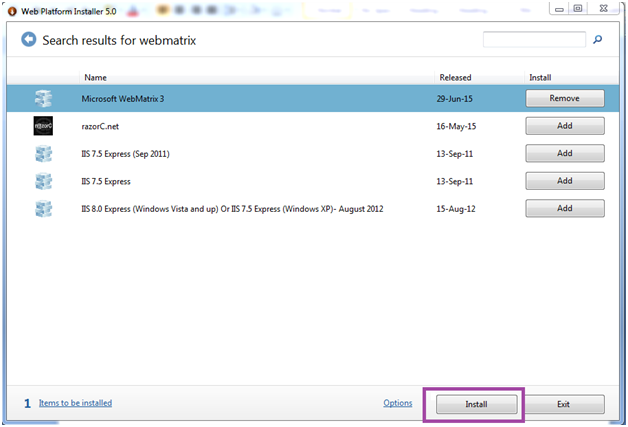
Wordpress Webmatrix2

Look at the above snapshot, on the top right search for Webmatrix. Now, click on add button in front of Microsoft Webmatrix 3. This button will be converted into Remove icon. Now click on install.
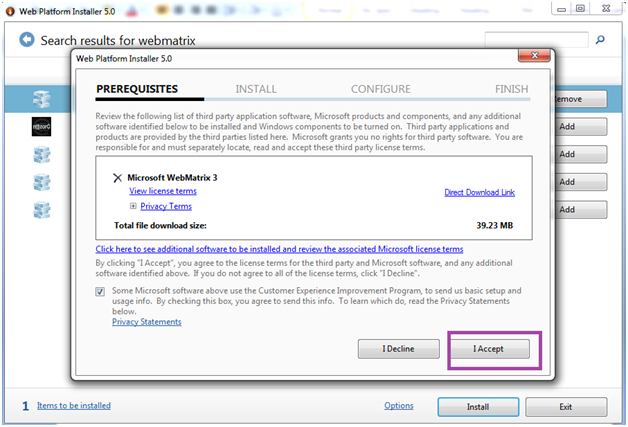
Wordpress Webmatrix3

Look at the above snapshot, click on I agree to start installation.
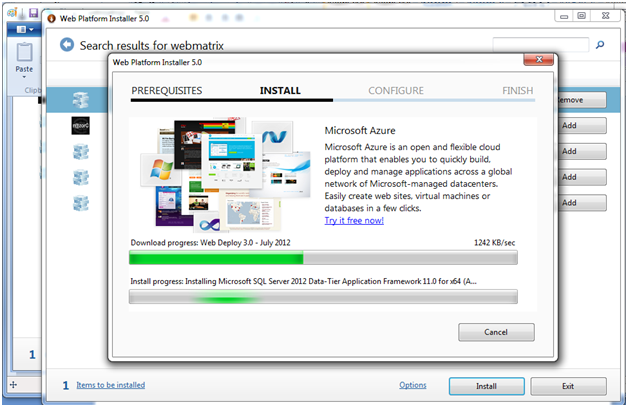
Wordpress Webmatrix4

Look at the above snapshot, all the servers are getting installed.
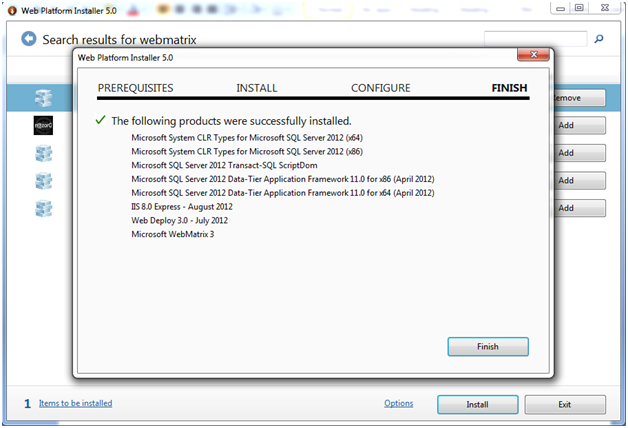
Wordpress Webmatrix5

Look at the above snapshot, we have successfully installed Webmatrix on our system with above mentioned applications.


Open Quick Start Webmatrix

Once you have downloaded Webmatrix, open it on your system to install WordPress.
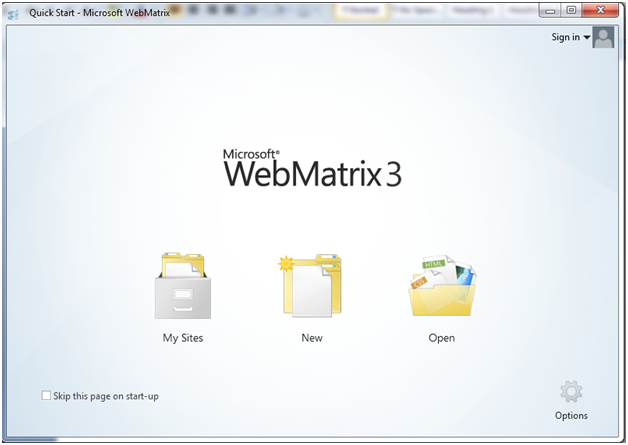
Wordpress Webmatrix6

Look at the above snapshot, the above window is the Quick Start page.

Click on New, you'll be directed to the following page.

Note: If you don't want this page to appear every time, click on the check-box.


Opening App Gallery

There are three options displayed. You have to go to App Gallery which will provide you a lot of options to create a website.
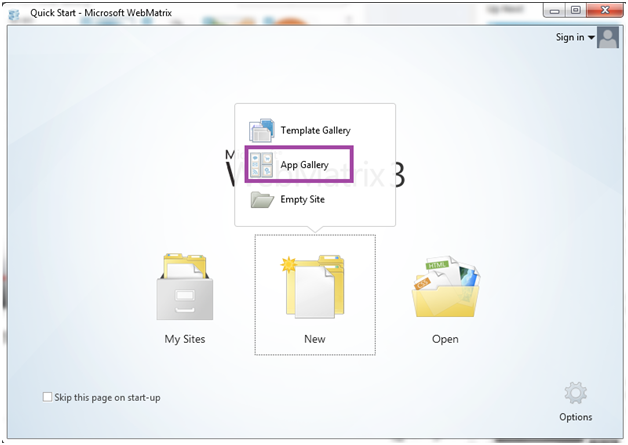
Wordpress Webmatrix7

Look at the above snapshot, on clicking New, three options generated out of which you have to select App Gallery.


Choosing Web Application

Here, we have to choose WodPress application.
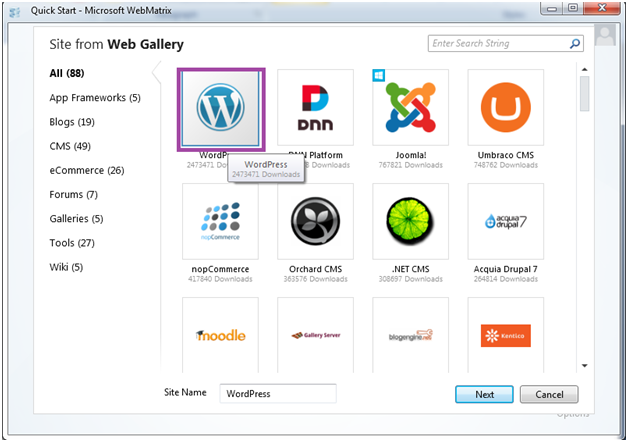
Wordpress Webmatrix8

Look at the above snapshot, these are the applications which Microsoft Webmatrix offers. Select WordPress from this and click on Next.
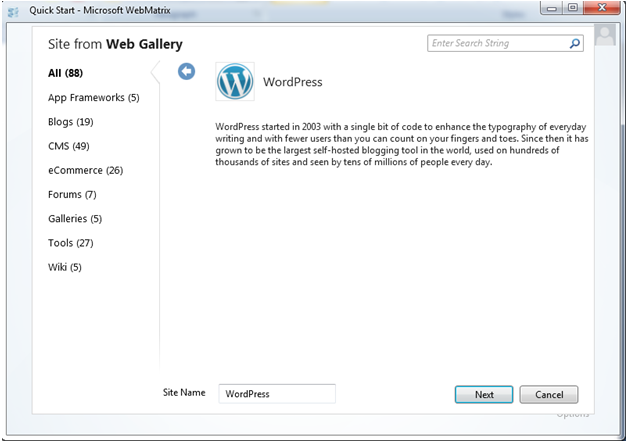
Wordpress Webmatrix9

This page will appear, again click on Next.


Selecting Database

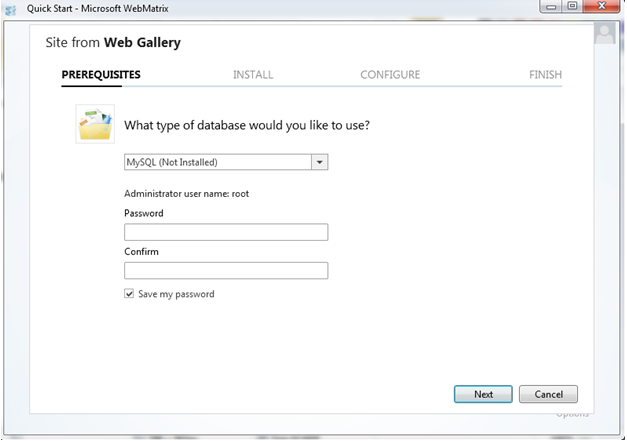
We need to select database. By default, WordPress is only compatible with MySQL. If MySQL is not installed on your system, Webmatrix will install it.
Wordpress Webmatrix10

Look at the above snapshot, by default Webmatrix selects MySQL database.


Selecting Password and admin name

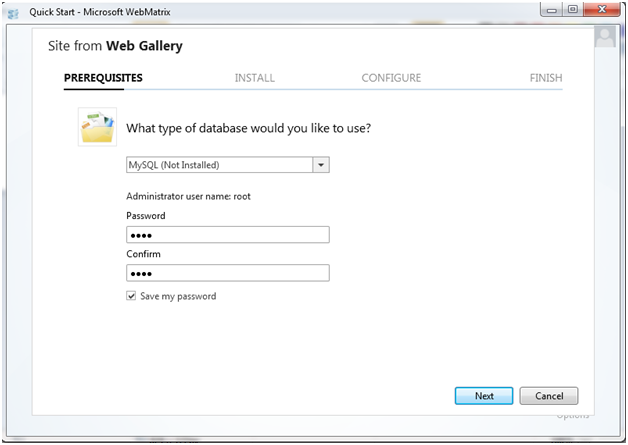
Here, default administrator name will be root. You can type any Password, but remember the admin name and password.
Wordpress Webmatrix11

Start Insatallation

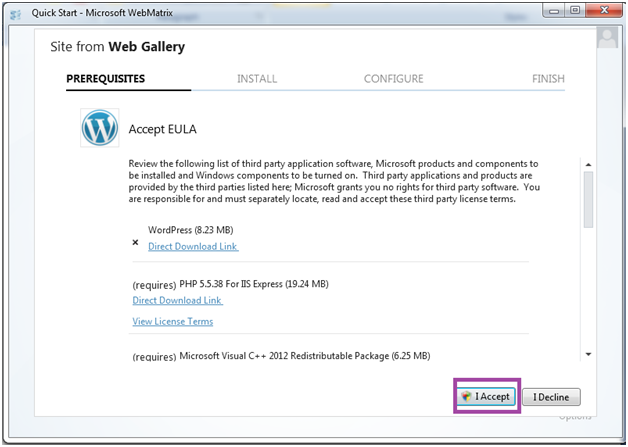
This page will display you all the applications required to be installed with the WordPress. All the software will be installed by itself, you don't have to do anything.
Wordpress Webmatrix12

Look at the above snapshot, after accepting EULA (End User License Agreement), installation begins.

If your Internet connection is good, then your installation will approximately take 1-2 minutes.


Installation complete
Wordpress Webmatrix13

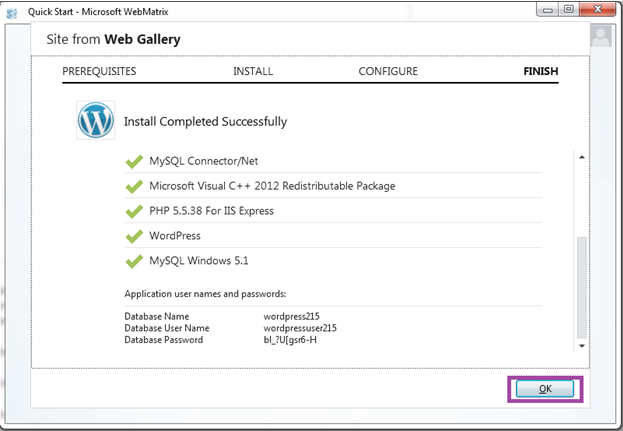
Look at the above snapshot, installation is complete. It shows the list of the applications which we have installed just now.

It also shows user name and password


Running site first time

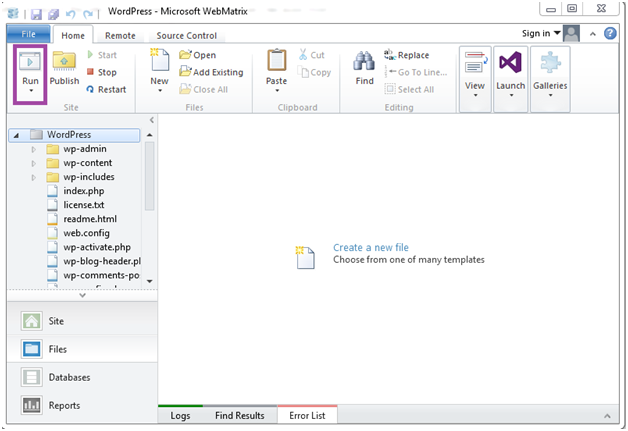
After finishing installation, workspace appears in Webmatrix site. In the Webmatrix ribbon click on Run.
Wordpress Webmatrix14

Look at the above snapshot, after clicking on Run button, you have to select language.


Entering information

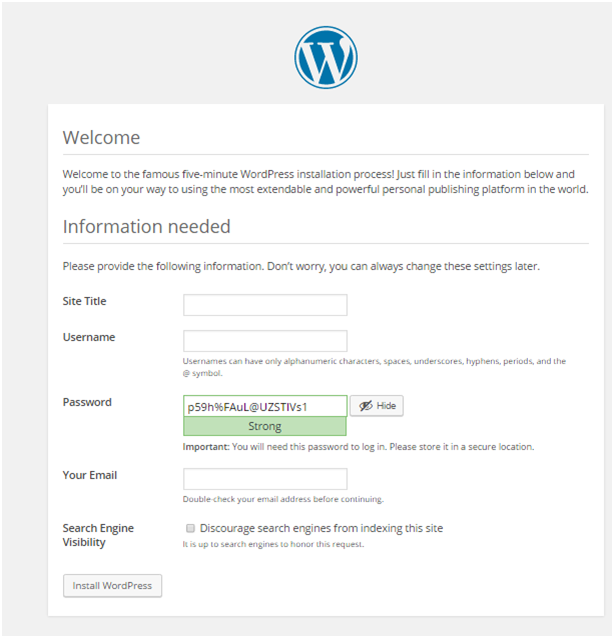
After selecting language, you have to enter further information about your site.
Wordpress Webmatrix15

Look at the above snapshot, in above information you can fill anything as per your wish.

If you will not provide a password, it will automatically generate a password for you.
Wordpress Webmatrix16

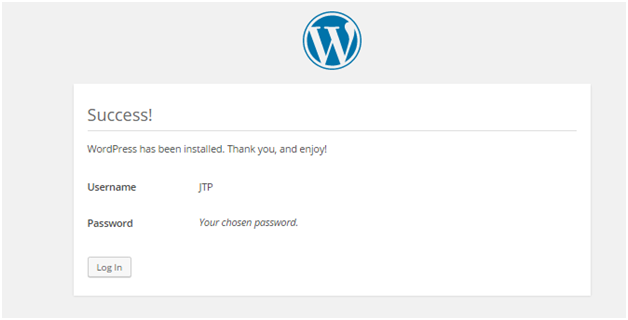
Look at the above snapshot, it shows successfully installed WordPress with username as JTP and a password.

Note: If a username and password will not be provided, then by default username will be admin and password will be generated itself.

Read More
  • Share This:  
  •  Facebook
  •  Twitter
  •  Google+
  •  Stumble
  •  Digg

How to Update PHP in WordPress?

 Programing Coderfunda     March 29, 2022     Wordpress     No comments   

How to Update PHP in WordPress?

WordPress provides an easy way for anyone to create a WordPress website without knowing the much code. However, the WordPress site is built on the coding language, such as PHP.

It is not required to know in detail about PHP to run the Website, but we should make sure that we are running the updated version of the PHP language. It is because hackers are manipulating previous PHP versions to hack into websites. For example, they can destroy our site by altering our homepage, displaying malicious ads, and redirecting visitors to malicious sites. If the WordPress site is hacked, Google will quickly blacklist it, and our web host will suspend the account. By switching to the latest PHP version, we can improve the site's security, performance, SEO, and provide a better user experience.

In this article, we are going to discuss how to update PHP in WordPress. First, we will know why we need to update a php version in WordPress.

Why do we need to update the website PHP version in WordPress?

There are various reasons available to update the php version on the website. Some of them are as follows:

Security

PHP is an open-source programming language. It means that anyone can change, enhance or contribute to language development. These factors make the PHP language an enticing hacker target. If language shows the vulnerabilities, it is required for developers to fix it and release a new language version quickly. When we update the PHP version on the site, vulnerability is removed, and the site is protected. Note that there were no security measures in previous versions. It is not enough to keep the site safe from certain hackers.

Search Engine Optimization (SEO)

Data says that almost 40% of visitors would fall off the website if it takes more than 3 seconds to load a page. Also, Google has made loading speed one of its ranking factors. Some PHP updates will load the site more quickly. It means that the site can retain visitors well. It helps to increase the ranking of search results, more conversions and sales, and improved user experience.

Speed and Performance

Developers always work to improve and enhance PHP. They release new versions with new features and improvements. After we upgrade to the latest version, the site will see an improvement in load speed and performance.

A high-Performance Website

Upgrading to the latest PHP version will speed up the website four times faster. A quicker website provides the better user experience, so visitors can take effective action, including signing up for the mailing list or commenting on the latest blog post. Google also takes page loading time into account when rating the website, so a PHP update will improve the SEO and bring more people to the site.

Before Update

If we want to update the WordPress version, before that, we need to do some work that is given below:

Back-Up the WordPress Site

It is required to always create a backup before making updation of the website, which helps us in the unlikely event that something goes wrong. Creating a backup of the website makes sure that we can turn back anytime into the previous version of the website.

Update WordPress

To ensure that there is no problem in updating the PHP version, we must have to check the WordPress Core installation is the latest version. If we are running an older WordPress version, we must update the latest PHP version because it may cause inconsistencies and make the site unusable.

If we are using an older PHP version, we have to update it with its latest version. For doing this, go to the WordPress dashboard.

How to Update PHP in WordPress

If there is a new version available, it will redirect to the latest version and then press the "Update Now" button.

Update all themes and plugins

If we use third-party WordPress themes and plugins, there is no guarantee that they are compatible with every PHP version.

If we use a common theme or plugin that is frequently updated, it is unlikely that we will experience any major problems.

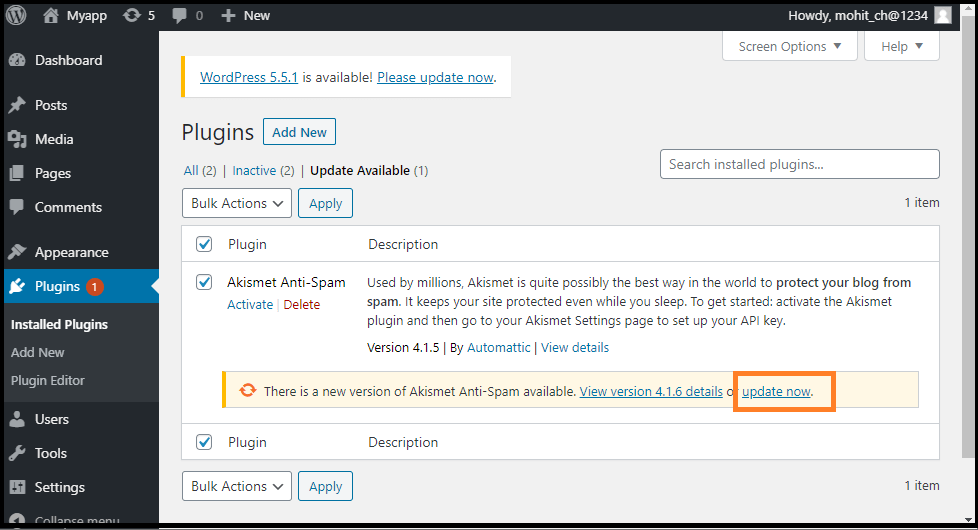
To minimize the chances of having compatibility problems, we should check that the latest update is available for all the themes and plugins. We can do this using the following steps:

Step 1: Firstly, we need to login to the WordPress Account in the dashboard if we already have an account.

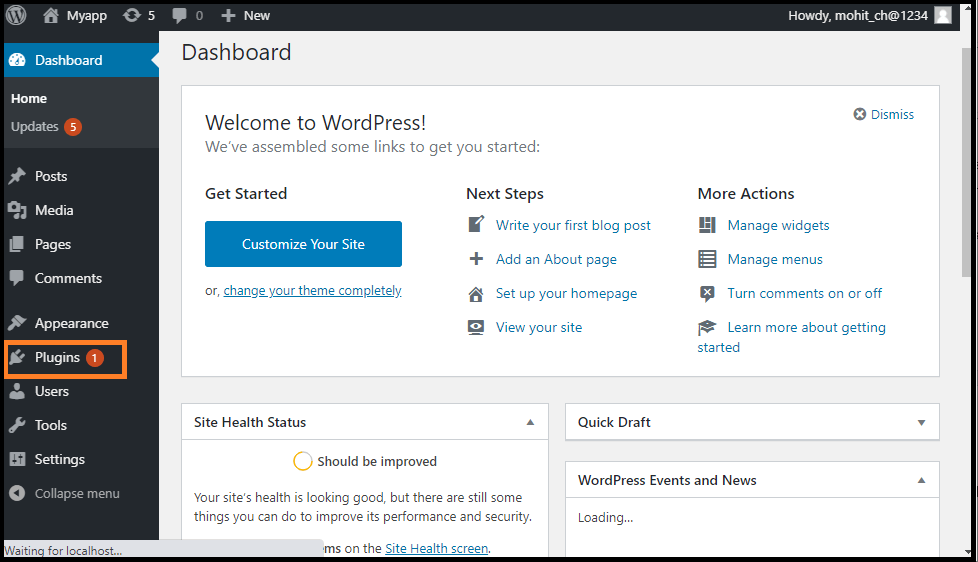
Step 2: Now, go to the WordPress Dashboard and select the "plugins" option.

How to Update PHP in WordPress

Step 3: Next, click on the "Update plugin" button to update all plugin and themes.

How to Update PHP in WordPress

Now, we can see all the available updates.

When we update the plugin and themes, we have to verify that we are running WordPress's latest version by click on the Check Again button.

Check PHP Compatibility

If we run the latest version of all the themes and plugins, we may check for any outstanding PHP compatibility issues. Using the free PHP Compatibility Checker, we can check the plugins and themes against PHP versions. Use the following steps to use the PHP Compatibility Checker.

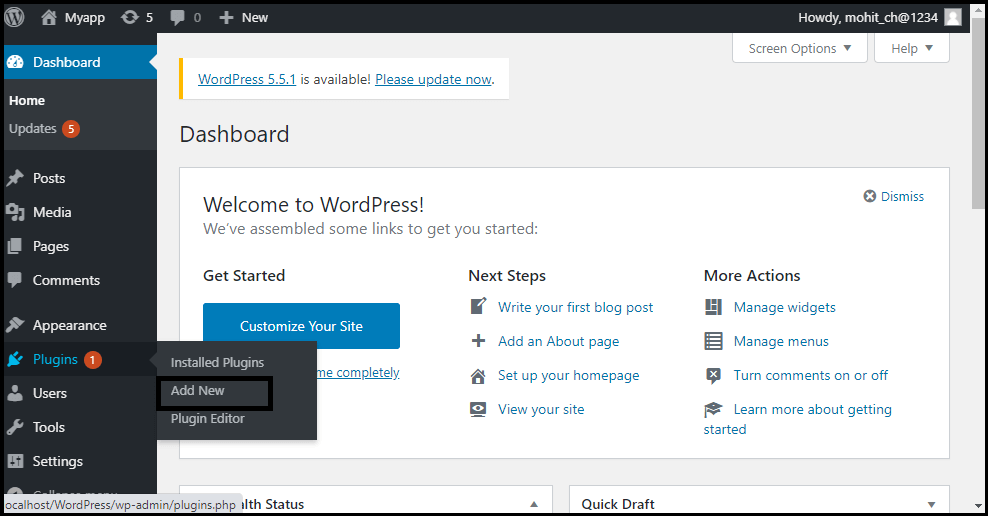
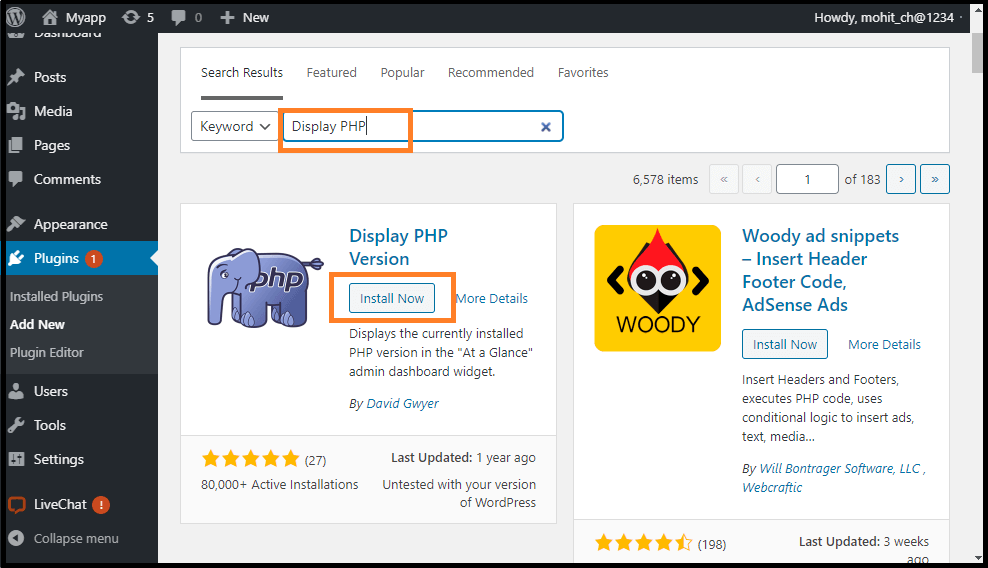
Step 1: Firstly, Go to the WordPress dashboard and choose the "Plugins" option. After that, click on the "Add New" button.

How to Update PHP in WordPress

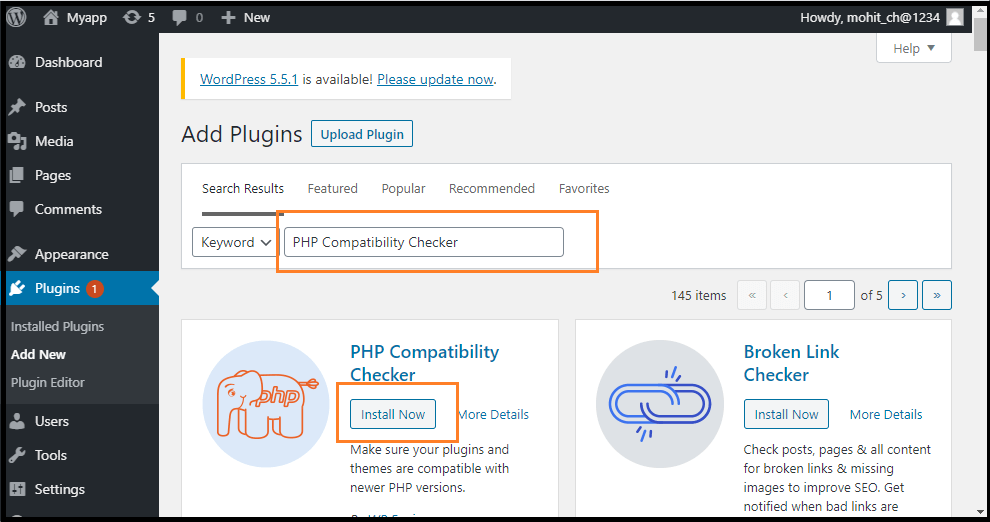
Step 2: Now, search for the PHP Compatibility Checker. It is available free of cost.

Step 3: Once the plugin shows on the screen, click on the "Install Now" button and activate it.

How to Update PHP in WordPress

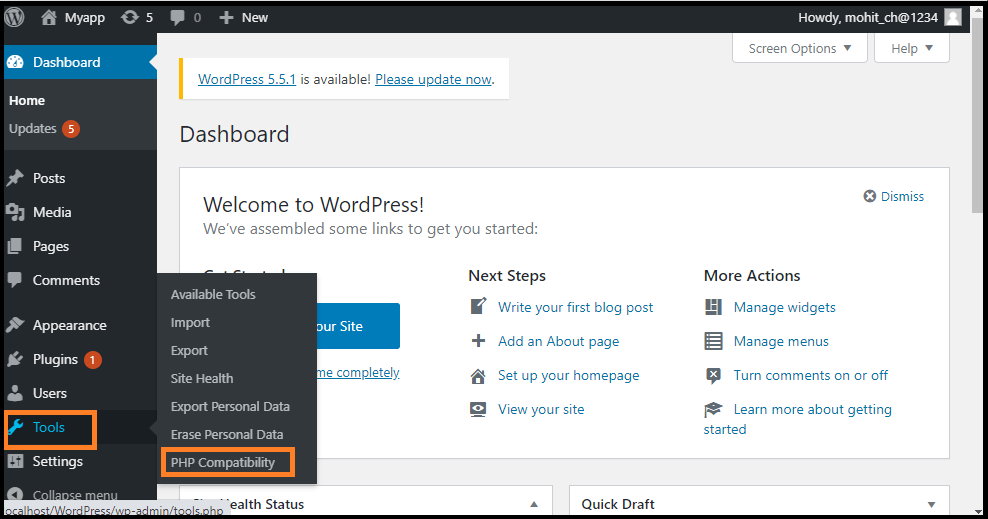
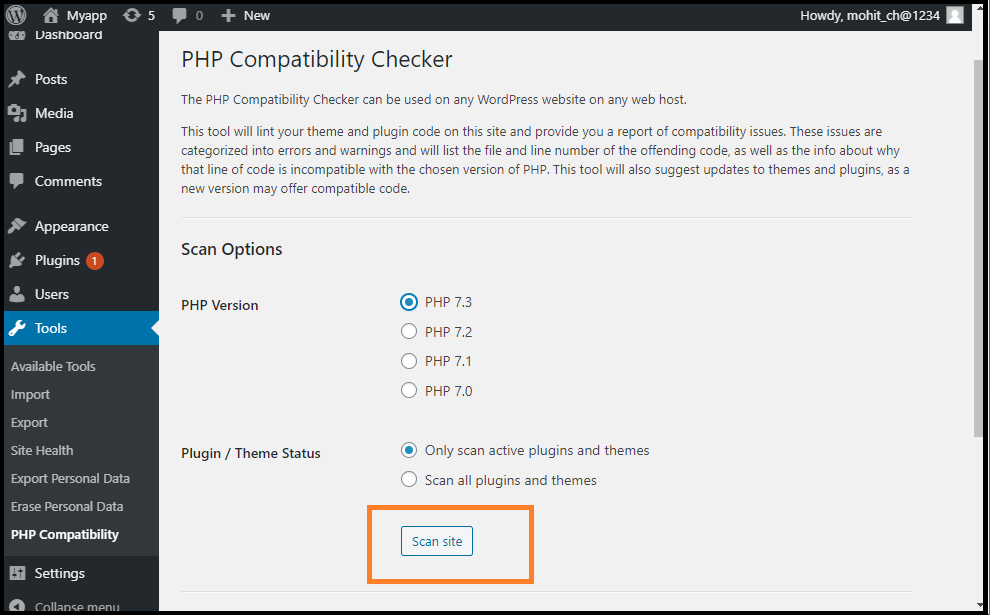
Step 4: In the WordPress left-hand side menu, go to the "tools" and click on the "PHP Compatibility".

How to Update PHP in WordPress

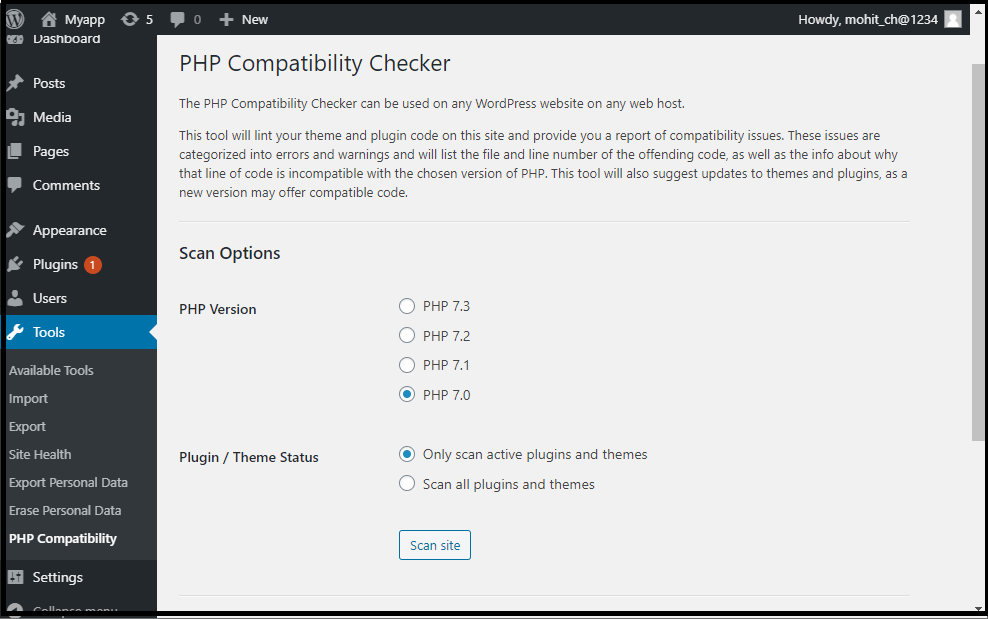
Step 5: Now, select the latest version of the "PHP" that we want to upgrade, which will usually be the latest version.

How to Update PHP in WordPress

Step 6: Here, select one option between the following options: the first option is "Only scan active plugins and themes", and second is "Scan all Plugins and themes".

Step 7: After that, click on the "Scan Site" button.

How to Update PHP in WordPress

It will scan and report problems related to compatibility issues with the plugins and themes. Suppose PHP Compatibility Checker detects a problem. In that case, we can look for an alternative plugin or theme compatible with the latest version of PHP, or we can contact the developer to see if they want to upgrade their support for PHP.

How to check the PHP version in WordPress?

Before updating the latest version of the PHP version, it is important to check which PHP version is currently running. It is because updating the PHP version can create some problems, especially if we have not updated it for a long time. It may create a problem with themes and plugins to a malfunction or stop working on the site. We can check the PHP version of the website by using the WordPress Plugin.

Using the WordPress Plugin

Use the following steps to check the PHP version in WordPress.

Step 1: Firstly, we are required to install a plugin. For example, we install a plugin called Display PHP plugin. It is available free of cost in the WordPress repository.

How to Update PHP in WordPress

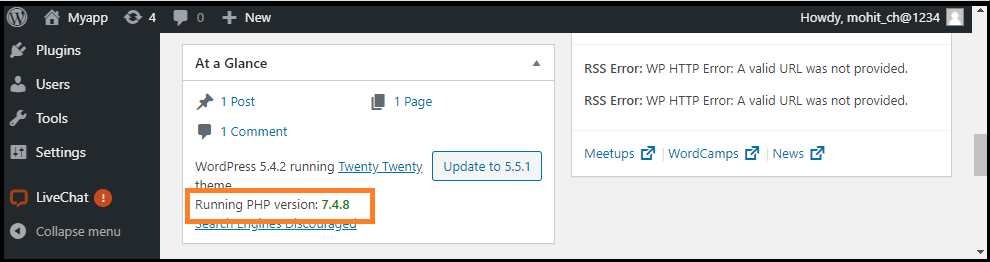
Step 2: After installing and activating the plugin, go to the WordPress Dashboard and then go to the home page. After that, go to the "At a glance" option (WordPress Dashboard >> Home >> At a glance).

How to Update PHP in WordPress

Here, we can see the PHP version of the Website that we are currently using.


Read More
  • Share This:  
  •  Facebook
  •  Twitter
  •  Google+
  •  Stumble
  •  Digg

How to optimize WordPress performance

 Programing Coderfunda     March 29, 2022     Wordpress     No comments   


How to optimize WordPress performance

WordPress Optimization

You should optimize your WordPress site and server for the best possible outcome. This thing is necessary for all the sites whether containing a large traffic or a small traffic.

It increases the speed of your site, which provides a great experience to your users and improve your ranking because loading time is also considered in search engines.

There are a lot of tricks through which a user can optimize the WordPress site performance. We'll see to some of them in this tutorial.

  1. Choose a Good Web Host
  2. Use a Caching Plugin
  3. Use a simple Theme/Framework
  4. Use CDN
  5. Optimize images for Speed
  6. Split long posts into smaller pages
  7. Split Comments into Pages
  8. Remove Inactive Plugins
  9. Keep your site Updated
  10. Don't upload Videos to WordPress site
  11. Optimize WordPress Database
  12. Enable Gzip Compression
  13. Install well-coded Plugins
  14. Replace PHP with HTML code wherever Possible
  15. Delete Old posts Revisions
  16. Turn off Trackbacks and pingbacks
  17. Use a responsive design
  18. CSS in Head, JS in Body (remove unnecessary Jscripts)

Choose a Good Web Host

Your site's performance greatly depends upon your chosen web host. So choosing web host is a very important decision. If your web hosting service is not quite good, then other tricks to increase your site's performance may not work.

Do a complete research about the host you are opting for. Read its reviews and comments from the experts. It's better to pay some extra bucks rather than choosing a cheap one and compromising with quality.


Use a Caching Plugin

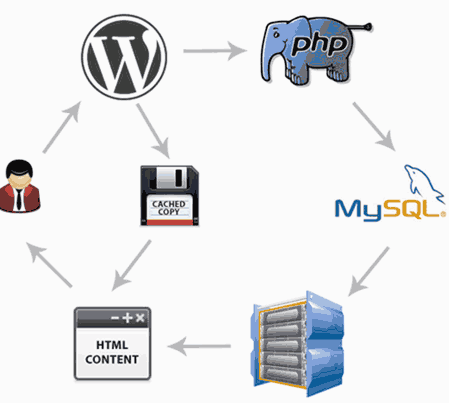
A caching plugin serves a cached version of your page to the user's browser instead of generating every page on the fly.

It is important because WordPress is written on PHP, which is a server side programming language. It means whenever someone visits your site, WordPress runs a process to fetch the information and then display it the user's browser which is quite time consuming and my slow down your site.

Wordpress How to optimize wordpress performance1

Use a fast Theme/Framework

Your installed WordPress theme should be fast and well-coded. Don't choose a theme with lots of features which you don't need, it will negatively affect your site.

Large themes use lot of CSS, JavaScripts, PHP and Iframes which takes a lot of time to load. If you want to use complicated themes, minimize its coding or hire a developer to bring out best from the theme.

Default WordPress themes are best to use as they are well-coded and light-weighted to load.

Wordpress How to optimize wordpress performance2

Use CDN

CDN stands for Content Delivery Networks. It is a network of geographically dispersed servers which delivers cached content based on the geographic locations of the user from the websites.

Static resources of a site like images, CSS files and scripts, stop the page from displaying into a user's browser. CDN can resolve this problem by serving static files to the users from their closet servers across the world. Due to this load on the primary server also reduces and hence gives the better result to the users.

Wordpress How to optimize wordpress performance3

Optimize Images for Speed

Images are one of the heavier elements and take longest time to load in your site. Most websites have a lot of images on each page.

Before using images, make sure that they are properly optimized for the web.

Wordpress How to optimize wordpress performance4

Split long posts into smaller pages

For a long post article with a lot of images, it is better to split them into multiple pages. WordPress has a built in functionality for this.

Just add <!?nextpage--> tag in your article wherever you want to split your page.

Wordpress How to optimize wordpress performance5

Split Comments into Pages

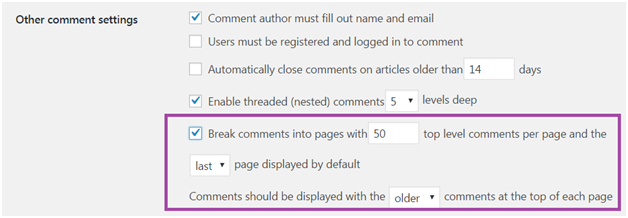
Some articles may have a lot of comments received. Loading all the comments in a single page will take a lot of time for loading. It is advisable to split the comments into multiple pages to reduce the load time.

WordPress built-in solution for this is go to Settings > Discussion and check the box Break comments into pages.

Wordpress How to optimize wordpress performance6

Remove Inactive Plugins

Plugins which are used no more are needed to be uninstalled quickly. Many users forget after installing plugins which are not even used any further on their site.

They increase your site size and slow down the speed of your site.


Keep your site Updated

WordPress automatically updates its site regularly. Updates helps to fix bugs, security issues, and offer some new features.

It is essential to keep your site updated on a regular basis. All plugins and themes should also be regularly maintained and updated. Not updating your site regularly may cause some security issues for your site.

Wordpress How to optimize wordpress performance7

Don't upload Videos to WordPress site

Directly uploading videos to your WordPress site consumes a lot of bandwidth. These video qualities can't be optimized for high performance by WordPress.

It is better to embed videos in WordPress from video hosting sites like YouTube, DailyMotion, Vimeo, etc. it improves page load speed of your site.


Optimize WordPress Database

After some time when you start using your WordPress site, your WordPress database may have some unused data which you don't need any more. Your database needs to optimize your database table for better performance.

There are some plugins for this which allows you to clean your WordPress site by deleting trash, pending spam comments, orphaned meta, etc. it also optimizes database table structure and gives you a fast responding database.

Wordpress How to optimize wordpress performance8

Enable Gzip Compression

Serving a compressed version of your site to your visitors results in less loading time due to the smaller size.

You can enable Gzip compression either from your cPanel (if your host allows so) or from a WordPress plugin. You can also enable it from your .htaccess file.

Wordpress How to optimize wordpress performance9

Install well-coded Plugins

There are a lot of WordPress plugins available but all of them are not well-coded. Always go for the plugins which support latest WordPress version and are highly optimized.

Poorly developed plugins not only slow down your site but also affects other plugins functionalities.


Replace PHP with HTML code wherever Possible

Plain HTML code loads much faster than PHP codes on web servers. If possible then replace some PHP code with HTML code on your site.

HTML loading time is around 20 times faster than PHP.


Turn off Trackbacks and pingbacks

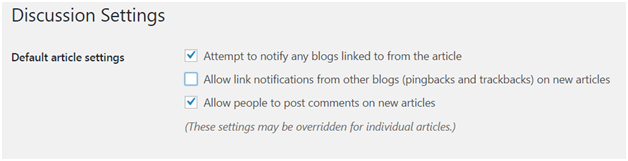
Whenever someone links to your site, a trackback gets created which utilizes your server and database resources which ultimately affect your site's speed.

So when you don't need trackbacks just disable them from Settings > Discussion, unchecke the box of trackbacks and pingbacks.

Wordpress How to optimize wordpress performance10

Use a Responsive design

Responsive designs are used to load less resource for small screen devices and high resolution images for larger screens. This way small screen users won't get a heavy image and large screen users won't get a smaller highly compressed image.


CSS in Head, JS in Body (remove unnecessary JavaScripts)

Link CSS stylesheets in the Head tag of HTML coding. Using it outside the Head tag prevents the browser from displaying content of the page as soon as page is loaded.

Use JS in the Body tag of the HTML coding. JavaScript tags stops the progressive loading of the page. Whenever a browser encounters a JavaScript tag, it tries to interpret it before loading the rest of the page. So it is advisable to use JavaScript tag at the end of the page.

This trick will not reduce your site's size, but it will help in loading your site a little faster.


Read More
  • Share This:  
  •  Facebook
  •  Twitter
  •  Google+
  •  Stumble
  •  Digg

How to reset Password in WordPress

 Programing Coderfunda     March 29, 2022     Wordpress     No comments   

How to reset Password in WordPress


How to reset Password in WordPress

If you forget or lost the password of your account, WordPress gives you an option to reset it through different methods.

In WordPress interface, password can be recovered via email. But on some hosts, where email is not working properly, other methods are used.

There are four ways to reset WordPress password.

  • Change password from dashboard.
  • Reset password via email.
  • Manually reset password through database via phpMyAdmin
  • Using emergency password reset script.

Change password from dashboard

Follow the following steps to reset password from dashboard.

1) Login to your WordPress account.

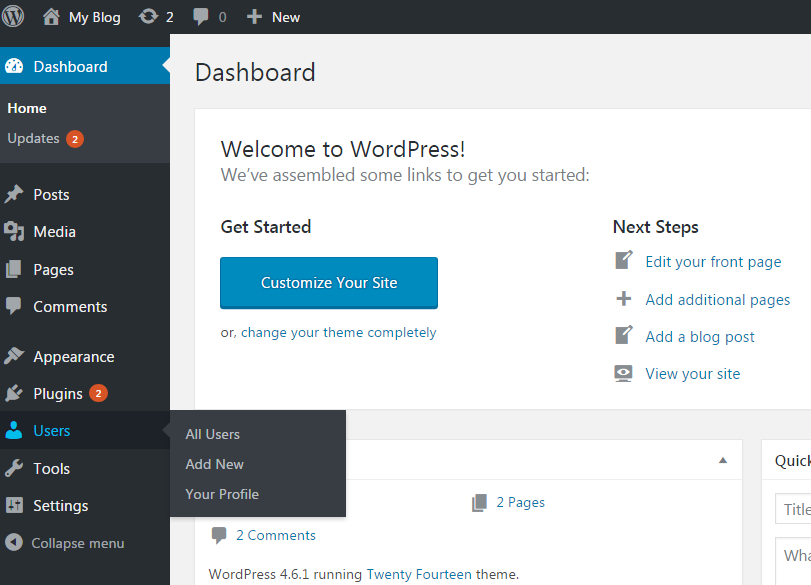
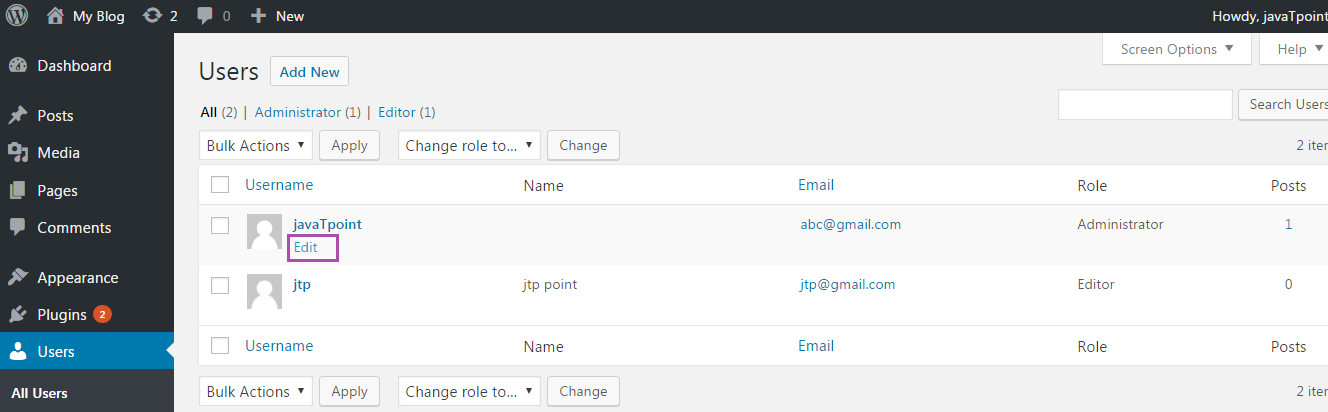
2) Click on Users from dashboard menu.

Wordpress How to reset password in wordpress1

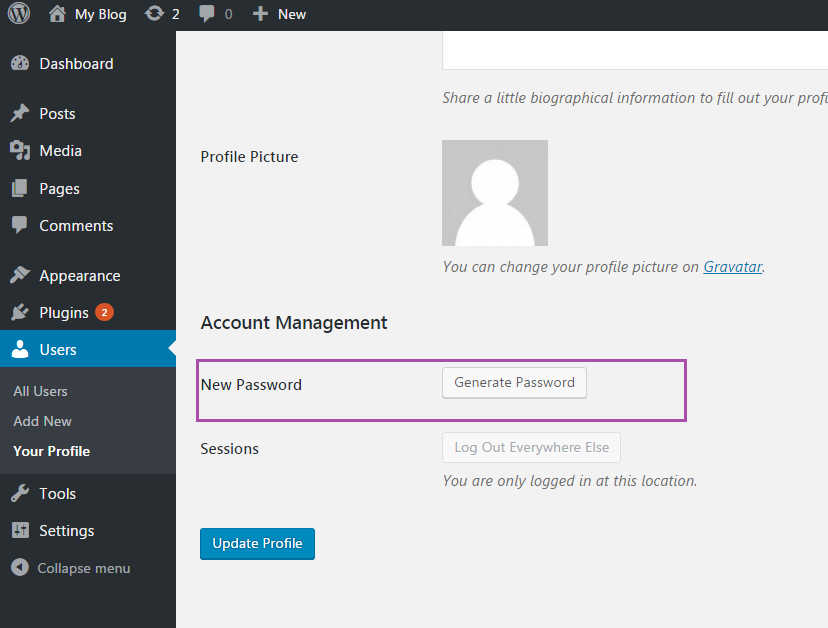
3) Hover your admin username and click on Edit as shown in below snapshot.

Wordpress How to reset password in wordpress2

4) Scroll down to the bottom, enter you new password then click on Update Profile button.

Wordpress How to reset password in wordpress3

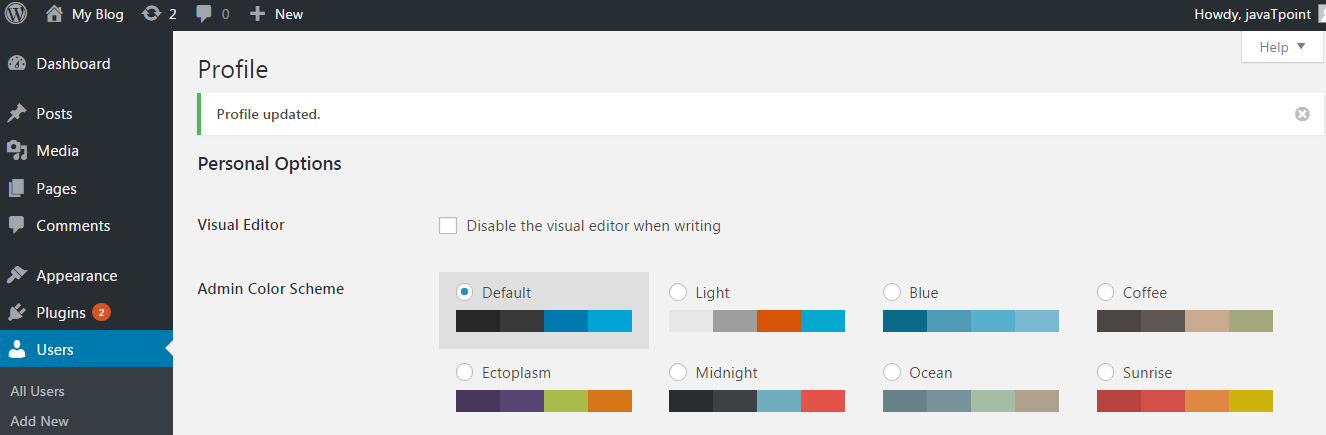
5) You will get a message that your profile has been updated as shown in the following snapshot.

Wordpress How to reset password in wordpress4


Reset password via Email

Follow the following steps to reset password via email.

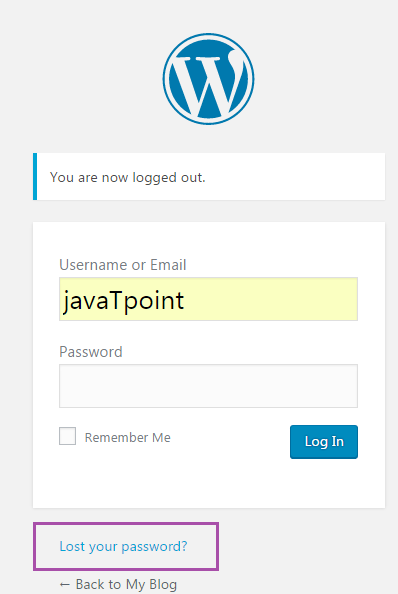
  1. Go to your WordPress login page.
  2. Wordpress How to reset password in wordpress5
  3. Click on Lost your password? link.
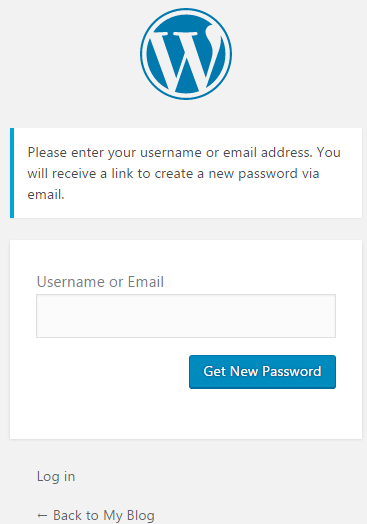
  4. Enter your WordPress username or email and click on Get New Password.
  5. Wordpress How to reset password in wordpress6
  6. You'll get an email for password reset from WordPress on the described email. A link will be given in the email to reset your password, click on that link.
  7. Type new password, confirm it and then click on Reset Password.

  8. Manually resetting password through phpMyAdmin

    Follow the following steps to reset password manually through phpMyAdmin.

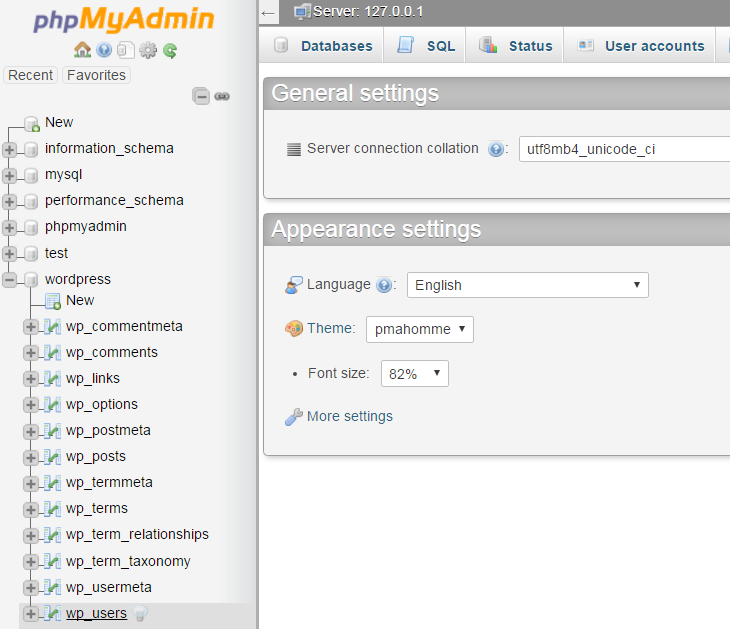
    1. Go to phpmyadmin from your server
    2. Click on the name of your WordPress database.
    3. A list of tables of your WordPress database will be shown. Select the wp_users table.
    4. Wordpress How to reset password in wordpress7
    5. Click on Edit on your WordPress admin user.
    6. Wordpress How to reset password in wordpress8
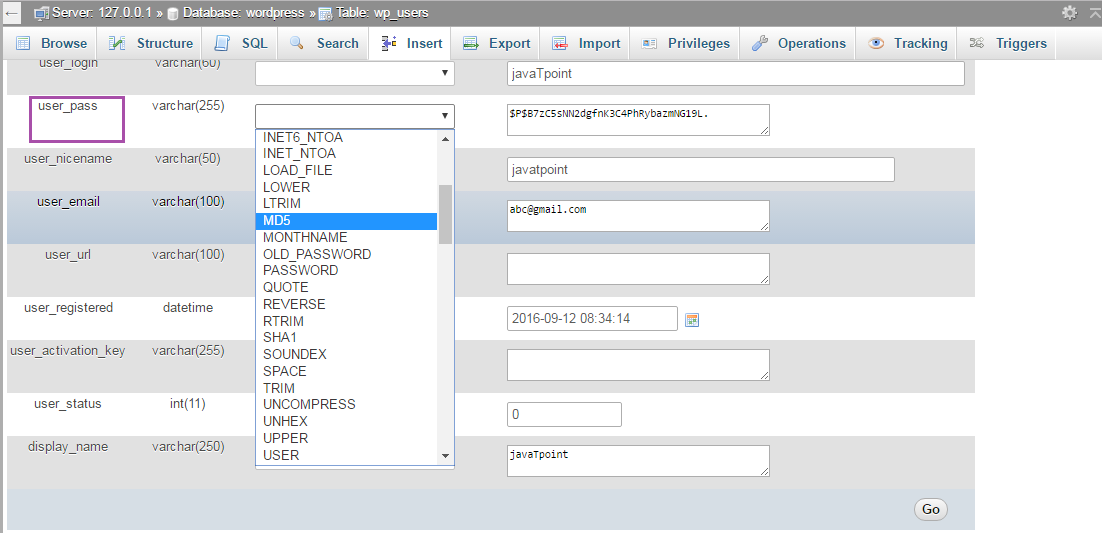
    7. Now in User_pass field, write the password you want and select MD5 from the dropdown table as shown in the below snapshot.
    8. Wordpress How to reset password in wordpress9
    9. After entering new password click Go.
    10. phpMyAdmin will send you a successful message for the updation of database record.

    Using emergency password reset script.

    If above options doesn't work, try this one. It is a PHP script and not a plugin.

    Points to remember

    • To use this script, admin username is required.
    • Script updates admin's password and sends an email to the admin's email.
    • If by chance you haven't received email, your password will still be changed.
    • The script need to be placed at the root of WordPress installation.
    • Script needs to be removed after finishing due to security reasons.

How to use emergency reset script

  • Copy the script from emergency password reset script link https://codex.wordpress.org/User:MichaelH/Orphaned_Plugins_needing_Adoption/Emergency
  • Place this script into a file called emergency.php in root of your WordPress installation.
  • Open your browser with the link http://example.com/emergency.php
  • Enter administrator username and the new password and click on Update options. Changed password message will appear and an email will be sent to admin's email containing changed password information.
  • Surely delete emergency.php file from your server as someone else could use it to change your password.

Read More
  • Share This:  
  •  Facebook
  •  Twitter
  •  Google+
  •  Stumble
  •  Digg
Newer Posts Older Posts Home

Meta

Popular Posts

  • Generate Migrations from an Existing Database With the Migration Generator Package
    Laravel Migration Generator Migration Generator for Laravel is a package by Bennett Treptow to generate migrations from existing database ...
  • Search Through Models with Laravel Searchable
      Laravel Searchable   is a package by   Spatie   to search through models and other sources pragmatically. Using this package, you can get ...
  • Laravel Razorpay Integration | Payment gateway integration Laravel in 30 mins | Laravel Razorpay
    1 Integration of Razorpay with Laravel. In this tutorial, I have taught how to integrate payment gateway with laravel with mini-project. If...
  • Tailwindcss best practices for responsive design
    Tailwind CSS provides powerful utilities for responsive design out of the box. To use it effectively and maintain clean, scalable code, here...
  • .Net 8 XUnit: Use an In-Memory DBConnection for testing as a replacement for the real MySqlConnection
    I'm creating tests for my .Net 8 API, and as I want to test with fake self created data (instead of using the real MySql connection) I...

Categories

  • Ajax (26)
  • Bootstrap (30)
  • DBMS (42)
  • HTML (12)
  • HTML5 (45)
  • JavaScript (10)
  • Jquery (34)
  • Jquery UI (2)
  • JqueryUI (32)
  • Laravel (1017)
  • Laravel Tutorials (23)
  • Laravel-Question (6)
  • Magento (9)
  • Magento 2 (95)
  • MariaDB (1)
  • MySql Tutorial (2)
  • PHP-Interview-Questions (3)
  • Php Question (13)
  • Python (36)
  • RDBMS (13)
  • SQL Tutorial (79)
  • Vue.js Tutorial (69)
  • Wordpress (150)
  • Wordpress Theme (3)
  • codeigniter (108)
  • oops (4)
  • php (853)

Social Media Links

  • Follow on Twitter
  • Like on Facebook
  • Subscribe on Youtube
  • Follow on Instagram

Pages

  • Home
  • Contact Us
  • Privacy Policy
  • About us

Blog Archive

  • ▼  2026 (12)
    • ▼  07/26 - 08/02 (11)
      • 'The Odyssey' crosses USD 639.6 million globally
      • 'Ramayana' to have 'Baahubali'-style cliffhanger e...
      • Kim Kardashian remember late granny on 92nd heaven...
      • Emma Roberts weds Cody John in intimate Idaho cere...
      • 'Jana Nayagan' BO day 4: Film crosses Rs 100 Cr Net
      • 'Chennai Love Story' BO jumps 11.1%
      • China’s new hybrid rice can preserve its high-yiel...
      • Quote of the day by Thucydides: 'Self-control is t...
      • Quote of the day by Slavoj Žižek: 'The problem for...
      • A stormwater pond in Calgary appears filled with P...
      • Inside Kriti Sanon's duplex sea-facing penthouse w...
    • ►  06/28 - 07/05 (1)
  • ►  2025 (4)
    • ►  07/06 - 07/13 (2)
    • ►  06/29 - 07/06 (2)
  • ►  2024 (486)
    • ►  09/15 - 09/22 (30)
    • ►  09/08 - 09/15 (35)
    • ►  09/01 - 09/08 (35)
    • ►  08/11 - 08/18 (2)
    • ►  08/04 - 08/11 (33)
    • ►  07/28 - 08/04 (30)
    • ►  07/07 - 07/14 (11)
    • ►  06/30 - 07/07 (35)
    • ►  06/23 - 06/30 (5)
    • ►  06/02 - 06/09 (31)
    • ►  05/26 - 06/02 (20)
    • ►  05/05 - 05/12 (29)
    • ►  04/28 - 05/05 (26)
    • ►  04/07 - 04/14 (10)
    • ►  03/31 - 04/07 (34)
    • ►  03/24 - 03/31 (10)
    • ►  03/03 - 03/10 (35)
    • ►  02/25 - 03/03 (15)
    • ►  02/04 - 02/11 (22)
    • ►  01/28 - 02/04 (30)
    • ►  01/07 - 01/14 (8)
  • ►  2023 (484)
    • ►  12/31 - 01/07 (35)
    • ►  12/24 - 12/31 (10)
    • ►  12/03 - 12/10 (33)
    • ►  11/26 - 12/03 (20)
    • ►  11/05 - 11/12 (35)
    • ►  10/29 - 11/05 (20)
    • ►  10/22 - 10/29 (9)
    • ►  10/15 - 10/22 (7)
    • ►  10/08 - 10/15 (9)
    • ►  10/01 - 10/08 (10)
    • ►  09/24 - 10/01 (9)
    • ►  09/17 - 09/24 (9)
    • ►  09/10 - 09/17 (7)
    • ►  09/03 - 09/10 (9)
    • ►  08/27 - 09/03 (9)
    • ►  08/20 - 08/27 (8)
    • ►  08/13 - 08/20 (8)
    • ►  08/06 - 08/13 (8)
    • ►  07/30 - 08/06 (8)
    • ►  07/23 - 07/30 (7)
    • ►  07/16 - 07/23 (8)
    • ►  07/09 - 07/16 (7)
    • ►  07/02 - 07/09 (8)
    • ►  06/25 - 07/02 (7)
    • ►  06/18 - 06/25 (7)
    • ►  06/11 - 06/18 (7)
    • ►  06/04 - 06/11 (11)
    • ►  05/28 - 06/04 (7)
    • ►  05/21 - 05/28 (8)
    • ►  05/14 - 05/21 (11)
    • ►  05/07 - 05/14 (7)
    • ►  04/30 - 05/07 (7)
    • ►  04/23 - 04/30 (8)
    • ►  04/16 - 04/23 (9)
    • ►  04/09 - 04/16 (7)
    • ►  04/02 - 04/09 (4)
    • ►  03/26 - 04/02 (21)
    • ►  03/19 - 03/26 (2)
    • ►  03/12 - 03/19 (9)
    • ►  03/05 - 03/12 (26)
    • ►  02/26 - 03/05 (25)
    • ►  01/15 - 01/22 (7)
    • ►  01/08 - 01/15 (1)
  • ►  2022 (1037)
    • ►  12/11 - 12/18 (13)
    • ►  12/04 - 12/11 (1)
    • ►  11/27 - 12/04 (40)
    • ►  11/06 - 11/13 (1)
    • ►  10/16 - 10/23 (13)
    • ►  09/04 - 09/11 (5)
    • ►  08/21 - 08/28 (24)
    • ►  08/14 - 08/21 (24)
    • ►  07/03 - 07/10 (9)
    • ►  06/19 - 06/26 (3)
    • ►  05/29 - 06/05 (3)
    • ►  05/22 - 05/29 (3)
    • ►  05/15 - 05/22 (109)
    • ►  05/01 - 05/08 (7)
    • ►  04/24 - 05/01 (7)
    • ►  04/17 - 04/24 (64)
    • ►  04/10 - 04/17 (115)
    • ►  04/03 - 04/10 (73)
    • ►  03/27 - 04/03 (77)
    • ►  03/13 - 03/20 (2)
    • ►  03/06 - 03/13 (25)
    • ►  02/27 - 03/06 (18)
    • ►  02/20 - 02/27 (153)
    • ►  02/13 - 02/20 (187)
    • ►  01/30 - 02/06 (45)
    • ►  01/23 - 01/30 (15)
    • ►  01/16 - 01/23 (1)
  • ►  2021 (412)
    • ►  10/24 - 10/31 (2)
    • ►  07/25 - 08/01 (1)
    • ►  07/11 - 07/18 (10)
    • ►  06/13 - 06/20 (29)
    • ►  05/23 - 05/30 (1)
    • ►  05/02 - 05/09 (24)
    • ►  04/25 - 05/02 (24)
    • ►  04/18 - 04/25 (112)
    • ►  04/11 - 04/18 (1)
    • ►  04/04 - 04/11 (6)
    • ►  03/28 - 04/04 (86)
    • ►  03/21 - 03/28 (19)
    • ►  03/14 - 03/21 (2)
    • ►  03/07 - 03/14 (10)
    • ►  02/28 - 03/07 (1)
    • ►  02/21 - 02/28 (29)
    • ►  02/14 - 02/21 (13)
    • ►  02/07 - 02/14 (12)
    • ►  01/31 - 02/07 (6)
    • ►  01/17 - 01/24 (2)
    • ►  01/10 - 01/17 (8)
    • ►  01/03 - 01/10 (14)
  • ►  2020 (376)
    • ►  12/27 - 01/03 (37)
    • ►  12/20 - 12/27 (92)
    • ►  12/13 - 12/20 (29)
    • ►  12/06 - 12/13 (37)
    • ►  11/29 - 12/06 (4)
    • ►  11/15 - 11/22 (14)
    • ►  11/08 - 11/15 (8)
    • ►  11/01 - 11/08 (2)
    • ►  10/18 - 10/25 (14)
    • ►  10/11 - 10/18 (16)
    • ►  10/04 - 10/11 (10)
    • ►  09/20 - 09/27 (10)
    • ►  09/06 - 09/13 (19)
    • ►  08/30 - 09/06 (26)
    • ►  08/23 - 08/30 (4)
    • ►  08/16 - 08/23 (2)
    • ►  07/12 - 07/19 (48)
    • ►  05/17 - 05/24 (2)
    • ►  01/05 - 01/12 (2)
  • ►  2019 (74)
    • ►  07/07 - 07/14 (6)
    • ►  06/16 - 06/23 (6)
    • ►  02/10 - 02/17 (17)
    • ►  01/13 - 01/20 (37)
    • ►  01/06 - 01/13 (8)
  • ►  2018 (376)
    • ►  12/30 - 01/06 (24)
    • ►  12/16 - 12/23 (8)
    • ►  12/09 - 12/16 (98)
    • ►  12/02 - 12/09 (16)
    • ►  11/18 - 11/25 (36)
    • ►  11/04 - 11/11 (18)
    • ►  10/28 - 11/04 (10)
    • ►  10/21 - 10/28 (26)
    • ►  10/14 - 10/21 (52)
    • ►  10/07 - 10/14 (4)
    • ►  09/30 - 10/07 (2)
    • ►  09/23 - 09/30 (68)
    • ►  09/16 - 09/23 (4)
    • ►  09/09 - 09/16 (4)
    • ►  08/26 - 09/02 (6)

Data Publish News

Loading...

Al Jazeera – Breaking News, World News and Video from Al Jazeera

Loading...

Laravel News

Loading...

Copyright © CoderFunda | Powered by Blogger
Design by Coderfunda | Blogger Theme by Coderfunda | Distributed By Coderfunda