CoderFunda
  • Home
  • About us
    • Contact Us
    • Disclaimer
    • Privacy Policy
    • About us
  • Home
  • Php
  • HTML
  • CSS
  • JavaScript
    • JavaScript
    • Jquery
    • JqueryUI
    • Stock
  • SQL
  • Vue.Js
  • Python
  • Wordpress
  • C++
    • C++
    • C
  • Laravel
    • Laravel
      • Overview
      • Namespaces
      • Middleware
      • Routing
      • Configuration
      • Application Structure
      • Installation
    • Overview
  • DBMS
    • DBMS
      • PL/SQL
      • SQLite
      • MongoDB
      • Cassandra
      • MySQL
      • Oracle
      • CouchDB
      • Neo4j
      • DB2
      • Quiz
    • Overview
  • Entertainment
    • TV Series Update
    • Movie Review
    • Movie Review
  • More
    • Vue. Js
    • Php Question
    • Php Interview Question
    • Laravel Interview Question
    • SQL Interview Question
    • IAS Interview Question
    • PCS Interview Question
    • Technology
    • Other

17 July, 2021

WordPress Review Plugin

 Programing Coderfunda     July 17, 2021     Wordpress, wordpress-tutorial     No comments   


WordPress Review Plugin

The review plugins help us to make the content more attractive and SEO friendly when we write product reviews on the site. There are several types of review plugins available in WordPress. We can choose any one of them and use it on our site.

In this topic, we will discuss the different WordPress Review plugins that can be used on the WordPress Site.

Why should we use WordPress Review Plugins?

When people want to shop online, they search for item reviews to make the right purchase decision. People check the rating of a product on the internet before choosing or buying any online shopping item.

So, it is very important to display reviews that may be beneficial to the website. It helps the user bring more visitors to the site and also helps in making the decision to buy something. Most importantly, the review plugin helps us gather feedback on improving the product and the website. This kind of tool may help us to increase the website's rank in search engines via schema markup.

Using the review plugin, we can rate a specific item on the site, and this information provides more context for search engines so that it becomes more SEO friendly.

Usually, there are two essential functions that the WordPress review can perform:

  1. Create a unique review box that provides clear reviews for the items.
  2. Provide a rich snippet to higher ranking in search engines of the site.

Installation

WordPress Review Plugins installation is very easy. We can directly install these plugins in WordPress using the following steps:

Step 1: Firstly, go to the "WordPress dashboard".

Step 2: After that, visit the "Plugins" menu and click on the "Add New" option.
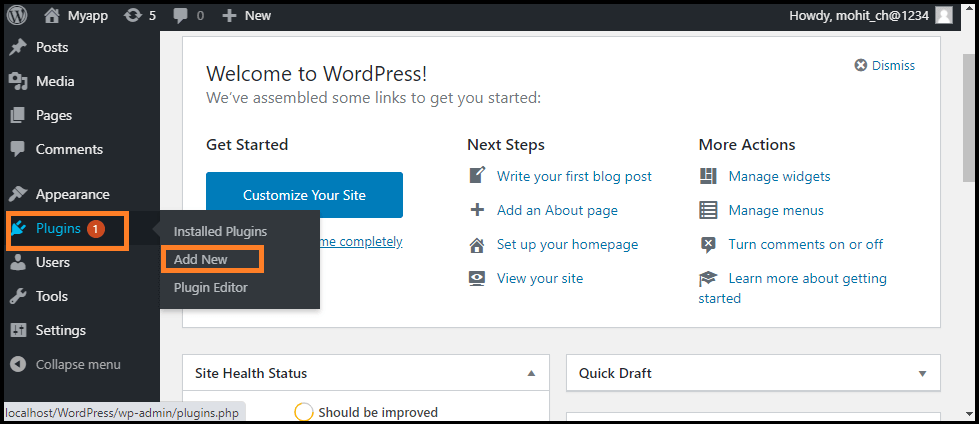
WordPress Review Plugin

Step 3: Now, go to the search box and enter the plugin's name that we want to install and then click on the "Search Plugins" button.
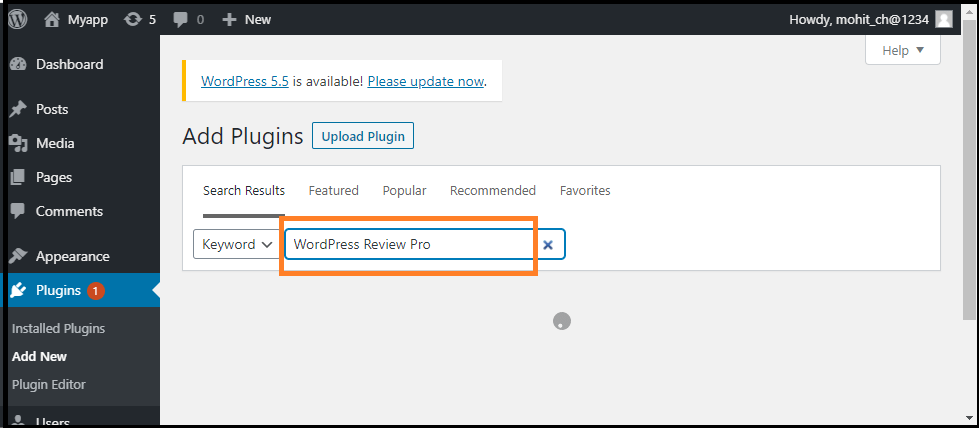
WordPress Review Plugin

Step 4: Once we have found the plugin, click on the "Install Now" button.
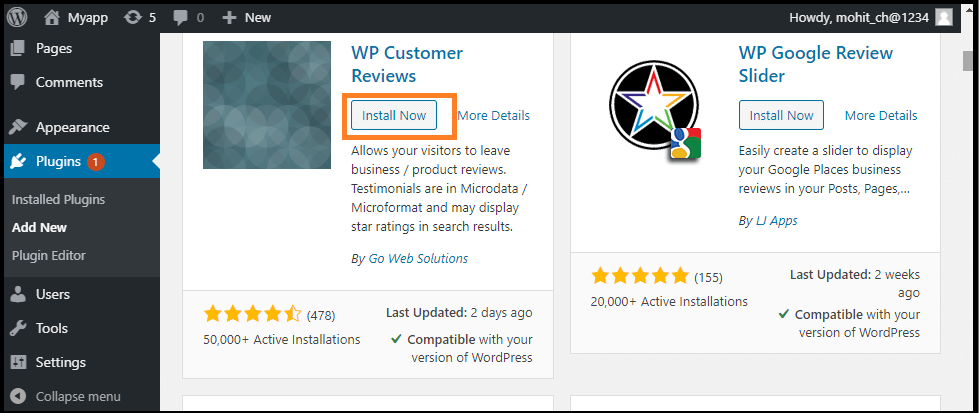
WordPress Review Plugin

Best WordPress Review Plugins

There are several WordPress Review Plugins; some of them are as follows:

  1. WordPress Review Pro
  2. WordPress Customer Reviews
  3. Site Reviews
  4. Reviewer
  5. WordPress Product Review Lite

WordPress Review Pro

WordPress Review Pro is one of the important review plugins on WordPress that we can get right now. Importantly, it supports a wide variety of rich snippets that suit a wide range of subjects, including books, paintings, and films.

Besides the 16 default design templates, we also have a range of customization options. The analysis box has an infinite choice of color and 5 rating system options like star, points, circle, thumbs up, and percentage. It allows the website to be integrated with Facebook, Yelp, Google, and other social media platforms to increase rating credibility.

It starts at $67, and we can get all these features 24/7 with customer support.

WordPress Customer Reviews

Many sites are currently searching for user-generated feedback, including Google Places and Google Local Search. WordPress Customer Reviews help us to set up a dedicated page on our blog to collect customer testimonials for business/service or write product reviews. We are free to modify the review design and display admin responses in a separate file in the review plugin.

It is also lightweight and supports a custom theme plugin. The page loading speed of this plugin will not be affected as it works well with caching plugins. It is free to install the WordPress Customer Review.

Site Reviews

Site reviews help visitors to submit their reviews on the website between 1-5-star ratings. It also provides shortcodes, blocks, and widgets with full documentation. We can add the best reviews to always be displayed first and requires the approval before new review submissions are published. It also allows the visitors to sign-in to write a review, submit custom updates on a new submission, etc.

Reviewer

It allows us to quickly and easily add the checkbox and comparison table. All we have to do is set the title, add the number, and we are ready to go. It can help us to make a better relationship with the audience.

We will get the user details by their name and emails after giving reviews when we used it. After that, we can use their ratings on various customizable widgets to display visitors how their feedback is important. It provides us with spam protection by enabling Google Recaptcha and Administrative Moderation.

It comes at $28 with the option of extending one-year customer support by paying an additional cost for $8.63.

WordPress Product Review Lite

It is another one of the best review plugins for the WordPress site. It is lightweight and safe from packing with all the necessary features. When we want to create a post, simply go to the setting WordPress Review Lite's and click on the "Is this post a review?" option to quickly make it a review page. Next, we need to add a score to the item and give our opinion about it. Then, below that comment, we may easily insert the buy button for conversion. It helps us to change the color of the element, which includes ratings and pros and cons.

If we want to move forward with things like integrating with Amazon, uploading a custom review icon, or creating a comparison table, we have to pay for the premium version that starts at $59 per year.
Read More
  • Share This:  
  •  Facebook
  •  Twitter
  •  Google+
  •  Stumble
  •  Digg

Difference between WordPress Themes and Plugins

 Programing Coderfunda     July 17, 2021     Wordpress, wordpress-tutorial     No comments   


Difference between WordPress Themes and Plugins

Although, themes also add some features and functionality to a site but they are different from plugins. A plugin can't change a websites design, look and feel but a theme can do everything. You can customize some functionality in themes instead of installing plugin but themes can't be replaced by plugin.

A theme is external effect like a website's presentation and designing. Whereas, a plugin is the interior effect which add or remove some functions to a site.

Theme organizes and displays the entire site's information to display it to the visitors.

If you want to change the appearance of your site by changing your theme, then all the customizations done will be gone (data and information will remain safe). But you can activate or deactivate a plugin whenever you want. It will not affect the site in any way.

Your site speed is mainly affected by designing of theme, number of images, cache power. Number of plugins installed and functionality code exist as plugin or theme does not contribute in site's speed.

It's better to allow themes to handle the look of a site and plugin to handle how a site should behave. Thus, when theme will be changed, all the functionalities of site will remain there.

Read More
  • Share This:  
  •  Facebook
  •  Twitter
  •  Google+
  •  Stumble
  •  Digg

How to install WordPress plugins

 Programing Coderfunda     July 17, 2021     wordpress-tutorial     No comments   


How to install WordPress plugins

Installing plugins will provide extra functionality to your site. To install a plugin, you just need to put the plugin file into your wordpress file. After installation, you may activate it or deactivate it.

There are three methods from which you can install plugins.

  • Installing plugin using search
  • Installing plugin using uploading
  • Installing plugin manually using FTP

Here, we'll discuss all three methods.


Installing plugin using search

This method is only available for the free plugins because search is applicable for the WordPress directory only.


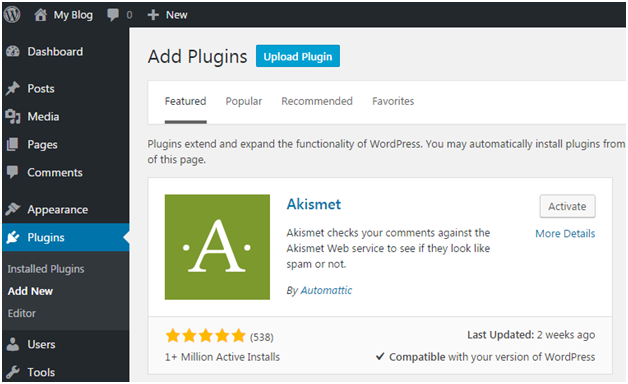
Login to your WordPress, and go to Plugins > Add New.

Wordpress How-to-install-plugin1

Look at the above snapshot, this page will be displayed. Here in the search option, you can give a plugin name the function name for which you want that plugin.

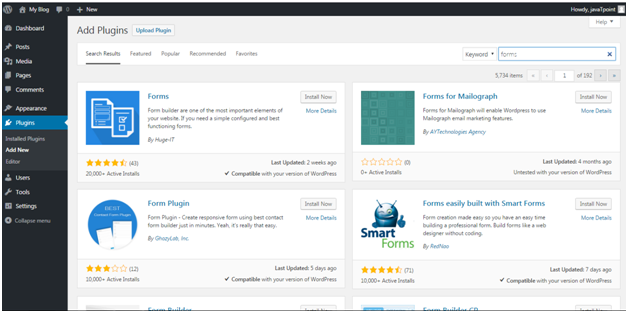
For example, we are searching for form plugin.

Wordpress How-to-install-plugin2

Look at the above snapshot, results related to our search is displayed with a list of matching plugins. We can select a plugin matching our criteria.

Once you have selected a plugin, click on Install Now button. Your plugin will be installed but to activate it you have to click on Activate button.


Installing plugin using uploading

From this method paid plugins can also be installed.

First of all, download a plugin file from the source which will be in zip format. Now go to Plugins > Add New page.

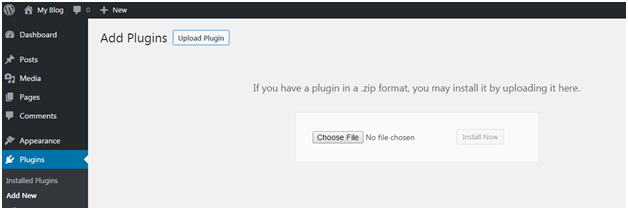
Wordpress How-to-install-plugin3

Look at the above snapshot, click on Upload Plugin. It will bring you to the following page.


Wordpress How-to-install-plugin4

Look at the above snapshot, here you have to choose the downloaded plugin file and click on Install Now.

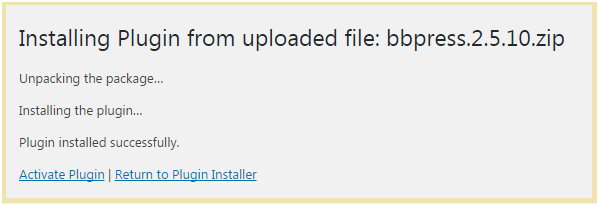
Wordpress How-to-install-plugin5

Look at the above snapshot, plugin has successfully installed showing a message. To activate this plugin you need to activate it.

Read More
  • Share This:  
  •  Facebook
  •  Twitter
  •  Google+
  •  Stumble
  •  Digg

WordPress Plugins

 Programing Coderfunda     July 17, 2021     Wordpress Theme, wordpress-tutorial     No comments   

WordPress Plugins

WordPress plugins are programs written in PHP scripting language that extends the functionality or add some new features to our WordPress site. They provide additional functions to an application.

Users can add some more functions in their site without any coding skills by adding plugins. There are thousands of freely and commercially plugins available. For each and every function there is a plugin available in the WordPress.

You can also uninstall a plugin from your site.


How to choose a plugin

It is difficult for the users to find out the best suited plugin for them, especially for beginners. As plugins are open source hence every plugin is maintained by different owners. Some of them may be a kind of busy or inexperienced which lead to outdated version of plugin. According to your need you may have to install more than one plugin, but that?s not a problem. You can install more than one plugin.


Here we'll show a list which may help you to choose a right plugin.

  • Make a list of your requirements
  • First of all, you need to know what you want in your site. Make a list of all the features you want to implement in your site. Remember to make them in descending order of your need, it will make decision making easier. It's not necessary that you'll find all of it in one plugin. Feel free to install more than one plugin.

  • Search plugins
  • It is recommended to search plugins through Google search rather than WordPress directory. wordpress.org search is not that much helpful.

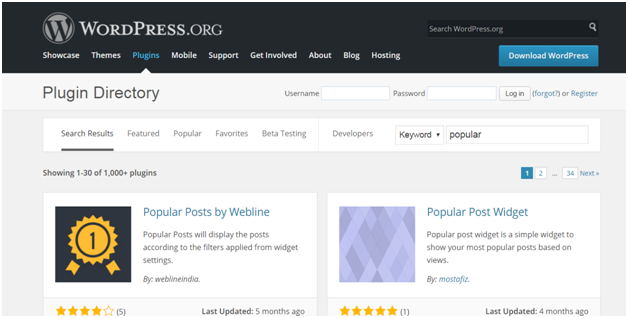
    what are wordpress plugin1

    Look at the above snapshot, this is WordPress directory search. It shows the search result by relevancy which shows a lot of options. Use relevant words in your search otherwise you may not get the desired result.

    Enter a search, for example we entered Map as our search. It displays all map plugins from the directory.

    Select a plugin to see its description and information.

  • Compare them
  • Choose 4 or 5 plugins and compare them by reading their description. Description contains information about that plugin, why it is used, what are its functions, supported versions, etc.

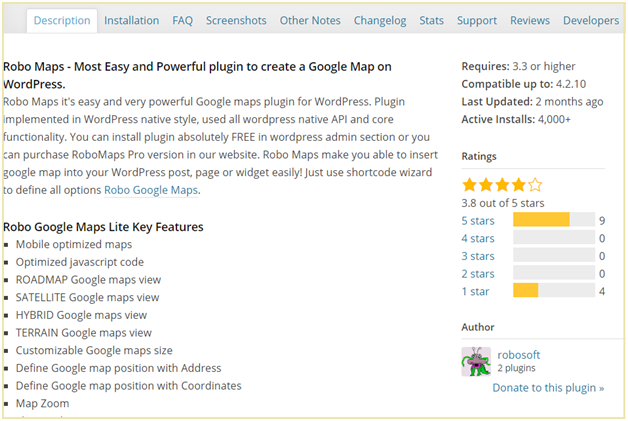
    what are wordpress plugin2

    Look at the above snapshot, at the right hand side you can see what version it supports, when it was last updated, how many people have installed it and its ratings.

  • Reviews
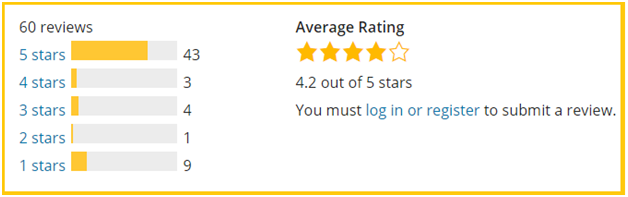
  • what are wordpress plugin3

    Look at the above snapshot, this is the reviews of users with their ratings. When a user rates a plugin, he is asked to give a review. To read this review, click on the rating star and all the reviews with that star will be displayed.

  • Support Overview
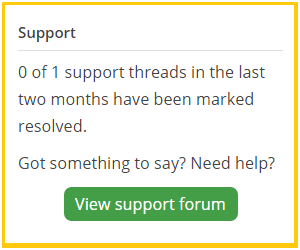
  • what are wordpress plugin4

    Support gives an overview of number of support threads opened for last 2 months. It also tells how many support threads have been resolved. To view the details of support threads click on the support tab.

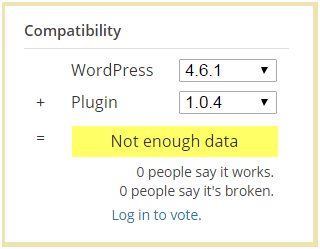
  • Compatibility
  • Compatibility displays the latest version of WordPress with version of plugin.

    what are wordpress plugin5

    Look at the above snapshot, WordPress latest version is 4.6.1 and plugin current version is 1.0.4

    Below this people's vote for the given combination of WordPress and plugin is displayed. If more number of people say it works then the number of people saying it is broken then this combination will work. Here no one has voted for this.

  • Screenshots
  • Plugins screenshots shows a preview of how the plugin will look like from front-end and back-end. Screenshots can be more helpful than plugin descriptions.

  • FAQ
  • Frequently Asked Questions help in a lot of way. Before start using a plugin in your website, go through all these questions. It will help you in the smoother use of plugin.

  • Testing speed
  • A d\site's speed depends upon the plugin installed in it. Check your site's speed before and after installing a plugin. If speed slows down then better watch for a new plugin.

Read More
  • Share This:  
  •  Facebook
  •  Twitter
  •  Google+
  •  Stumble
  •  Digg

16 June, 2021

How to Install WordPress Themes

 Programing Coderfunda     June 16, 2021     Wordpress, wordpress-tutorial     No comments   

 How to Install WordPress Themes

For theme installation, first you need to select a theme either free or a premium one. There are a lot of sites from where you can download a theme. Theme will be downloaded in zip format. The next process is installation process. Installation has some steps to be followed.

There are two methods from which you can install a theme:

  • Installing WordPress using admin theme search
  • Installing WordPress using upload method

Installing WordPress using admin theme search

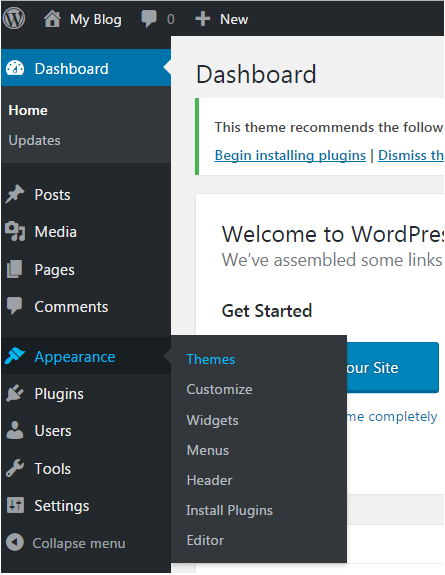
To install free themes from WordPress.org directory, login into your account and click Appearance > Themes.

Wordpress How to install wordpress themes1

Look at the above snapshot, click on Themes option. Following page will appear in front of you.

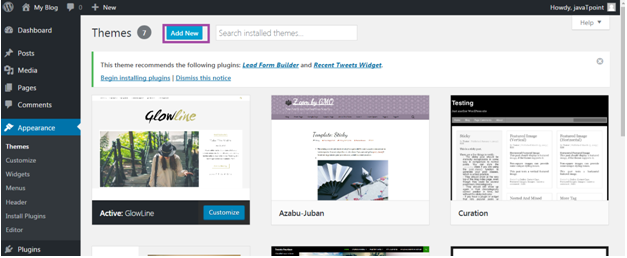
Wordpress How to install wordpress themes2

Click on Add New button to Add New themes.

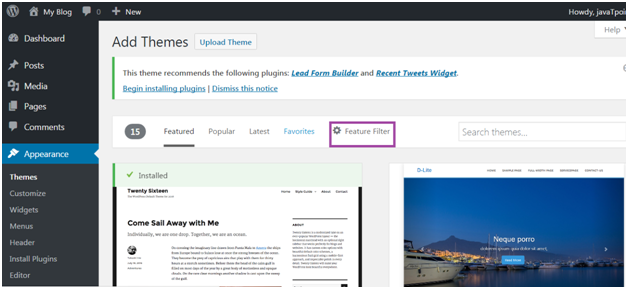
Wordpress How to install wordpress themes3

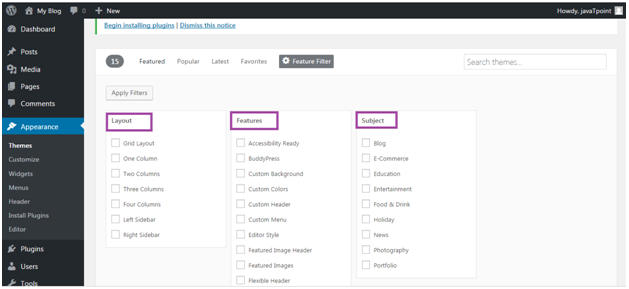
Look at the above snapshot, here you'll see an option for Feature Filter.

Wordpress How to install wordpress themes4

Look at the above snapshot, here you can filter your search for themes by applying your choice for Layout, Features and Subject.

Wordpress How to install wordpress themes5

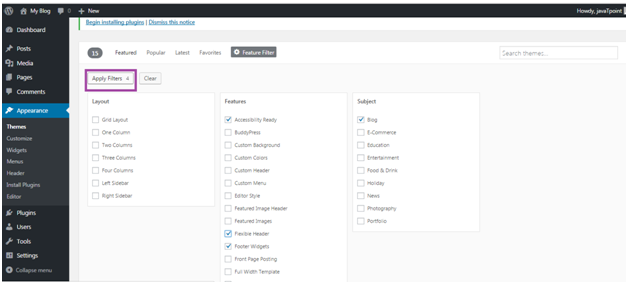
Look at the above snapshot, we have selected 4 filter criteria, now click on button Apply Filters 4 to apply the filters.

Wordpress How to install wordpress themes6

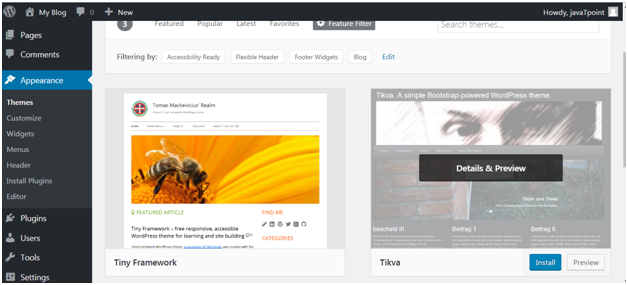
Look at the above snapshot, select a theme and take your mouse above it. Click on Install button.

Wordpress How to install wordpress themes7

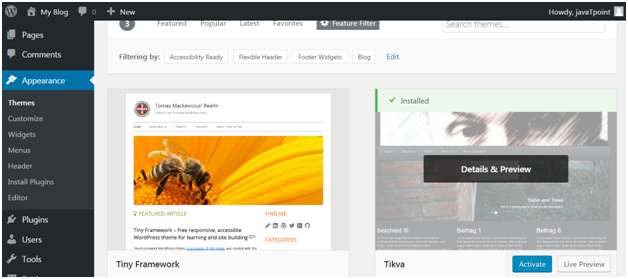
Look at the above snapshot, our theme is installed. To activate it click on Activate button. And you have successfully activated your WordPress theme.


Installing WordPress using upload method

The above method was only to install free themes that are available in WordPress directory only. But if you want to install premium themes, then you have to choose this option which includes following steps. This method can be used to install premium as well as free themes.


Downloading theme

WordPress site itself has a large collection of themes. All the themes on the WordPress site is fully examined and tested. If you are not satisfied with these themes you can go to other sites to download a theme. Make sure you select trusted site to download a theme as anyone can create a theme for WordPress.

Themes are downloaded in the zip format.

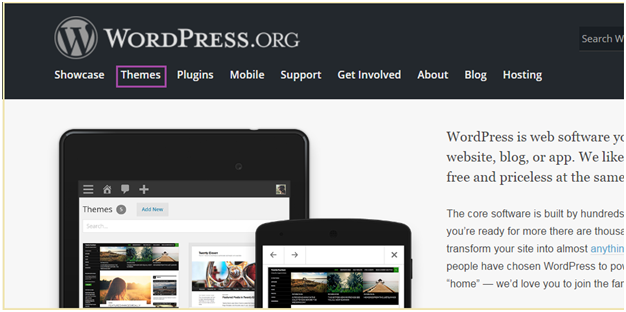
Go to wordpress.org site.

Wordpress How to install wordpress themes8

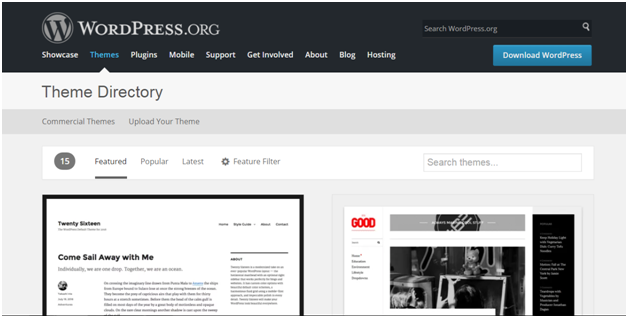
Look at the above snapshot, this is the site. Here click on Themes. You will be directed to the following page.

Wordpress How to install wordpress themes9

Look at the above snapshot, on this page you'll have a lot of options to select themes.

Select a theme and then click on Download button.

Theme will be downloaded in zip format in your system.


Installing theme

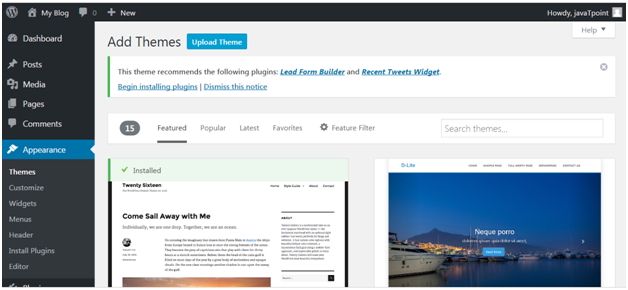
To install the downloaded theme, you have to login to your WordPress and click on Appearance > Themes.

Now click on Add New button, following screen will appear in front of you.

Wordpress How to install wordpress themes10

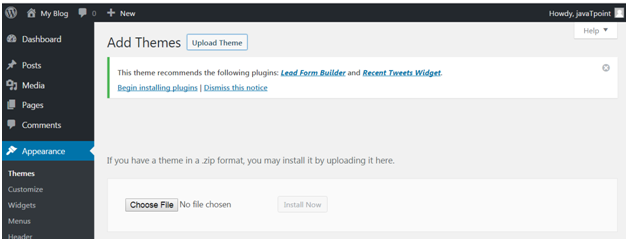
Look at the above snapshot, click on Upload Theme button.

Wordpress How to install wordpress themes11

Look at the above snapshot, choose the file that you installed and click Install Now.

Wordpress How to install wordpress themes12

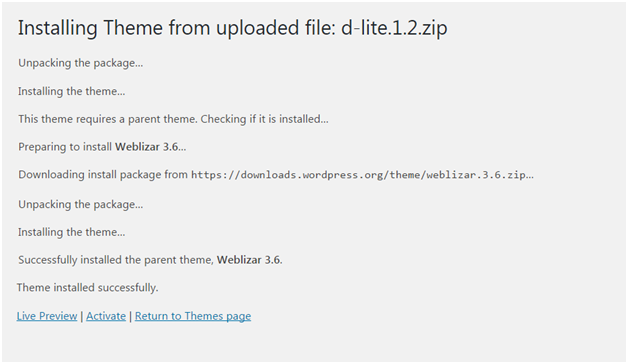
Look at the above snapshot, once your theme is installed, you will get a successfully installed message. Now click on Activate button, and your theme will be successfully installed.

Now you can customize it according to your choice.

Read More
  • Share This:  
  •  Facebook
  •  Twitter
  •  Google+
  •  Stumble
  •  Digg

Free vs Paid WordPress Theme

 Programing Coderfunda     June 16, 2021     Wordpress, wordpress-tutorial     No comments   


Free vs Paid WordPress Theme

As you already know there are two types of WordPress themes, one is paid (premium) and other one is free. Both are from WordPress community but they possess some differences in their functionality. For some users free themes may be suitable and for some users premium themes may be suitable. It all depends upon their need. A huge number of WordPress themes are available as free but still people go for premium themes. There are multiple reasons why one should go for paid one.

Let's have a look on some of the functions of free as well as premium themes. It will help you in choosing a theme for you.


Cost

Free themes of course as name suggests are absolutely free. You can use them any time without any money.

For premium you have to pay. Its range starts from $1000 which varies depending upon the designing of theme. It is good when you are earning enough from your site but if you are using your site just as a hobby then it may cost you a lot.


Quality

If you want your site at a good rank then you need to improve its quality.

Free theme will not make your site unique. Same theme will be used by other sites because it is free for everyone.

To make your site unique go for the premium one. There are some other qualities which need to be fulfilled. Like your site has to be responsive and should support different browsers. Free theme is not guaranteed to provide these qualities.


Support

In free themes if you need any type of help, you have to search for help and ask on forums. If someone will be willing then you may get your answer but it will take some time.

Premium themes designer offer some support system. You will get timely support from reliable developers. Your problem will be solved very quickly.


Update

WordPress is constantly updated in every few months, so your themes and plugins need to be compatible with the updated version.

Free themes may not be updated regularly. If you are using a free theme and an updated version comes, then you have two options. Either don't update your site or install a new them. Both the options are not right.

Premium theme developers update it on a regular basis to make it compatible with the new WordPress version. So if you are using a premium theme, then it is the responsibility of company to update it. You don't have to worry about it.


SEO

SEO plays an important role in the ranking of your website. It is important for your site to have an SEO options and clean code.

In free themes there are many structural bugs and they don't provide inbuilt SEO options.

Premium themes provide better coding which helps to load your site faster.


Features

Theme developers have to offer latest features for their customers according to the trend.

Free themes provide limited features. Their developers do not update their theme. They are more compatible to the plugins than premium themes.

Premium theme developers provide latest features and much more functionality than free themes. They provide an easy user interface that allows users to make any type of changes in the design of their site.


Encrypted Links

In free themes there are some unwanted links in the footer area. These links are irrelevant from the content of your website. It seriously affects the SEO of your site.

Free themes developers add some links at the footer of their themes which is very annoying.


Security

Security should be of a high level in order to prevent your site. wordPress provides a better security by updating it every few months. An out dated theme may cause a lot of security issues.

Free themes generally have high security threat.

On the other hand, premium themes give high security standards to their customers.

Read More
  • Share This:  
  •  Facebook
  •  Twitter
  •  Google+
  •  Stumble
  •  Digg

WordPress Media Library

 Programing Coderfunda     June 16, 2021     Wordpress, wordpress-tutorial     No comments   


WordPress Media Library

WordPress Media Library contains images, videos, audios, and files that can be included in the content when writing a WordPress page or post. We can see many things related to the media in the Media Library, like add, delete, and edit. In this topic, we are going to discuss the different phases of the WordPress Media Library. The following are the steps to understand the WordPress Media Library.

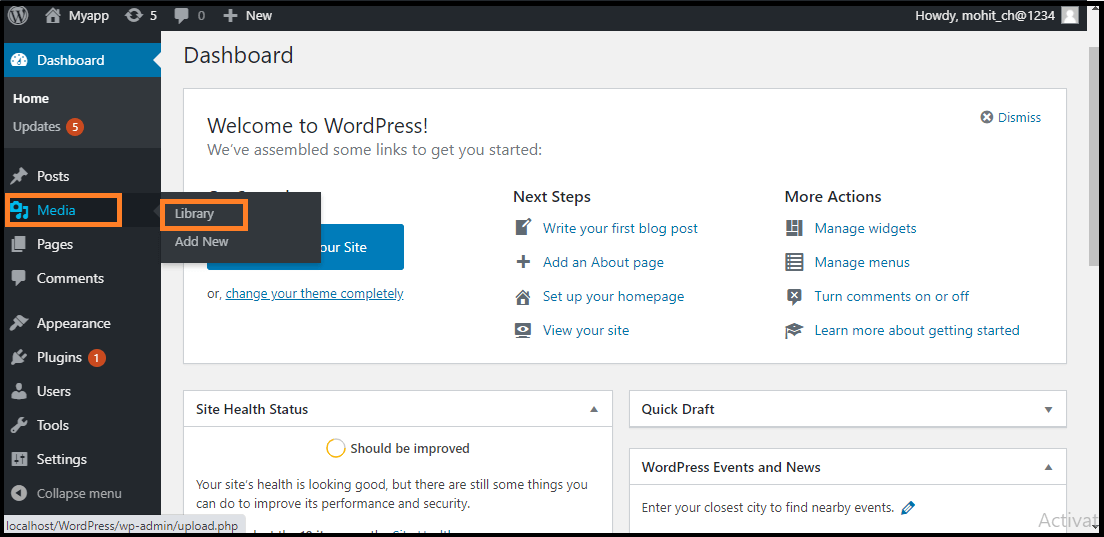
Step 1: Firstly, go to the WordPress dashboard and select the "Media" option and then click on the "Library" option.

WordPress Media Library

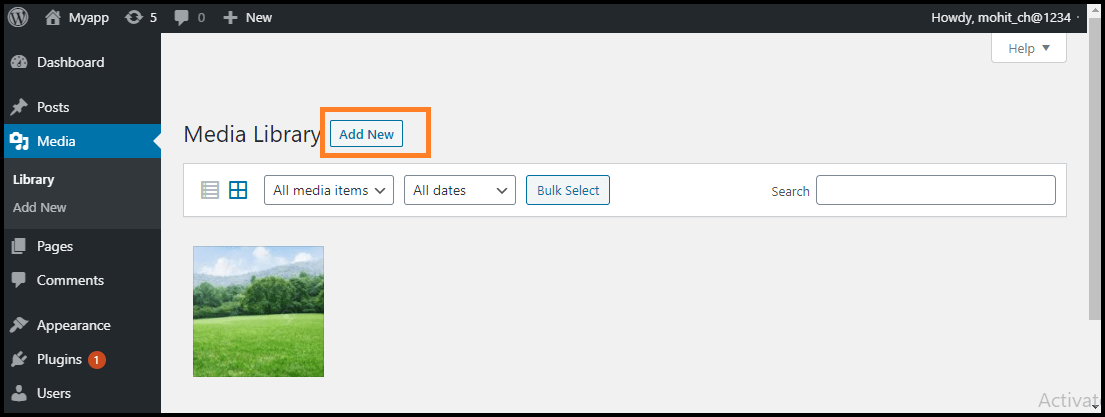
Step 2: When we click on the Library option, we can see the various media files, such as images, videos, and audios. If we want to add new items, click on the "Add New" button.

WordPress Media Library

Step 3: We can see a menu bar in the Media Library that consists of many things like List view, Grid view, Filter the images and videos, and search box, as shown in the following screenshot

WordPress Media Library

There are various tabs in the Media Library bar, which are as follows:

  1. List View: It shows the media files in the list form.
  2. Grid View: It helps to show all the media files in the grid format.
  3. Filter the images and videos: It filters the images and videos in the media library.
  4. Search box: It helps to find a media file by inserting the file name into the search box.

Adding the Media Files

Now, we are going to know how to add the Media Files in WordPress. WordPress permits us to add various media files, such as images, videos, and audios.

The following are the steps to add Media Files in WordPress.

Step 1: Firstly, go to the WordPress dashboard and select the "Media" option, and then click on the "Add New" option.

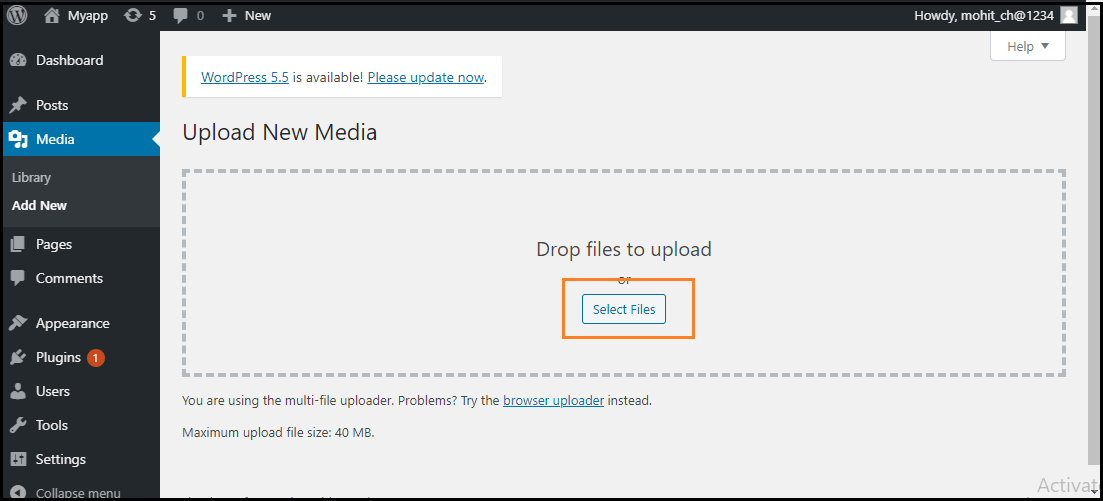
Step 2: After clicking on the "Add New" option, click on the "Select Files" option to select the files from our local storage, as shown in the following screenshot.

WordPress Media Library

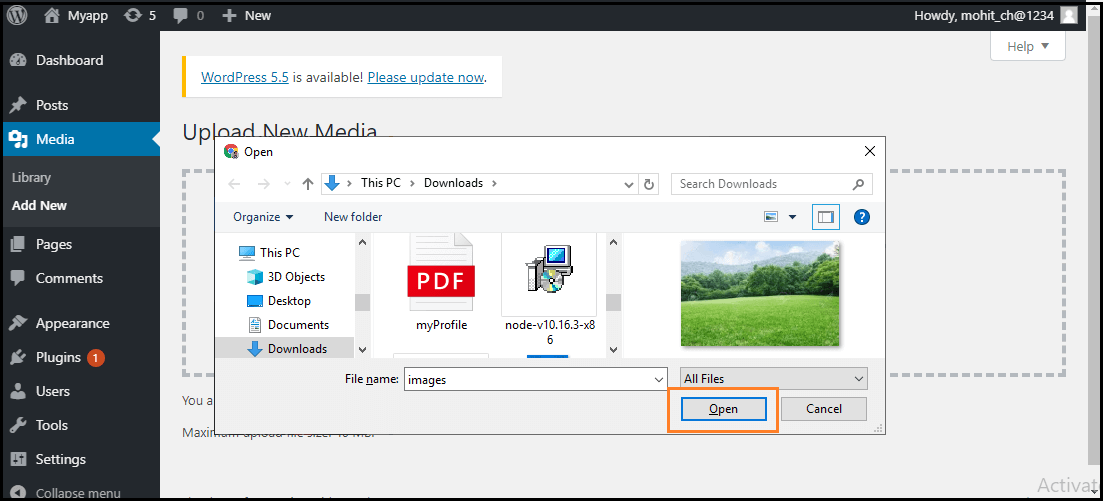
Step 3: After clicking on the Select Files, add the media files by selecting them and then click on the open button, as shown in the following screenshot.

WordPress Media Library

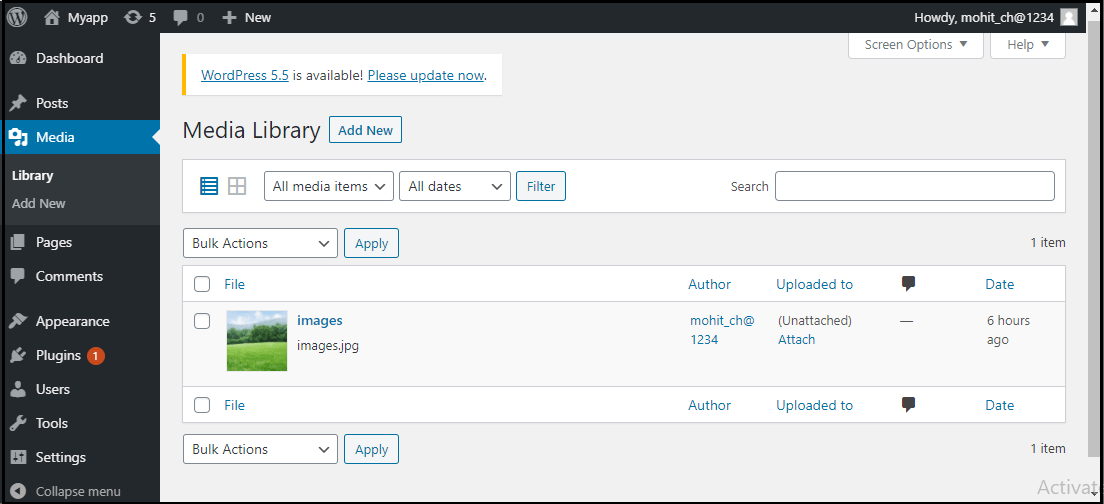
Step 4: Now, we will see the media files list that we added in the list.

WordPress Media Library

Inserted the Media Files

We are going to know how we can insert the media files into a WordPress Page or Post. Media Files can be inserted from the Media Libraries, URLs, or local storage in the WordPress Page or WordPress Post. The following are the steps to insert the Media Files:

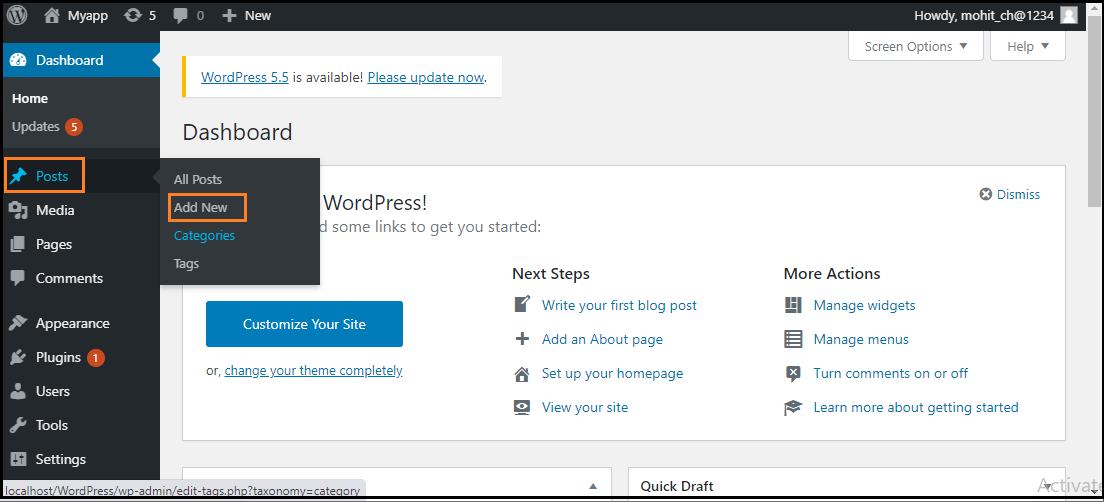
Step 1: Firstly, go to the WordPress dashboard and click on the "Posts" and then click on the "Add New" option to insert the media file in WordPress.

WordPress Media Library

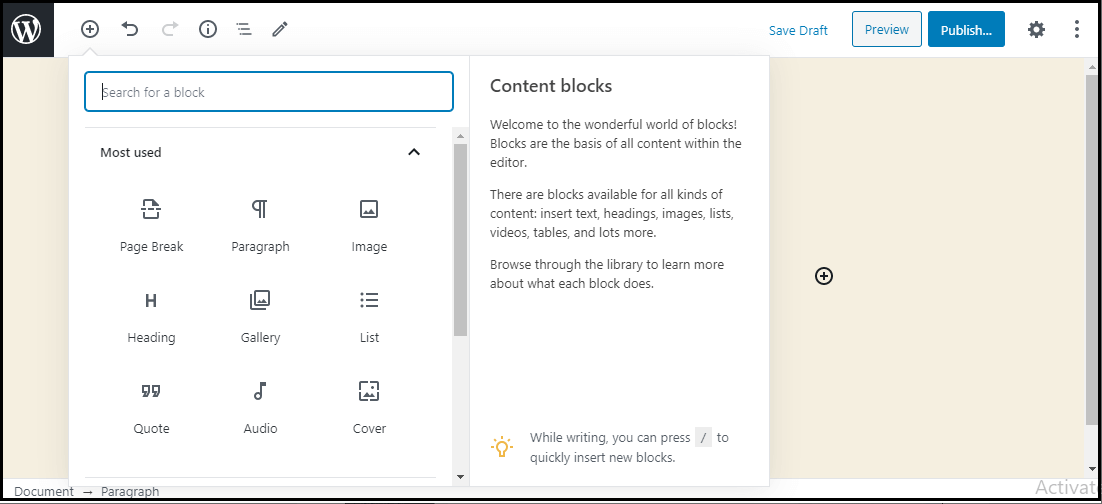
Step 2: After clicking on the "Add New" option, click on the "Add Media" button.

WordPress Media Library

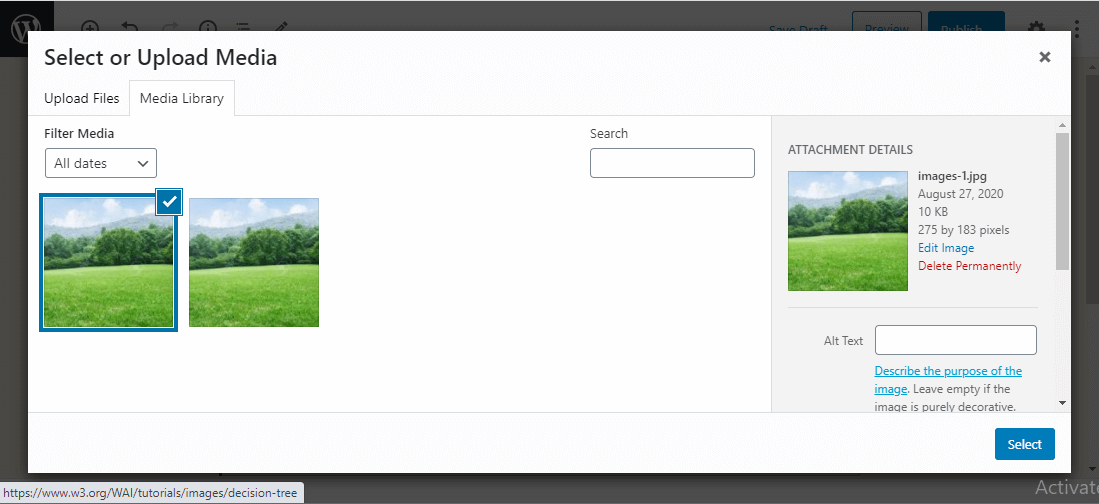
Step 3: Now, we can choose the media file from the library section.

WordPress Media Library

All information on the selected media file will be shown in the Attachment Details on the right side of the screen.

Step 4: Now, click on the "Select" button, then the image will be inserted in the page or post of the site.

We can also upload a file directly from the device by clicking the Upload Files button. Just click on the "Select" button.

Edit Media Files

Here, we are going to know how to Edit Media Files in WordPress. We can handle information about the Media File, which is stored in the Media Library. The following are the steps to edit the Media Files in WordPress.

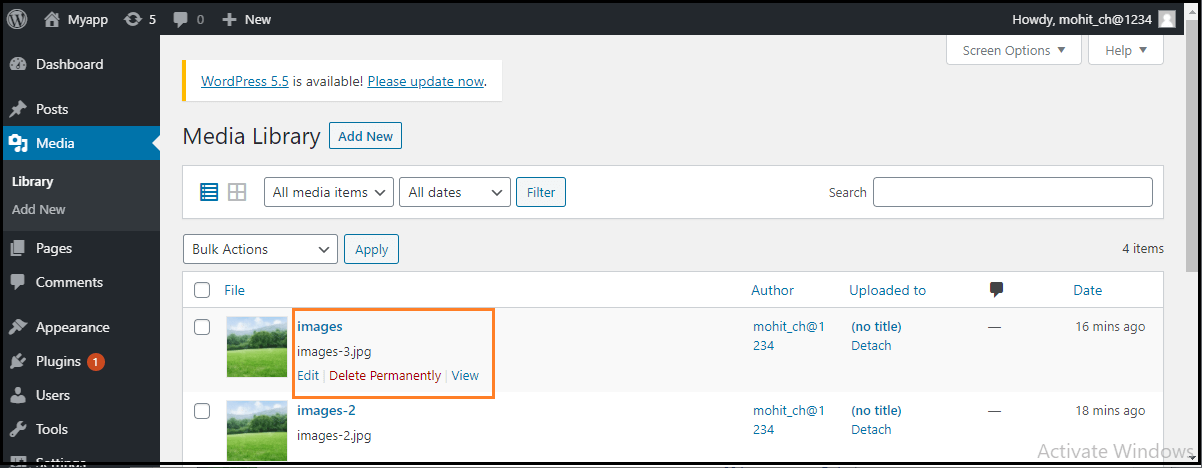
Step 1: Firstly, go to the WordPress dashboard and select the "Media" option, and then click on the "Library" option. After that, click on the media file name or the edit link.

WordPress Media Library

Step 2: Here, we will see the Media Files list. Now, we can select an image that we want to edit.

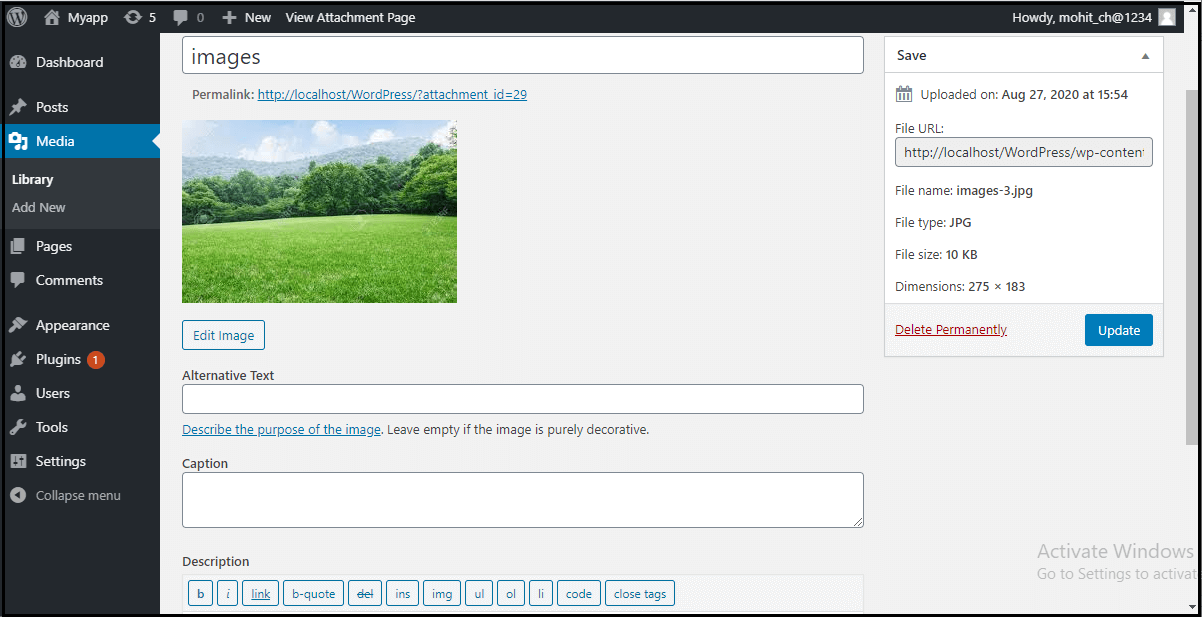
Step 3: Finally, we can see the media page with some options shown on the site. The options are as follows:

WordPress Media Library

URL: It helps us to read only a link from the media file.

Title: It shows the media name. If the themes and plugins are designed to be displayed, the title will often show up in the galleries and attachment pages.

Permalink: It is the media attachment page URL. It is also a link to see the attachment page of the media file.

Edit Image button: It helps to edit the position of the image like rotate anti-clockwise, rotate clockwise, flip vertically, horizontally, crop, flip, and more.

Caption: It allows us to provide a detailed explanation of the media file.

Alternate Text: The alternate text for the image is used to describe media and is also used for the availability of images.

Description: It allows us to explain the media file.

Delete Permanently: It helps us to delete the file permanently.

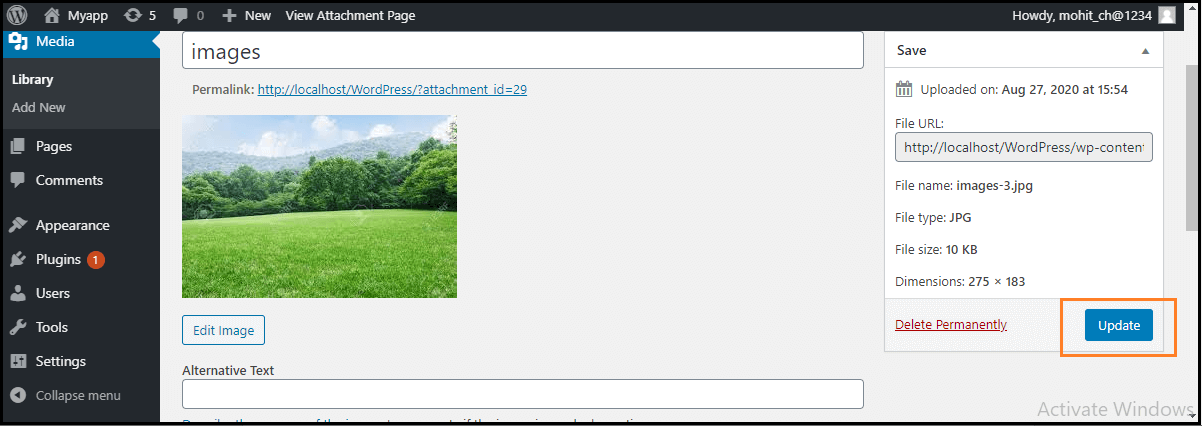
Step 4: After completing all these steps, click on the Update button to save the changes.

WordPress Media Library
Read More
  • Share This:  
  •  Facebook
  •  Twitter
  •  Google+
  •  Stumble
  •  Digg
Newer Posts Older Posts Home

Meta

Popular Posts

  • Generate Migrations from an Existing Database With the Migration Generator Package
    Laravel Migration Generator Migration Generator for Laravel is a package by Bennett Treptow to generate migrations from existing database ...
  • Tailwindcss best practices for responsive design
    Tailwind CSS provides powerful utilities for responsive design out of the box. To use it effectively and maintain clean, scalable code, here...
  • Search Through Models with Laravel Searchable
      Laravel Searchable   is a package by   Spatie   to search through models and other sources pragmatically. Using this package, you can get ...
  • Laravel Razorpay Integration | Payment gateway integration Laravel in 30 mins | Laravel Razorpay
    1 Integration of Razorpay with Laravel. In this tutorial, I have taught how to integrate payment gateway with laravel with mini-project. If...
  • Vue.js Render functions
        Vue.js Render functions Vue.js recommends us to use templates to build HTML. Here, we can use the render function as a closer-to-the-co...

Categories

  • Ajax (26)
  • Bootstrap (30)
  • DBMS (42)
  • HTML (12)
  • HTML5 (45)
  • JavaScript (10)
  • Jquery (34)
  • Jquery UI (2)
  • JqueryUI (32)
  • Laravel (1017)
  • Laravel Tutorials (23)
  • Laravel-Question (6)
  • Magento (9)
  • Magento 2 (95)
  • MariaDB (1)
  • MySql Tutorial (2)
  • PHP-Interview-Questions (3)
  • Php Question (13)
  • Python (36)
  • RDBMS (13)
  • SQL Tutorial (79)
  • Vue.js Tutorial (69)
  • Wordpress (150)
  • Wordpress Theme (3)
  • codeigniter (108)
  • oops (4)
  • php (853)

Social Media Links

  • Follow on Twitter
  • Like on Facebook
  • Subscribe on Youtube
  • Follow on Instagram

Pages

  • Home
  • Contact Us
  • Privacy Policy
  • About us

Blog Archive

  • ▼  2026 (3)
    • ▼  07/26 - 08/02 (2)
      • A stormwater pond in Calgary appears filled with P...
      • Inside Kriti Sanon's duplex sea-facing penthouse w...
    • ►  06/28 - 07/05 (1)
  • ►  2025 (4)
    • ►  07/06 - 07/13 (2)
    • ►  06/29 - 07/06 (2)
  • ►  2024 (486)
    • ►  09/15 - 09/22 (30)
    • ►  09/08 - 09/15 (35)
    • ►  09/01 - 09/08 (35)
    • ►  08/11 - 08/18 (2)
    • ►  08/04 - 08/11 (33)
    • ►  07/28 - 08/04 (30)
    • ►  07/07 - 07/14 (11)
    • ►  06/30 - 07/07 (35)
    • ►  06/23 - 06/30 (5)
    • ►  06/02 - 06/09 (31)
    • ►  05/26 - 06/02 (20)
    • ►  05/05 - 05/12 (29)
    • ►  04/28 - 05/05 (26)
    • ►  04/07 - 04/14 (10)
    • ►  03/31 - 04/07 (34)
    • ►  03/24 - 03/31 (10)
    • ►  03/03 - 03/10 (35)
    • ►  02/25 - 03/03 (15)
    • ►  02/04 - 02/11 (22)
    • ►  01/28 - 02/04 (30)
    • ►  01/07 - 01/14 (8)
  • ►  2023 (484)
    • ►  12/31 - 01/07 (35)
    • ►  12/24 - 12/31 (10)
    • ►  12/03 - 12/10 (33)
    • ►  11/26 - 12/03 (20)
    • ►  11/05 - 11/12 (35)
    • ►  10/29 - 11/05 (20)
    • ►  10/22 - 10/29 (9)
    • ►  10/15 - 10/22 (7)
    • ►  10/08 - 10/15 (9)
    • ►  10/01 - 10/08 (10)
    • ►  09/24 - 10/01 (9)
    • ►  09/17 - 09/24 (9)
    • ►  09/10 - 09/17 (7)
    • ►  09/03 - 09/10 (9)
    • ►  08/27 - 09/03 (9)
    • ►  08/20 - 08/27 (8)
    • ►  08/13 - 08/20 (8)
    • ►  08/06 - 08/13 (8)
    • ►  07/30 - 08/06 (8)
    • ►  07/23 - 07/30 (7)
    • ►  07/16 - 07/23 (8)
    • ►  07/09 - 07/16 (7)
    • ►  07/02 - 07/09 (8)
    • ►  06/25 - 07/02 (7)
    • ►  06/18 - 06/25 (7)
    • ►  06/11 - 06/18 (7)
    • ►  06/04 - 06/11 (11)
    • ►  05/28 - 06/04 (7)
    • ►  05/21 - 05/28 (8)
    • ►  05/14 - 05/21 (11)
    • ►  05/07 - 05/14 (7)
    • ►  04/30 - 05/07 (7)
    • ►  04/23 - 04/30 (8)
    • ►  04/16 - 04/23 (9)
    • ►  04/09 - 04/16 (7)
    • ►  04/02 - 04/09 (4)
    • ►  03/26 - 04/02 (21)
    • ►  03/19 - 03/26 (2)
    • ►  03/12 - 03/19 (9)
    • ►  03/05 - 03/12 (26)
    • ►  02/26 - 03/05 (25)
    • ►  01/15 - 01/22 (7)
    • ►  01/08 - 01/15 (1)
  • ►  2022 (1037)
    • ►  12/11 - 12/18 (13)
    • ►  12/04 - 12/11 (1)
    • ►  11/27 - 12/04 (40)
    • ►  11/06 - 11/13 (1)
    • ►  10/16 - 10/23 (13)
    • ►  09/04 - 09/11 (5)
    • ►  08/21 - 08/28 (24)
    • ►  08/14 - 08/21 (24)
    • ►  07/03 - 07/10 (9)
    • ►  06/19 - 06/26 (3)
    • ►  05/29 - 06/05 (3)
    • ►  05/22 - 05/29 (3)
    • ►  05/15 - 05/22 (109)
    • ►  05/01 - 05/08 (7)
    • ►  04/24 - 05/01 (7)
    • ►  04/17 - 04/24 (64)
    • ►  04/10 - 04/17 (115)
    • ►  04/03 - 04/10 (73)
    • ►  03/27 - 04/03 (77)
    • ►  03/13 - 03/20 (2)
    • ►  03/06 - 03/13 (25)
    • ►  02/27 - 03/06 (18)
    • ►  02/20 - 02/27 (153)
    • ►  02/13 - 02/20 (187)
    • ►  01/30 - 02/06 (45)
    • ►  01/23 - 01/30 (15)
    • ►  01/16 - 01/23 (1)
  • ►  2021 (412)
    • ►  10/24 - 10/31 (2)
    • ►  07/25 - 08/01 (1)
    • ►  07/11 - 07/18 (10)
    • ►  06/13 - 06/20 (29)
    • ►  05/23 - 05/30 (1)
    • ►  05/02 - 05/09 (24)
    • ►  04/25 - 05/02 (24)
    • ►  04/18 - 04/25 (112)
    • ►  04/11 - 04/18 (1)
    • ►  04/04 - 04/11 (6)
    • ►  03/28 - 04/04 (86)
    • ►  03/21 - 03/28 (19)
    • ►  03/14 - 03/21 (2)
    • ►  03/07 - 03/14 (10)
    • ►  02/28 - 03/07 (1)
    • ►  02/21 - 02/28 (29)
    • ►  02/14 - 02/21 (13)
    • ►  02/07 - 02/14 (12)
    • ►  01/31 - 02/07 (6)
    • ►  01/17 - 01/24 (2)
    • ►  01/10 - 01/17 (8)
    • ►  01/03 - 01/10 (14)
  • ►  2020 (376)
    • ►  12/27 - 01/03 (37)
    • ►  12/20 - 12/27 (92)
    • ►  12/13 - 12/20 (29)
    • ►  12/06 - 12/13 (37)
    • ►  11/29 - 12/06 (4)
    • ►  11/15 - 11/22 (14)
    • ►  11/08 - 11/15 (8)
    • ►  11/01 - 11/08 (2)
    • ►  10/18 - 10/25 (14)
    • ►  10/11 - 10/18 (16)
    • ►  10/04 - 10/11 (10)
    • ►  09/20 - 09/27 (10)
    • ►  09/06 - 09/13 (19)
    • ►  08/30 - 09/06 (26)
    • ►  08/23 - 08/30 (4)
    • ►  08/16 - 08/23 (2)
    • ►  07/12 - 07/19 (48)
    • ►  05/17 - 05/24 (2)
    • ►  01/05 - 01/12 (2)
  • ►  2019 (74)
    • ►  07/07 - 07/14 (6)
    • ►  06/16 - 06/23 (6)
    • ►  02/10 - 02/17 (17)
    • ►  01/13 - 01/20 (37)
    • ►  01/06 - 01/13 (8)
  • ►  2018 (376)
    • ►  12/30 - 01/06 (24)
    • ►  12/16 - 12/23 (8)
    • ►  12/09 - 12/16 (98)
    • ►  12/02 - 12/09 (16)
    • ►  11/18 - 11/25 (36)
    • ►  11/04 - 11/11 (18)
    • ►  10/28 - 11/04 (10)
    • ►  10/21 - 10/28 (26)
    • ►  10/14 - 10/21 (52)
    • ►  10/07 - 10/14 (4)
    • ►  09/30 - 10/07 (2)
    • ►  09/23 - 09/30 (68)
    • ►  09/16 - 09/23 (4)
    • ►  09/09 - 09/16 (4)
    • ►  08/26 - 09/02 (6)

Data Publish News

Loading...

Al Jazeera – Breaking News, World News and Video from Al Jazeera

Loading...

Laravel News

Loading...

Copyright © CoderFunda | Powered by Blogger
Design by Coderfunda | Blogger Theme by Coderfunda | Distributed By Coderfunda