CoderFunda
  • Home
  • About us
    • Contact Us
    • Disclaimer
    • Privacy Policy
    • About us
  • Home
  • Php
  • HTML
  • CSS
  • JavaScript
    • JavaScript
    • Jquery
    • JqueryUI
    • Stock
  • SQL
  • Vue.Js
  • Python
  • Wordpress
  • C++
    • C++
    • C
  • Laravel
    • Laravel
      • Overview
      • Namespaces
      • Middleware
      • Routing
      • Configuration
      • Application Structure
      • Installation
    • Overview
  • DBMS
    • DBMS
      • PL/SQL
      • SQLite
      • MongoDB
      • Cassandra
      • MySQL
      • Oracle
      • CouchDB
      • Neo4j
      • DB2
      • Quiz
    • Overview
  • Entertainment
    • TV Series Update
    • Movie Review
    • Movie Review
  • More
    • Vue. Js
    • Php Question
    • Php Interview Question
    • Laravel Interview Question
    • SQL Interview Question
    • IAS Interview Question
    • PCS Interview Question
    • Technology
    • Other

28 March, 2022

WordPress Appearance

 Programing Coderfunda     March 28, 2022     Wordpress     No comments   


WordPress Appearance

Appearance is to manage your theme. From here you can install, delete, update and activate themes. Its menus allow you to change your site's appearance and behavior.

Depending upon the theme, some of the appearance menu may not appear to you because some of the options under appearance are theme based.


How to Manage Theme

For theme management, go to Themes

All the installed themes will be displayed. Hover a theme and click it for theme description.
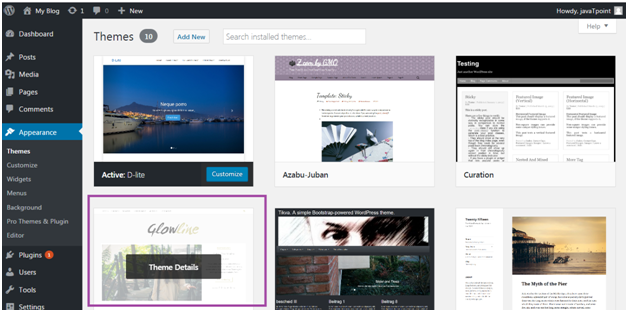
Wordpress Appearence1

Look at the above snapshot, these are the themes installed in our site. After clicking on a theme, theme description page will appear in front of you.
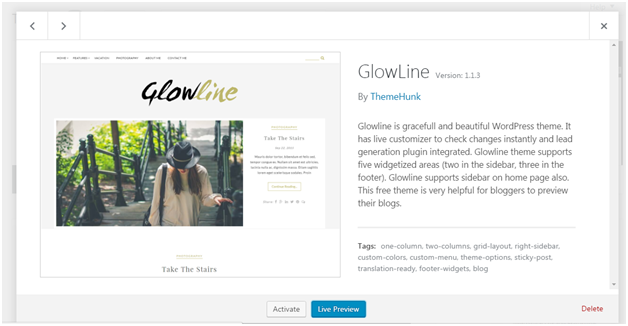
Wordpress Appearence2

Look at the above snapshot, it displays theme description like version, tags and information. If you want to implement this theme then click on Activate button, and to see the preview of theme click on Live Preview button.

We have activated a theme and got a message as shown in below snapshot.
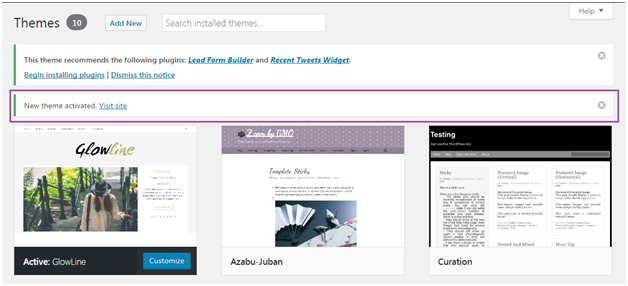
Wordpress Appearence3

How to Customize Theme

Theme customizer allows you to design your site with your theme. It gives a new look to your site.

Go to Appearance > Customize
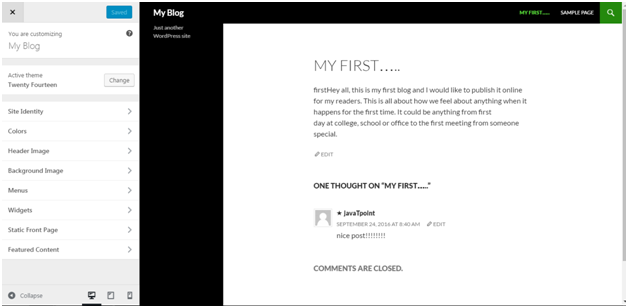
Wordpress Appearence4

Look at the above snapshot, on the left side it is customizing section and on the right side it is the theme we have selected. Any changes made on the left side will be displayed on the right side of the screen.

At the left side of the screen, following options are present,

  • Active Theme -It shows which theme is currently activated on your site. On our site, Twenty Fourteen theme is activated.
  • There is an option to Change the theme. When you'll click on it, you?ll see other themes which you can activate.

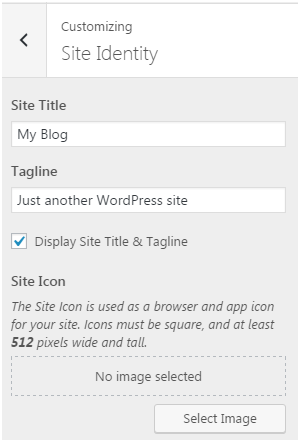
  • Site Identity - It specifies basic site information.
  • Wordpress Appearence5

    Look at the above snapshot,

    Site Title - Enter your site title in the text box.

    Tagline - Enter a tag line matching to your site.

    Checkbox will enable and disable the site title and tag line.

    Site Icon - it is used as an icon for your site in the browser.

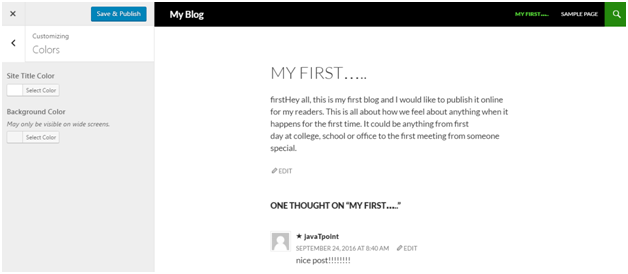
  • Colors - This option allows you to change the color of your site by changing site color and background color.
  • Wordpress Appearence6

    Look at the above snapshot, you can see the options for site color and background color.

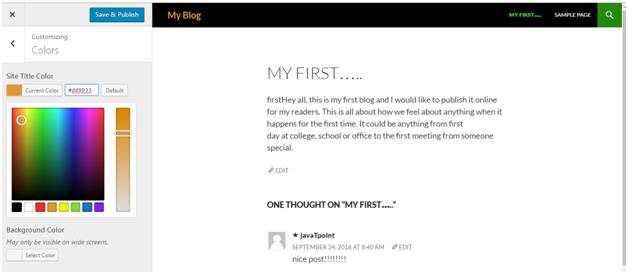
    To change site color

    Wordpress Appearence7

    Look at the above snapshot, by clicking on site Title color, many color options will be shown. We have chosen color with code #dd9933. My site title has been changed to the same color. There is a base color scheme as a vertical bar from where you can set the color of your choice.

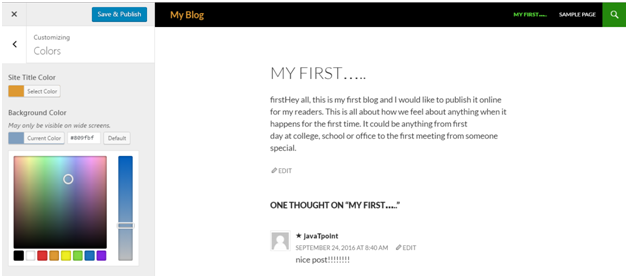
    To change background color

    Wordpress Appearence8
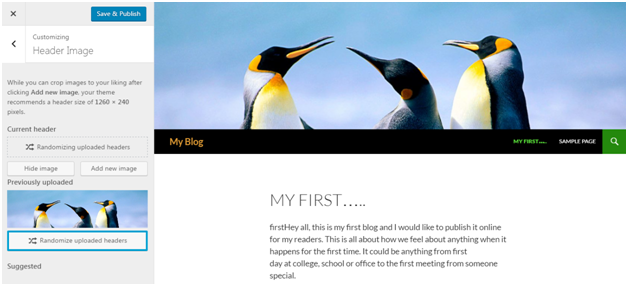
  • Header Image - It will select an image for the header of your site.
  • Wordpress Appearence9

    Look at the above snapshot, this is the image we have selected as the header. By clicking on Hide image, we can remove this photo from the header.

    You will get an option here to crop your image as you want.

  • Background Image - Select an image for your background from here.
  • Wordpress Appearence10

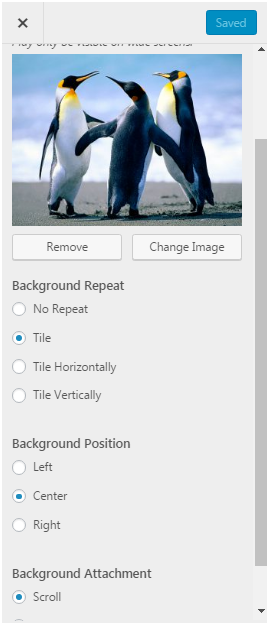
    Look at the above snapshot, after selecting an image above options will appear.

    You can Remove the image if you want. And from Change Image option, you can change the image.

    Background Repeat determines if your image is repeated or not.

    Background Position determines image to be positioned left, right or center.

    Background Attachment determines whether to display image as fixed or scroll.

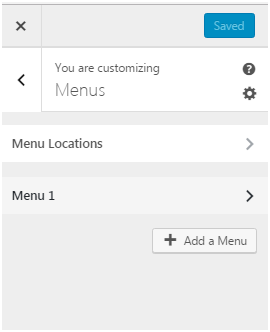
  • Menus - Select the menu type to appear on your site.
  • Wordpress Appearence11

    Look at the above snapshot, there are two options or menu.

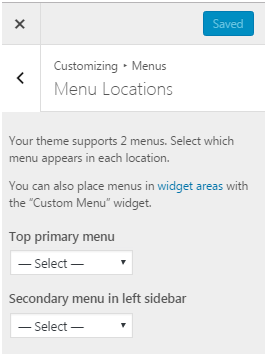
    In Menu Locations, two types of menu locations are there.

    Wordpress Appearence12

    Look at the above snapshot, there are two positions for the menu, one is top and other is sidebar.

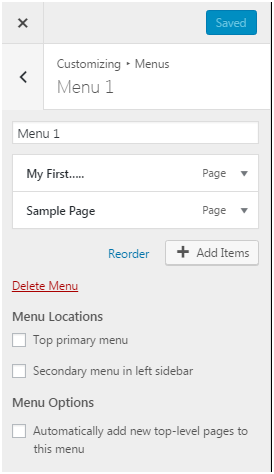
    In Menu 1, following screen will appear.

    Wordpress Appearence13

    Look at the above snapshot, you can select the checkboxes according to your need.

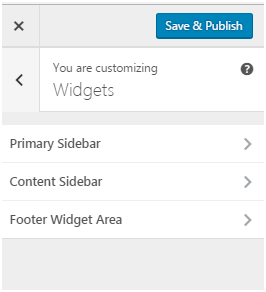
  • Widgets - Themes have sidebars either on left or right. You can add, remove, move up or down widgets into sidebars according to your choice.
    Wordpress Appearence14

    Look at the above snapshot, you can move the widgets according to your need in all the three sidebars.
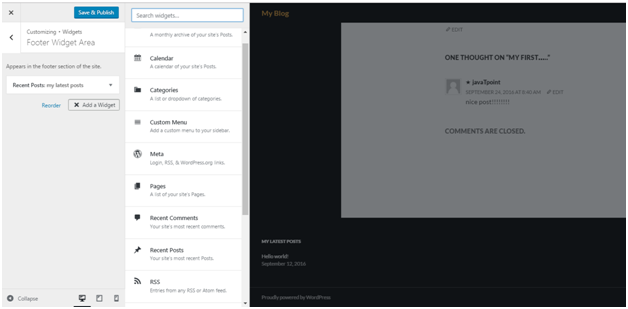
    Wordpress Appearence15

    Look at the above snapshot, we have added Recent posts widget in the Footer widget area. Just choose a widget from the given options and it will be on your sidebar menu.

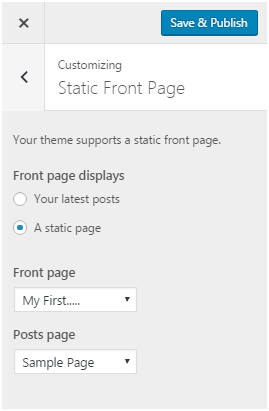
  • Static Front Page - Home page will be either static or display latest posts.
  • Wordpress Appearence16

    Look at the above snapshot, you can choose an option to display static or latest posts.

How to Manage Widget

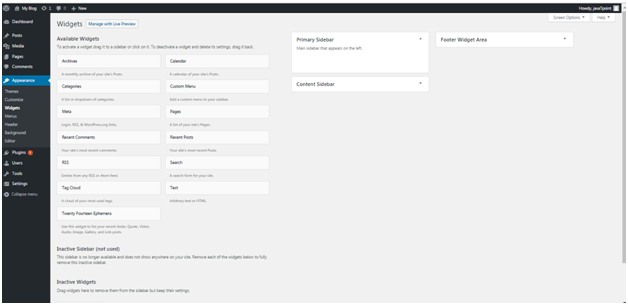
Widgets are like blocks having specific codes for different functions. In any sidebar you can add and remove widget as per need through drag and drop.
Wordpress Appearence17

Look at the above snapshot, following options are available,

Available widgets, these are available to you to add to the sidebar.

Inactive sidebar (not used), these are not used.

Inactive widgets, these are the removed widgets from sidebar.

Select a menu and use drag and drop option to any widget in the desired location.

Read More
  • Share This:  
  •  Facebook
  •  Twitter
  •  Google+
  •  Stumble
  •  Digg

How to Delete Links

 Programing Coderfunda     March 28, 2022     Wordpress     No comments   


How to Delete Links

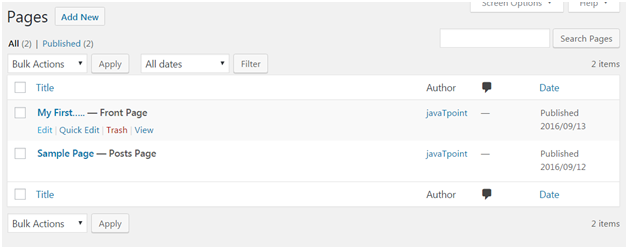
To edit links, go to Pages > All Pages

Wordpress Links1

Look at the above snapshot, click on Edit button.

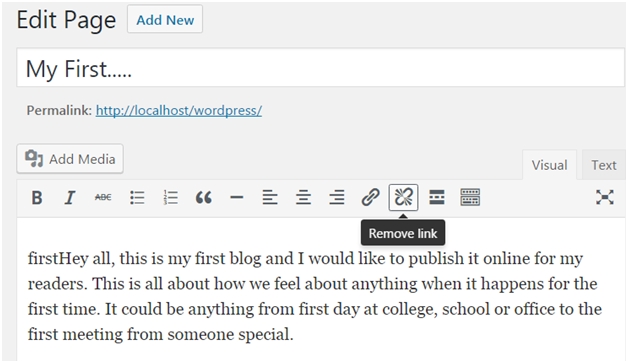
Wordpress Links2

Look at the above snapshot, this is the Remove Link option. Click on this and your link will be removed.


Read More
  • Share This:  
  •  Facebook
  •  Twitter
  •  Google+
  •  Stumble
  •  Digg

How to Add a New Link in WordPress Navigation Menus

 Programing Coderfunda     March 28, 2022     Wordpress     No comments   


How to Add a New Link in WordPress Navigation Menus

There is an editor in WordPress which allows you to create and manage navigation menus.

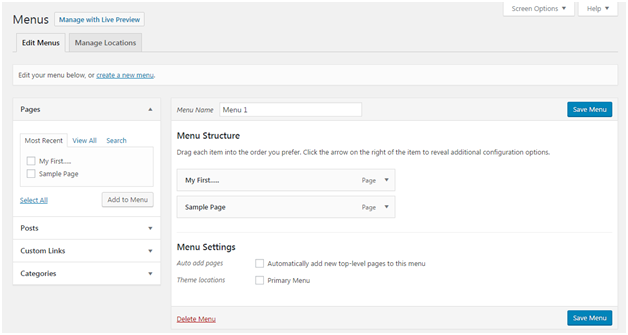
For navigation menus, go to Appearance > Menus

Wordpress New link in wordpress navigation menus1

Look at the above snapshot, here you can add, delete or edit links in your posts.


Read More
  • Share This:  
  •  Facebook
  •  Twitter
  •  Google+
  •  Stumble
  •  Digg

How to Add a New Link in WordPress Text Widgets

 Programing Coderfunda     March 28, 2022     Wordpress     No comments   


How to Add a New Link in WordPress Text Widgets

In WordPress you can add links in widgets. Different widgets possess different functions like recent post widget will show links to your recent posts. In text widgets you can add text and basic HTML.

There are two ways to add links in text widgets.

  • Adding a link in HTML
  • This method requires writing some of very basic HTML. In href tag you have to add URL. Remember to add http:// before domain. Between the closing and opening anchor tag add any text that you want to link (here we have written javaTpoint).

    For example, javaTpoint

  • Using a plugin
  • Here you have to install and activate a plugin to enable visual editor for your text widgets.


Read More
  • Share This:  
  •  Facebook
  •  Twitter
  •  Google+
  •  Stumble
  •  Digg

How to Add a New Link in WordPress Posts and Pages

 Programing Coderfunda     March 28, 2022     Wordpress     No comments   


How to Add a New Link in WordPress Posts and Pages

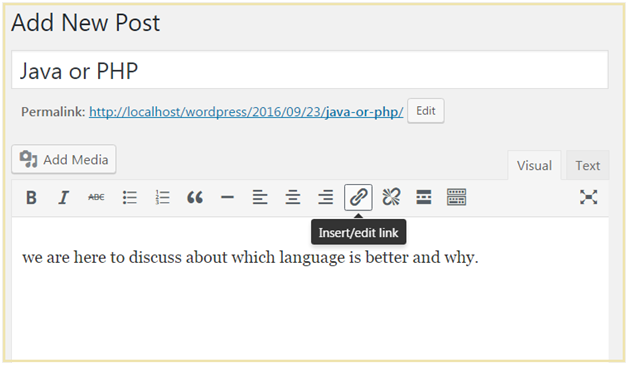
To add a link, go to Posts > Add New

You can add a link either in a new post or in the existing post.

Wordpress Link in WordPress Posts and Pages1

Look at the above snapshot, to create a link, click on the link icon.

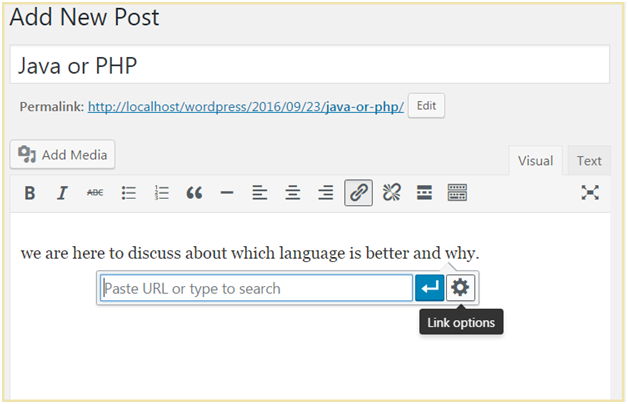
On clicking the link icon, following page will appear,

Wordpress Link in WordPress Posts and Pages2

Look at the above snapshot, next step is to click on Link Options button.

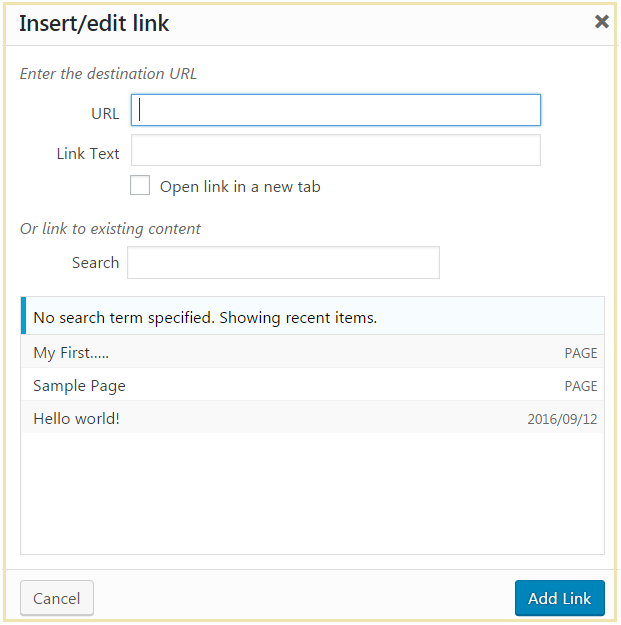
Wordpress Link in WordPress Posts and Pages3

Look at the above snapshot, this pop-up will come on clicking Link Options.

In URL, enter URL you want to link.

In Link Text, insert text you want to enter into the link.

Tick on check-box Open link in new tab.

You can also link it to the existing content.

Now click on Add Link button and your link will be added.


Read More
  • Share This:  
  •  Facebook
  •  Twitter
  •  Google+
  •  Stumble
  •  Digg

WordPress Links

 Programing Coderfunda     March 28, 2022     Wordpress     No comments   


WordPress Links

We can add/edit/delete links on WordPress posts, pages, text widgets and navigation menus. Let's see the 3 ways to add a link in WordPress..

  • Add a link in WordPress posts and pages
  • Add a link in WordPress text widgets
  • Add a link in WordPress navigation menus
  • How to Delete WordPress Links
Read More
  • Share This:  
  •  Facebook
  •  Twitter
  •  Google+
  •  Stumble
  •  Digg

WordPress Categories vs Tags

 Programing Coderfunda     March 28, 2022     Wordpress     No comments   


WordPress Categories vs Tags

Earlier only categories were available in WordPress to divide the posts. But to describe a post more specifically more categories were used. This made the category list very long. To avoid this, we have tags.

Categories are broad-ranging. It helps your users to identify what your blog is about. For a post, there may be sub-categories which make a hierarchy of category. It is possible for a post to have more than one category but it is best for a post to have a single category. A post must have at least one category.

Tags are like categories but they are used to describe a post more specifically. In some posts you may not need to use a tag. Tags are not needed in every post.

Multiple categories may confuse the readers. If you want to provide additional grouping in a post use tags. Tag should be relevant to the topic covered in the post. For example, if you Google for "ladies watch". Here watch is category and ladies is tag.


SEO effect from Category and Tag

Wise use of tag and category can increase traffic to your site via search engines. If both are used together, they will increase your site's usability.

Having internal links will let your sites content to be discovered by the search engine. Tags and categories will clue the search engines about your website topic and your site will be ranked for those targeted keywords.


Optimal number of Categories and Tags

There is no defined limit to use category for a post. However, for simplicity sub-categories are used when more categories are needed for a single post.

For tags also there is specific limit. You can add 100 tags in a post. Tags are used to help in searching of a post. So it is necessary to use relevant keywords related to your post.


Assigning one Post under multiple Categories

Some people used to say that using multiple categories for a single post can result SEO in a negative way or you can be penalized for duplicate content. But it is not entirely true.

Basic use of category is to sort the content on your site for your users so that they could find it easily. It is better to use sub-categories or tags than multiple categories.

Overall there is no SEO advantage in multiple categories. Only consider about your targeted audience and not the search engine. If your decision will be according to your viewers, it will increase your visitors and your site?s SEO will automatically increase.


Read More
  • Share This:  
  •  Facebook
  •  Twitter
  •  Google+
  •  Stumble
  •  Digg

WordPress Tags

 Programing Coderfunda     March 28, 2022     Wordpress     No comments   


WordPress Tags


What are Tags

With the help of tags, similar posts can be grouped together. Hence, it makes easier for the users to search a particular post. It tells the user what a post is about. Tags are similar to categories but still different.

Position of the tag may differ depending on the theme. Sometimes they may appear at the bottom, top, or in the sidebar.

Wordpress Wordpress tags1

How to Add a Tag

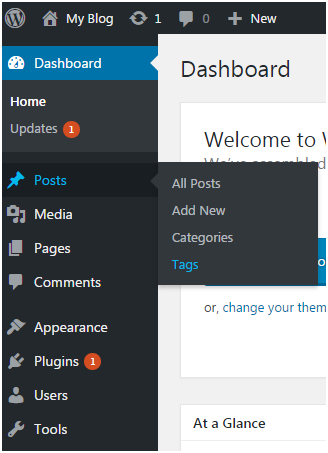
To add a tag, go to Posts > Tags

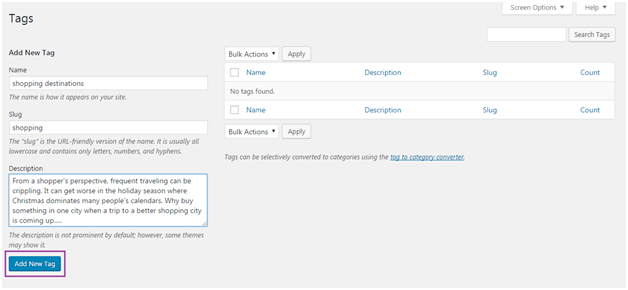
Wordpress Wordpress tags2

Look at the above snapshot, here you have to fill all the fields.

Name - Name of tag which must be unique. Here it is shopping destinations.

Slug - It describes a post in URL. It is generally in lowercase and contains only letters, numbers and hyphens. Here our slug it shopping.

Description - It is a brief intro about the tag. When you hover (bring pointer over the tag) the tag, this description is displayed.

After filling all the above information, click on Add New Tag button.

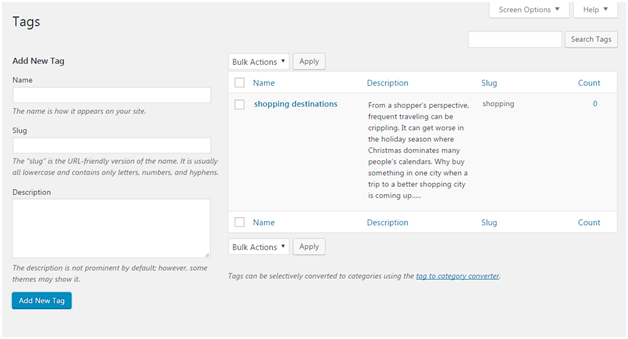
Following screen will appear in front of you.

Wordpress Wordpress tags3

Look at the above snapshot, on the right side, created tag is displayed.


How to Edit Tag

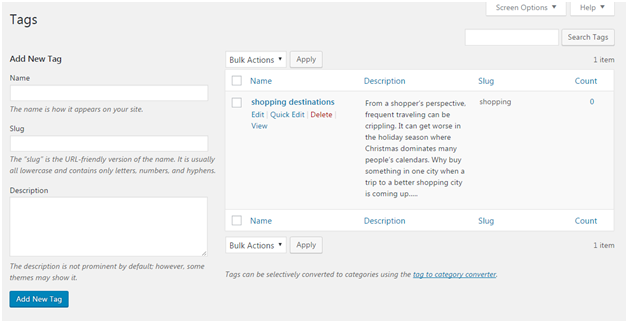
To edit a tag, go to Posts > Tag and bring the mouse over the tag.

Wordpress Wordpress tags4

Look at the above snapshot, two options to edit are there.

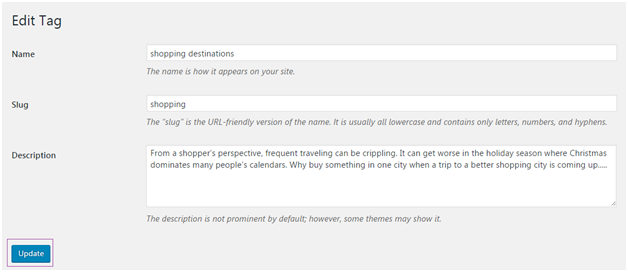
On clicking Edit, following page will appear.

Wordpress Wordpress tags5

Look at the above snapshot, after editing click on Update button.

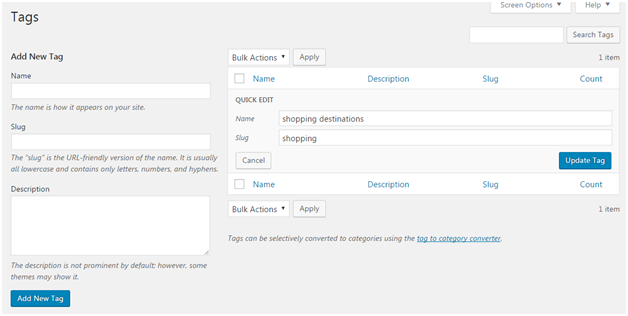
On clicking Quick Edit, following page will appear.

Wordpress Wordpress tags6

Look at the above snapshot, here you can only edit Name and Slug of the tag. After editing, click on Update Tag button.


How to Delete Tag

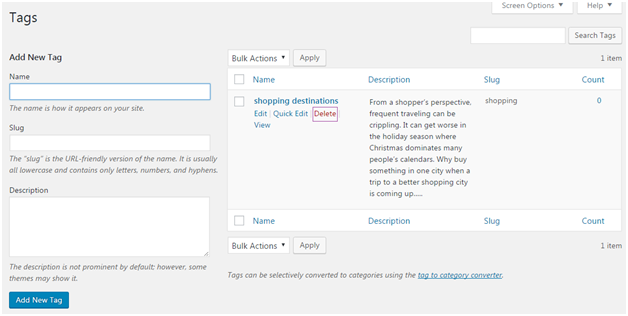
To delete a tag, go to Post > Tag and bring the mouse over the tag.

Wordpress Wordpress tags7

Look at the above snapshot, click on Delete option and your Tag will be deleted.


Read More
  • Share This:  
  •  Facebook
  •  Twitter
  •  Google+
  •  Stumble
  •  Digg

WordPress Categories

 Programing Coderfunda     March 28, 2022     Wordpress     No comments   


WordPress Categories

Here, we'll see how to add categories. By clicking on a category, user will be able to see the posts listed under that category.


What is a category

Categories allow a user to divide its content into different sections. Different topics publishing in a single website can be divided into different categories. It tells the reader what a post is about and they can easily find their content from a lot.

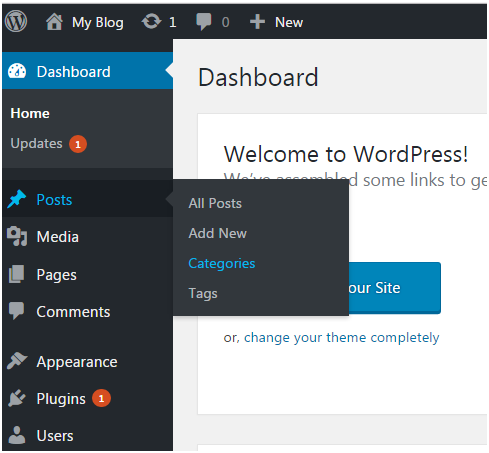
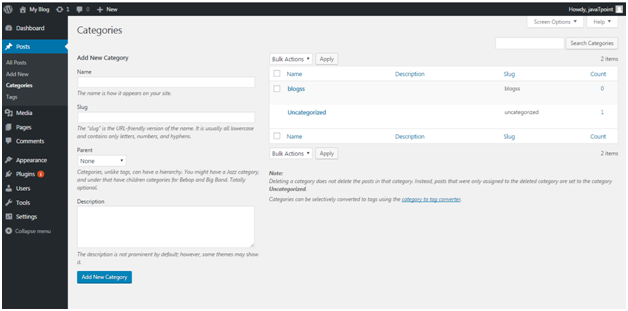
If no category is added, then by default category is uncategorized. To access category section click Posts > Categories

Wordpress Wordpress categories1

Look at the above snapshot, this is the category section.


How to add categories

Wordpress Wordpress categories2

Look at the above snapshot, there are four fields to be filled when adding a new category.

Name - Name of category which has to be unique

Slug - It is used in the URL to display your category. For example, if your category is Clothing and slug is women, then your URL will be like shopping.com/shop/women.

Parent - Here, you can add sub-categories to a category or you can choose none. This is optional.

Description - Descriptions are optional. You can add a brief description to your category.

After filling all the above entries, click on Add New Category button. On the right side of the page your new category will be added.

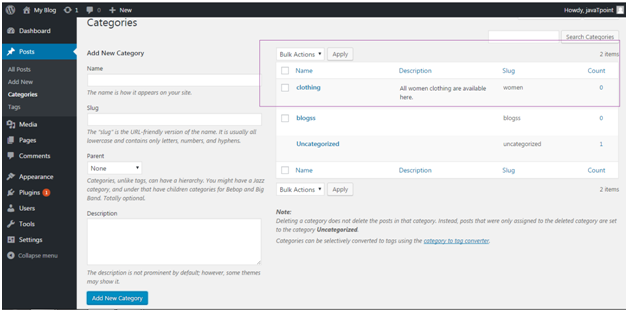
Wordpress Wordpress categories3

Look at the above snapshot, our new category clothing is added in the category list.


How to Edit Category

To edit a category, go to Posts > Categories. Hover your mouse to the category you want to edit.

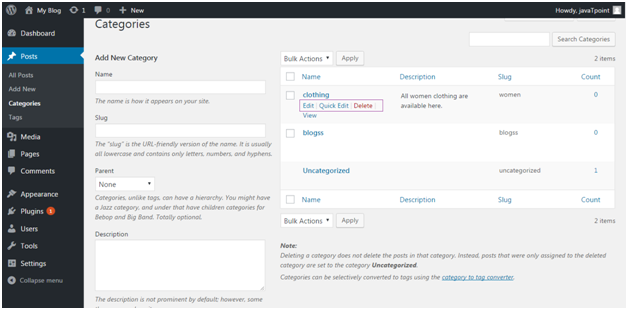
Wordpress Wordpress categories4

Look at the above snapshot, there are several options to Edit, Quick Edit and Delete. Here you can change category name, slug, parent and description.

Edit - It allows you to edit all the fields name, slug, parent and description.

Quick Edit - it only allows you to edit name and slug.


How to Delete Category

You can also delete categories from the above snapshot. By deleting a category, its posts will not be deleted instead they will be transferred to by default category (if that post will not be listed under any other category).

Please remember you can't delete a by default category, before deleting it assign by default status to some other category.


How to Convert Category into Tag

Categories and tags both are different things in WordPress. Categories are sections while tags are keywords. WordPress provide you n option to change category into tag and tag into category.

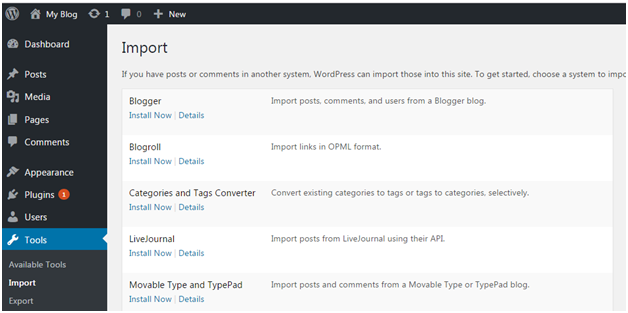
Go to Tools > Import, following screen will appear.

Wordpress Wordpress categories5

Look at the above snapshot, there is an option of Categories and Tags Converter. It is asking for installation. Click on Install Now button.

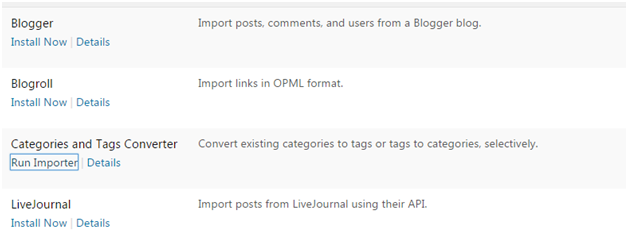
Wordpress Wordpress categories6

Look at the above snapshot, after installation click on Run Importer.

Wordpress Wordpress categories7

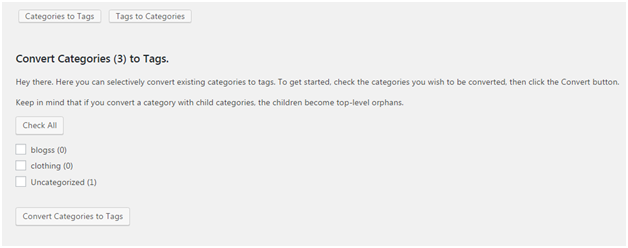
Look at the above snapshot, you can select any option either to convert categories to tags or tags to categories.


Read More
  • Share This:  
  •  Facebook
  •  Twitter
  •  Google+
  •  Stumble
  •  Digg

WordPress Comments

 Programing Coderfunda     March 28, 2022     Wordpress     No comments   


WordPress Comments

Comments allow a user to interact with the blogger or website team. It helps in many ways, like you'll get to know what your viewers want from you. What else you can do for your viewers. You can activate or deactivate comment box. Comments are by default enabled.


Discussion or Comment Setting Page

Click on Settings > Discussions

You will be on Discussion Settings page.

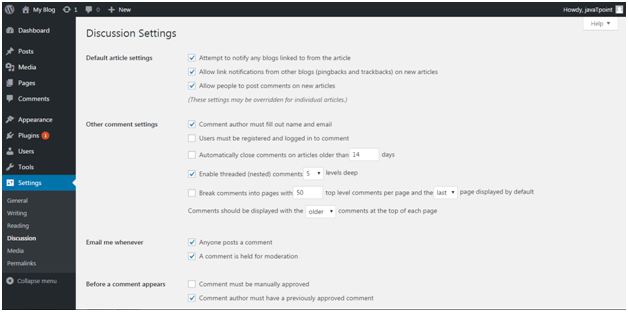
Wordpress Wordpress comment1

Look at the above snapshot, there are many default options.

First part is for Default article settings, applies to all your pages, posts, etc.


How to Enable or Disable Comment

Go to Pages > All Pages

Select any one of the page you want to add comment.

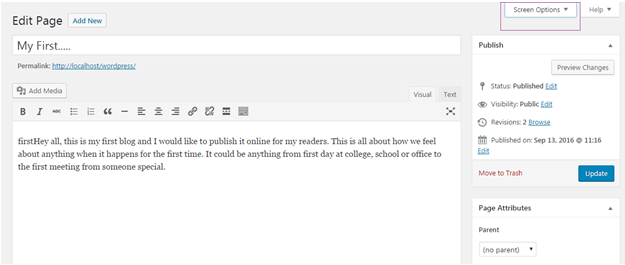
Wordpress Wordpress comment2

Look at the above snapshot, on the top right, there is a drop-down option. Click it.

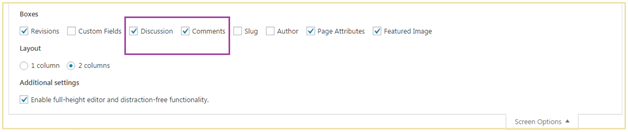
Wordpress Wordpress comment3

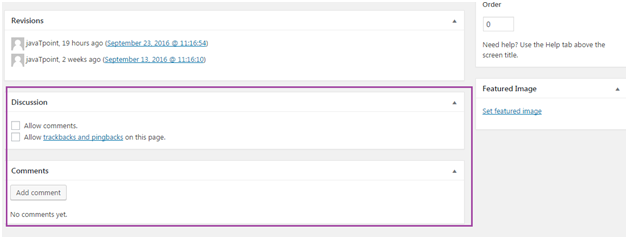
Look at the above snapshot, check the Discussions and Comments box.

Wordpress Wordpress comment4

Look at the above snapshot, there are two checkboxes,

Allow comments - Allow your viewers to add comment on your post.

Allow trackbacks and pingbacks on this page - Viewers can ping and trackback.

Lastly click on Update button to update your post.


How to Edit Comment

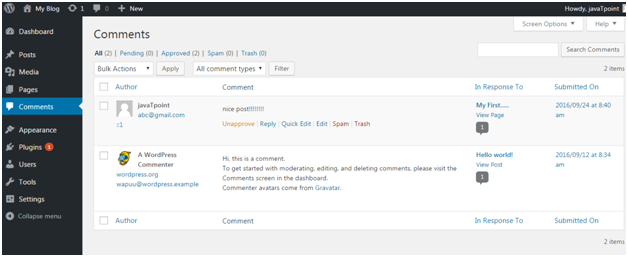
To edit comments, go to Comments side menu,

Wordpress Wordpress comment5

Look at the above snapshot, this is the comment page. Select a comment and click Edit.

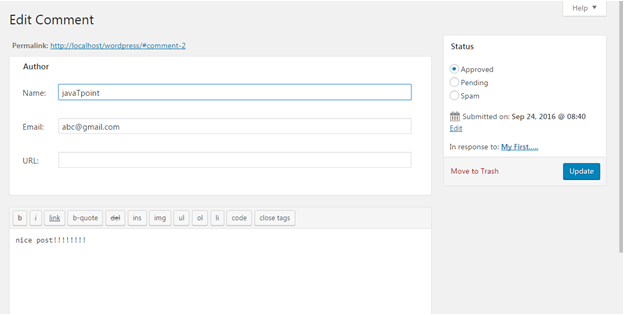
Wordpress Wordpress comment6

Look at the above snapshot, you can edit the comment here and then click Update.


What is Moderate Comment

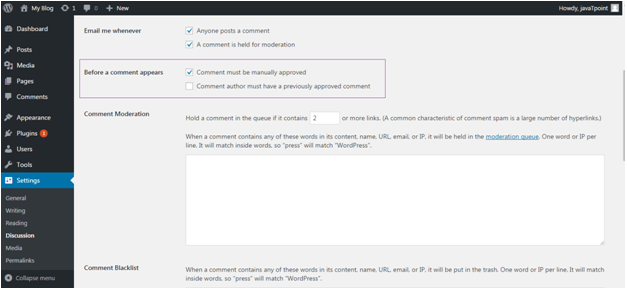
Comments by the visitors on a post are not published directly unless it is approved by the admin. This is called Moderation. You can change comment moderation settings. Go to Settings > Discussions

When you'll scroll down the page little bit, you'll see following option.

Wordpress Wordpress comment7

Look at the above snapshot, check the option Comment must be manually approved.


How to allow only registered users to Comment

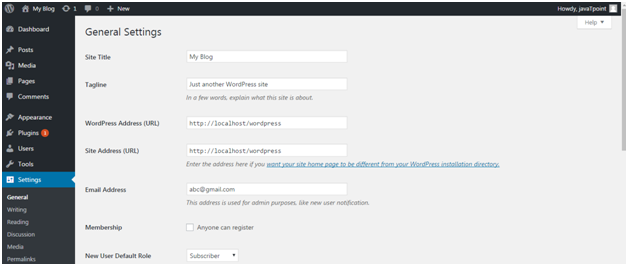
You can allow only registered users to comment on your post. For that, go to Settings > General

Following page will appear.

Wordpress Wordpress comment8

Look at the above snapshot, check the box Anyone can register.

And if you don't want a new user to write post on your site then save the column New user Default Role as Subscriber.

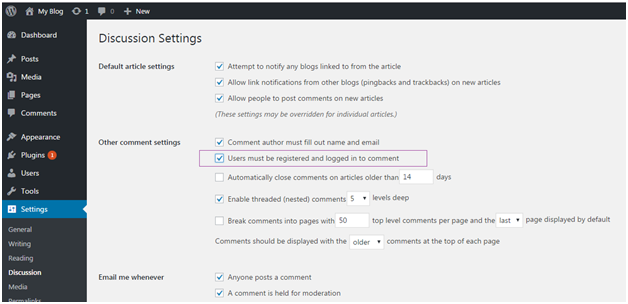
Now go to Settings > Discussions

Wordpress Wordpress comment9

Look at the above snapshot, check the box Users must be registered and logged in to comment.


How to Receive Notification for Comment

You can receive a notification whenever someone leaves a comment on your site or waiting to be approved.

You will not receive a notification for a comment marked as spam.

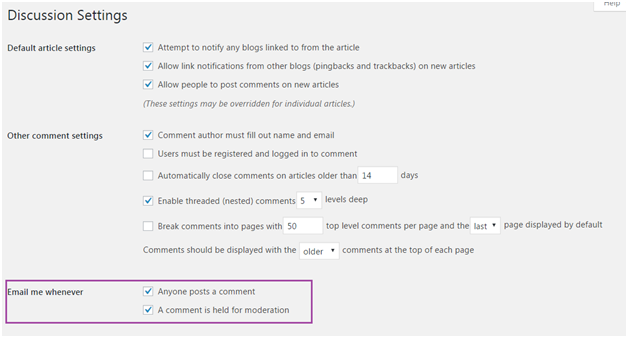
To receive notifications, go to Settings > Discussions

Wordpress Wordpress comment10

Look at the above snapshot, check the boxes under Email me Whenever to enable notifications.


What is Avatar or Gravatar

Word Avatar is used for user's profile image in online communications. Gravatar is a web based service which allows its users to use avatar image. When a user creates an account in WordPress, it searches for gravatar image matching user's email address. If user has a gravatar account with an image then this image is displayed as their profile pictures in comments and if not then default avatar image is set.

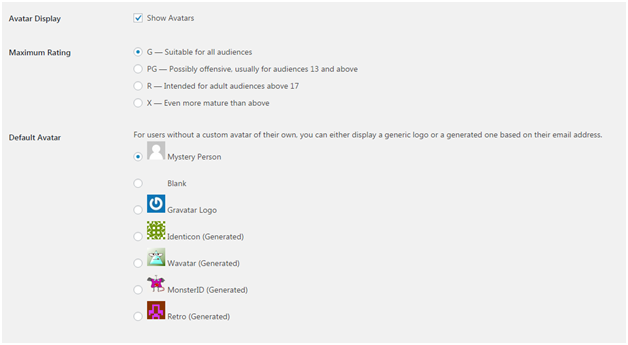
The default image in WordPress is Mystery Man. You can change it by clicking on Settings > Discussions

Wordpress Wordpress comment11

Look at the above snapshot, by unchecking Show Avatars, Avatar image will not be there in your website.

Default images can be selected from mystery man and blank image. Other images are selected using algorithms that generate an image based on user's email address.


Read More
  • Share This:  
  •  Facebook
  •  Twitter
  •  Google+
  •  Stumble
  •  Digg

WordPress posts vs pages

 Programing Coderfunda     March 28, 2022     Wordpress     No comments   


WordPress posts vs pages

Post and page appears to be same on the dashboard as both are used to add content on your site. People get confused in their usage.

Pages are static. Then don't change frequently. Some examples of pages are contact us, about us, introduction, etc.

Posts are what you make an update on your post. They need to change very frequently as they need to keep your site fresh and attractive for your users.


Posts

Posts are the site content which are published on a site with an exact date and time. They can be categorized in a systematic way on the basis of category and tags. If you are a blogger, then you'll write posts to update your new blog. They are listed in a reverse chronological order on a site.

They generally consist of informational topics related to education, news, regular activities, feminism or any other topic. The content frequently changes for the end user as new posts are updated regularly. As the post gets older, a user has to dig inside to find it.

Posts have the commenting feature, which can be turned on or off. It allows discussion on your blog if you have turned on the commenting.

As posts are published timely, they made up the RSS content of your blog. Your users will be notified about your most recent posts via RSS feeds.


Pages

Pages are static and not changed frequently such as contact us, about us, privacy policy, etc. They don't have date and time published, however, database stores the published date or time of the page.

They are not included in RSS feeds as they don't have date and time published on the page.

They are neither listed by date nor can be categorized by the category and tags. They can make a hierarchy by nesting pages under each other making one of them the parent page.

They are not social, hence they don't have the commenting option.


Read More
  • Share This:  
  •  Facebook
  •  Twitter
  •  Google+
  •  Stumble
  •  Digg
Newer Posts Older Posts Home

Meta

Popular Posts

  • Generate Migrations from an Existing Database With the Migration Generator Package
    Laravel Migration Generator Migration Generator for Laravel is a package by Bennett Treptow to generate migrations from existing database ...
  • Tailwindcss best practices for responsive design
    Tailwind CSS provides powerful utilities for responsive design out of the box. To use it effectively and maintain clean, scalable code, here...
  • Search Through Models with Laravel Searchable
      Laravel Searchable   is a package by   Spatie   to search through models and other sources pragmatically. Using this package, you can get ...
  • Laravel Razorpay Integration | Payment gateway integration Laravel in 30 mins | Laravel Razorpay
    1 Integration of Razorpay with Laravel. In this tutorial, I have taught how to integrate payment gateway with laravel with mini-project. If...
  • Vue.js Render functions
        Vue.js Render functions Vue.js recommends us to use templates to build HTML. Here, we can use the render function as a closer-to-the-co...

Categories

  • Ajax (26)
  • Bootstrap (30)
  • DBMS (42)
  • HTML (12)
  • HTML5 (45)
  • JavaScript (10)
  • Jquery (34)
  • Jquery UI (2)
  • JqueryUI (32)
  • Laravel (1017)
  • Laravel Tutorials (23)
  • Laravel-Question (6)
  • Magento (9)
  • Magento 2 (95)
  • MariaDB (1)
  • MySql Tutorial (2)
  • PHP-Interview-Questions (3)
  • Php Question (13)
  • Python (36)
  • RDBMS (13)
  • SQL Tutorial (79)
  • Vue.js Tutorial (69)
  • Wordpress (150)
  • Wordpress Theme (3)
  • codeigniter (108)
  • oops (4)
  • php (853)

Social Media Links

  • Follow on Twitter
  • Like on Facebook
  • Subscribe on Youtube
  • Follow on Instagram

Pages

  • Home
  • Contact Us
  • Privacy Policy
  • About us

Blog Archive

  • ▼  2026 (3)
    • ▼  07/26 - 08/02 (2)
      • A stormwater pond in Calgary appears filled with P...
      • Inside Kriti Sanon's duplex sea-facing penthouse w...
    • ►  06/28 - 07/05 (1)
  • ►  2025 (4)
    • ►  07/06 - 07/13 (2)
    • ►  06/29 - 07/06 (2)
  • ►  2024 (486)
    • ►  09/15 - 09/22 (30)
    • ►  09/08 - 09/15 (35)
    • ►  09/01 - 09/08 (35)
    • ►  08/11 - 08/18 (2)
    • ►  08/04 - 08/11 (33)
    • ►  07/28 - 08/04 (30)
    • ►  07/07 - 07/14 (11)
    • ►  06/30 - 07/07 (35)
    • ►  06/23 - 06/30 (5)
    • ►  06/02 - 06/09 (31)
    • ►  05/26 - 06/02 (20)
    • ►  05/05 - 05/12 (29)
    • ►  04/28 - 05/05 (26)
    • ►  04/07 - 04/14 (10)
    • ►  03/31 - 04/07 (34)
    • ►  03/24 - 03/31 (10)
    • ►  03/03 - 03/10 (35)
    • ►  02/25 - 03/03 (15)
    • ►  02/04 - 02/11 (22)
    • ►  01/28 - 02/04 (30)
    • ►  01/07 - 01/14 (8)
  • ►  2023 (484)
    • ►  12/31 - 01/07 (35)
    • ►  12/24 - 12/31 (10)
    • ►  12/03 - 12/10 (33)
    • ►  11/26 - 12/03 (20)
    • ►  11/05 - 11/12 (35)
    • ►  10/29 - 11/05 (20)
    • ►  10/22 - 10/29 (9)
    • ►  10/15 - 10/22 (7)
    • ►  10/08 - 10/15 (9)
    • ►  10/01 - 10/08 (10)
    • ►  09/24 - 10/01 (9)
    • ►  09/17 - 09/24 (9)
    • ►  09/10 - 09/17 (7)
    • ►  09/03 - 09/10 (9)
    • ►  08/27 - 09/03 (9)
    • ►  08/20 - 08/27 (8)
    • ►  08/13 - 08/20 (8)
    • ►  08/06 - 08/13 (8)
    • ►  07/30 - 08/06 (8)
    • ►  07/23 - 07/30 (7)
    • ►  07/16 - 07/23 (8)
    • ►  07/09 - 07/16 (7)
    • ►  07/02 - 07/09 (8)
    • ►  06/25 - 07/02 (7)
    • ►  06/18 - 06/25 (7)
    • ►  06/11 - 06/18 (7)
    • ►  06/04 - 06/11 (11)
    • ►  05/28 - 06/04 (7)
    • ►  05/21 - 05/28 (8)
    • ►  05/14 - 05/21 (11)
    • ►  05/07 - 05/14 (7)
    • ►  04/30 - 05/07 (7)
    • ►  04/23 - 04/30 (8)
    • ►  04/16 - 04/23 (9)
    • ►  04/09 - 04/16 (7)
    • ►  04/02 - 04/09 (4)
    • ►  03/26 - 04/02 (21)
    • ►  03/19 - 03/26 (2)
    • ►  03/12 - 03/19 (9)
    • ►  03/05 - 03/12 (26)
    • ►  02/26 - 03/05 (25)
    • ►  01/15 - 01/22 (7)
    • ►  01/08 - 01/15 (1)
  • ►  2022 (1037)
    • ►  12/11 - 12/18 (13)
    • ►  12/04 - 12/11 (1)
    • ►  11/27 - 12/04 (40)
    • ►  11/06 - 11/13 (1)
    • ►  10/16 - 10/23 (13)
    • ►  09/04 - 09/11 (5)
    • ►  08/21 - 08/28 (24)
    • ►  08/14 - 08/21 (24)
    • ►  07/03 - 07/10 (9)
    • ►  06/19 - 06/26 (3)
    • ►  05/29 - 06/05 (3)
    • ►  05/22 - 05/29 (3)
    • ►  05/15 - 05/22 (109)
    • ►  05/01 - 05/08 (7)
    • ►  04/24 - 05/01 (7)
    • ►  04/17 - 04/24 (64)
    • ►  04/10 - 04/17 (115)
    • ►  04/03 - 04/10 (73)
    • ►  03/27 - 04/03 (77)
    • ►  03/13 - 03/20 (2)
    • ►  03/06 - 03/13 (25)
    • ►  02/27 - 03/06 (18)
    • ►  02/20 - 02/27 (153)
    • ►  02/13 - 02/20 (187)
    • ►  01/30 - 02/06 (45)
    • ►  01/23 - 01/30 (15)
    • ►  01/16 - 01/23 (1)
  • ►  2021 (412)
    • ►  10/24 - 10/31 (2)
    • ►  07/25 - 08/01 (1)
    • ►  07/11 - 07/18 (10)
    • ►  06/13 - 06/20 (29)
    • ►  05/23 - 05/30 (1)
    • ►  05/02 - 05/09 (24)
    • ►  04/25 - 05/02 (24)
    • ►  04/18 - 04/25 (112)
    • ►  04/11 - 04/18 (1)
    • ►  04/04 - 04/11 (6)
    • ►  03/28 - 04/04 (86)
    • ►  03/21 - 03/28 (19)
    • ►  03/14 - 03/21 (2)
    • ►  03/07 - 03/14 (10)
    • ►  02/28 - 03/07 (1)
    • ►  02/21 - 02/28 (29)
    • ►  02/14 - 02/21 (13)
    • ►  02/07 - 02/14 (12)
    • ►  01/31 - 02/07 (6)
    • ►  01/17 - 01/24 (2)
    • ►  01/10 - 01/17 (8)
    • ►  01/03 - 01/10 (14)
  • ►  2020 (376)
    • ►  12/27 - 01/03 (37)
    • ►  12/20 - 12/27 (92)
    • ►  12/13 - 12/20 (29)
    • ►  12/06 - 12/13 (37)
    • ►  11/29 - 12/06 (4)
    • ►  11/15 - 11/22 (14)
    • ►  11/08 - 11/15 (8)
    • ►  11/01 - 11/08 (2)
    • ►  10/18 - 10/25 (14)
    • ►  10/11 - 10/18 (16)
    • ►  10/04 - 10/11 (10)
    • ►  09/20 - 09/27 (10)
    • ►  09/06 - 09/13 (19)
    • ►  08/30 - 09/06 (26)
    • ►  08/23 - 08/30 (4)
    • ►  08/16 - 08/23 (2)
    • ►  07/12 - 07/19 (48)
    • ►  05/17 - 05/24 (2)
    • ►  01/05 - 01/12 (2)
  • ►  2019 (74)
    • ►  07/07 - 07/14 (6)
    • ►  06/16 - 06/23 (6)
    • ►  02/10 - 02/17 (17)
    • ►  01/13 - 01/20 (37)
    • ►  01/06 - 01/13 (8)
  • ►  2018 (376)
    • ►  12/30 - 01/06 (24)
    • ►  12/16 - 12/23 (8)
    • ►  12/09 - 12/16 (98)
    • ►  12/02 - 12/09 (16)
    • ►  11/18 - 11/25 (36)
    • ►  11/04 - 11/11 (18)
    • ►  10/28 - 11/04 (10)
    • ►  10/21 - 10/28 (26)
    • ►  10/14 - 10/21 (52)
    • ►  10/07 - 10/14 (4)
    • ►  09/30 - 10/07 (2)
    • ►  09/23 - 09/30 (68)
    • ►  09/16 - 09/23 (4)
    • ►  09/09 - 09/16 (4)
    • ►  08/26 - 09/02 (6)

Data Publish News

Loading...

Al Jazeera – Breaking News, World News and Video from Al Jazeera

Loading...

Laravel News

Loading...

Copyright © CoderFunda | Powered by Blogger
Design by Coderfunda | Blogger Theme by Coderfunda | Distributed By Coderfunda